All Segments View
Last updated: June 18, 2026
A writeup covering the view of all segments in the N.Rich platform
In this article, we will cover every detail of the view holding all segments:
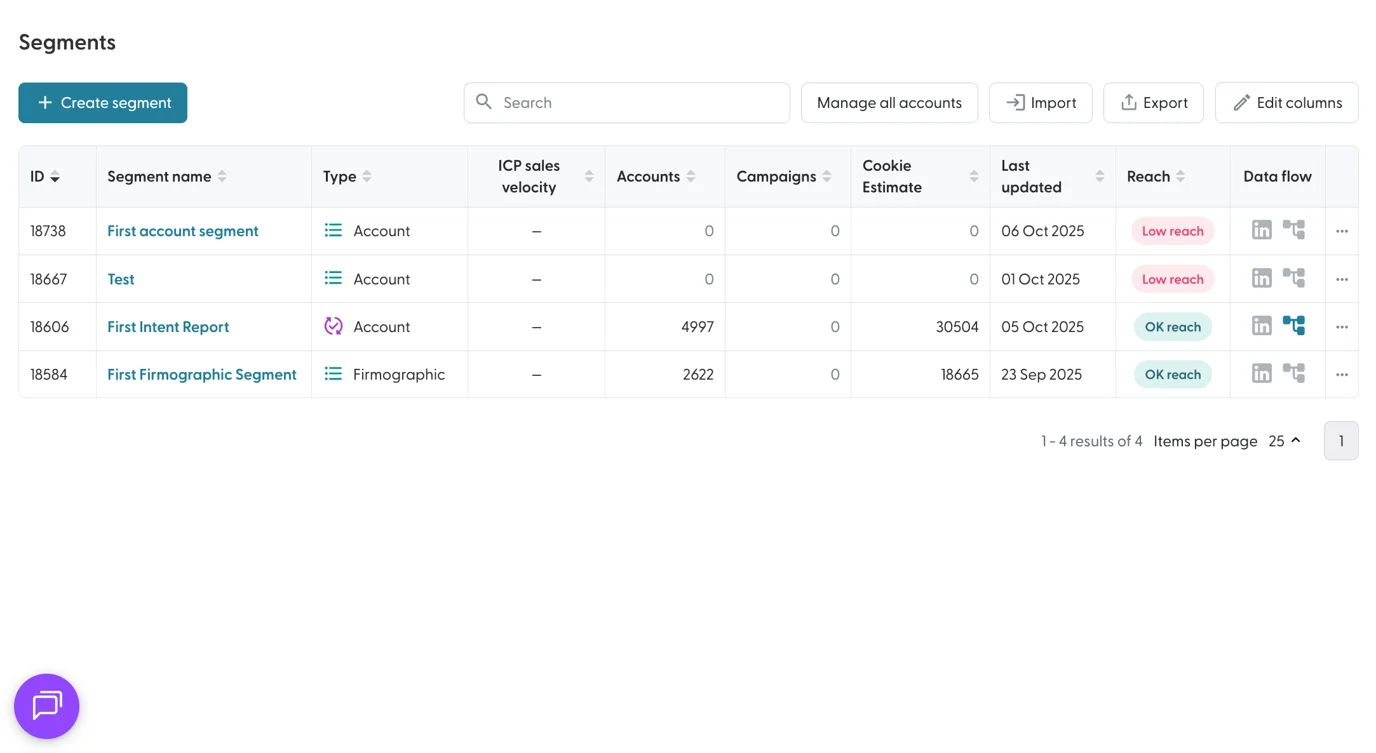
The "+ Create segment" button allows us to create new segments - to jump over the explanation of the table and view above and dive into creating segments, click here.
The table at the centre of the page lists all segments we have created thus far - we can see:
ID - Unique for every segment, often useful when troubleshooting, but also present in the URL of every segment.
Name - The name given to a segment either by you, or by an automation responsible for creating it. Clicking on the name of a segment leads you to the Single Segment View, listing all accounts that exist within this segment.
Type - Type of the segment and its corresponding icon. A circular icon indicates a dynamic segment, while a stack indicates a static segment.
ICP Sales Velocity - the calculated sales velocity score of the entire segment.
Accounts - The number of accounts within the segment in question.
Campaigns - Number of campaigns currently active and targeting the segment in question.
Cookie Estimate - The estimated number of cookies we can target across this entire segment.
Last Updated - When did the segment last get updated.
Reach - Either Low, OK or High reach.
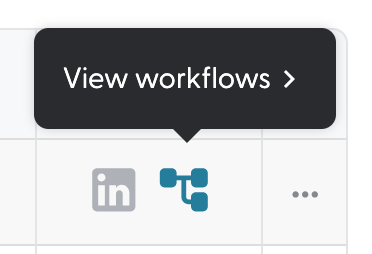
Data Flow - Featuring two icons, for LinkedIn and Workflows:
LinkedIn: While the icon is grey, clicking on it will sync this segment LinkedIn, creating a matched audience.
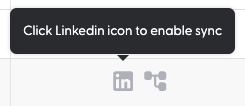
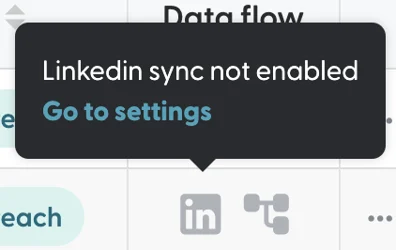
A pre-requisite for this is connecting your LinkedIn Ad or Business account.
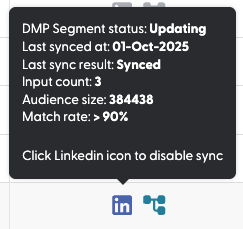
While this segment is actively syncing, the icon will gain colour. Hovering over it will reveal the sync details. Clicking on it again will disable the sync:
Workflows A grey icon indicates no workflows influence this segment. An icon in colour indicates one or more workflows affect the segment in question. Clicking on it will lead to the filtered view of Workflows with just the ones affecting this segment.
The Three Dots icon reveal Segment operations - giving you the ability to Edit, Rename, Export, View the change history or delete the segment in question.
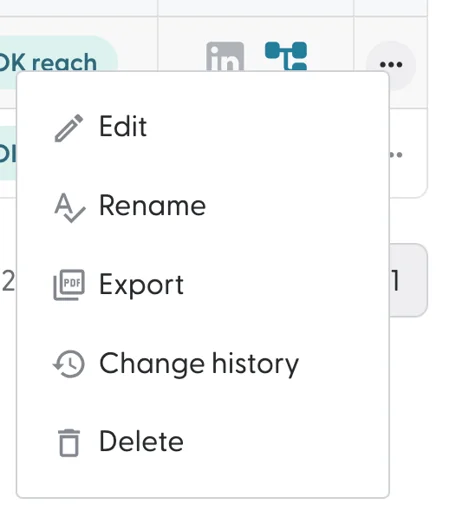
Editing the segment leads to the Single Segment View filtered to this specific segment.
Renaming the segment does what the name suggests.
Exporting the segment gives you an .xls file containing the base account details of the segment.
Change history will keep track of every update made to a segment in question by a human being. Automatic changes to segments are not tracked.
Delete will prompt you with a warning before allowing you to proceed.
Deleting a segment is irreversible.
At the top of the table, we can see 5 operational functions:

Search - allowing you to filter Segments by name.
Manage accounts - leading to the Manage All Accounts view displaying all your accounts across all segments.
Import - Launches the Import wizard allowing you to import accounts into an existing or new segment.
Export - Will prompt you to select one or more segments before giving you an .xls file containing the details of the accounts belonging to the selected segments.
Edit columns - controls which columns of the Segments table should be visible. By default all available columns are visible.
To return to the primary Segments article, click here.