What do the stats and columns in a segment mean?
Last updated: October 7, 2026
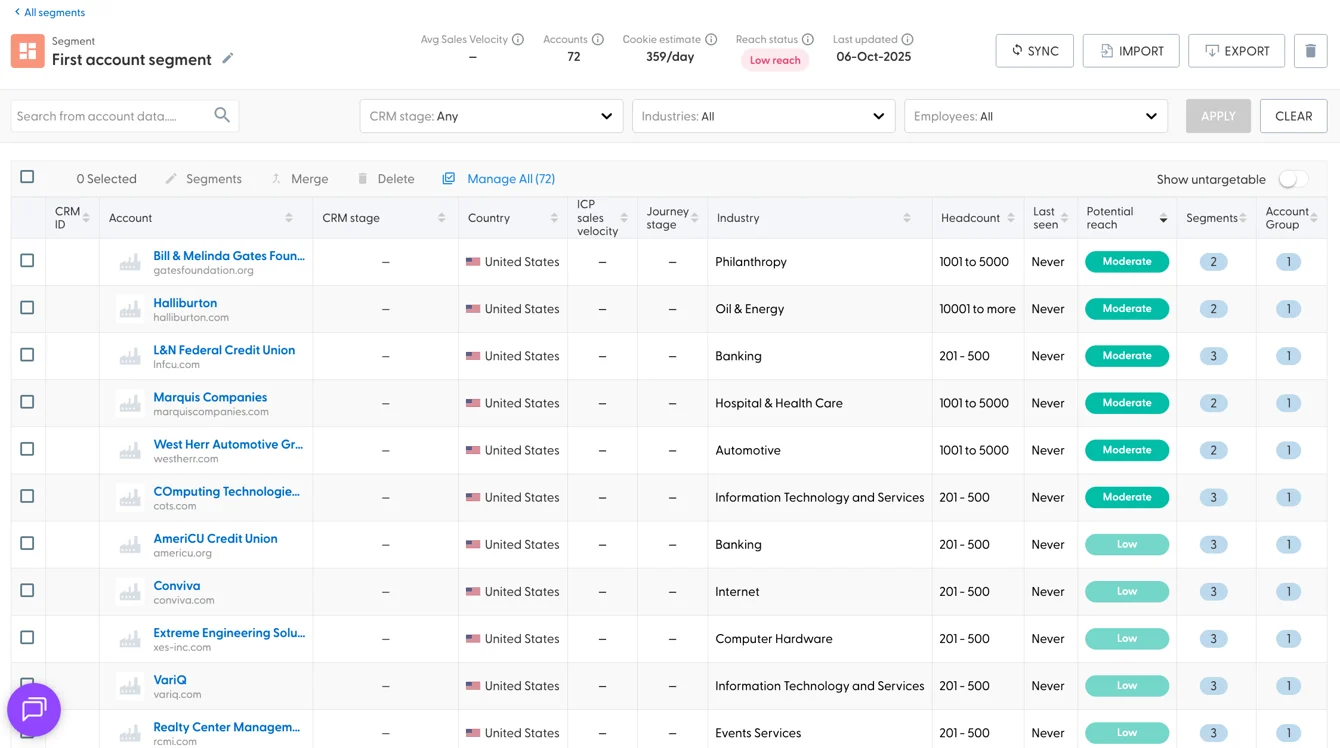
When you open a segment, you see its key stats, action buttons, filters and a table of its accounts. Use this page as a reference for what each part shows.
Segment stats
At the top left is the segment name. Click the pencil icon to rename it. Next to it you see:
Average sales velocity: the average Sales Velocity ICP score of all accounts in the segment.
Accounts: the number of accounts in the segment.
Cookie Estimate: the maximum potential reach of the segment.
Reach status: Low reach or OK reach, based on the cookie estimate. Consider adding accounts to a Low reach segment before you launch a campaign.
Last updated: when the segment last changed, by a person or an automation.
Action buttons
Sync: sync the segment to LinkedIn. See N.Rich Segments & LinkedIn Matched Audiences.
Import: add accounts (account segments only). See How do I import accounts into a segment?
Export: download the accounts. See How do I export accounts from a segment?
Delete (trashcan icon): delete the whole segment. This can't be undone.
Filters
Use the filters to find accounts in a large segment:
Search from account data: search accounts by name.
CRM stage, Industry and Employee count.
Click Apply to filter the table. Click Clear to remove all filters.
Table actions

Checkbox: select all accounts on the current page. A counter shows how many you selected.
Segments, Delete and Manage All: add, remove or copy accounts between segments. See How do I add, remove or copy accounts between segments?
Merge: combine two or more accounts into one. See How do account groups work, and how do I merge accounts?
Show untargetable accounts: untargetable accounts are hidden by default. They are mainly Internet Service Providers (ISPs): targeting them would mean targeting their users, not the company.
Columns in the table
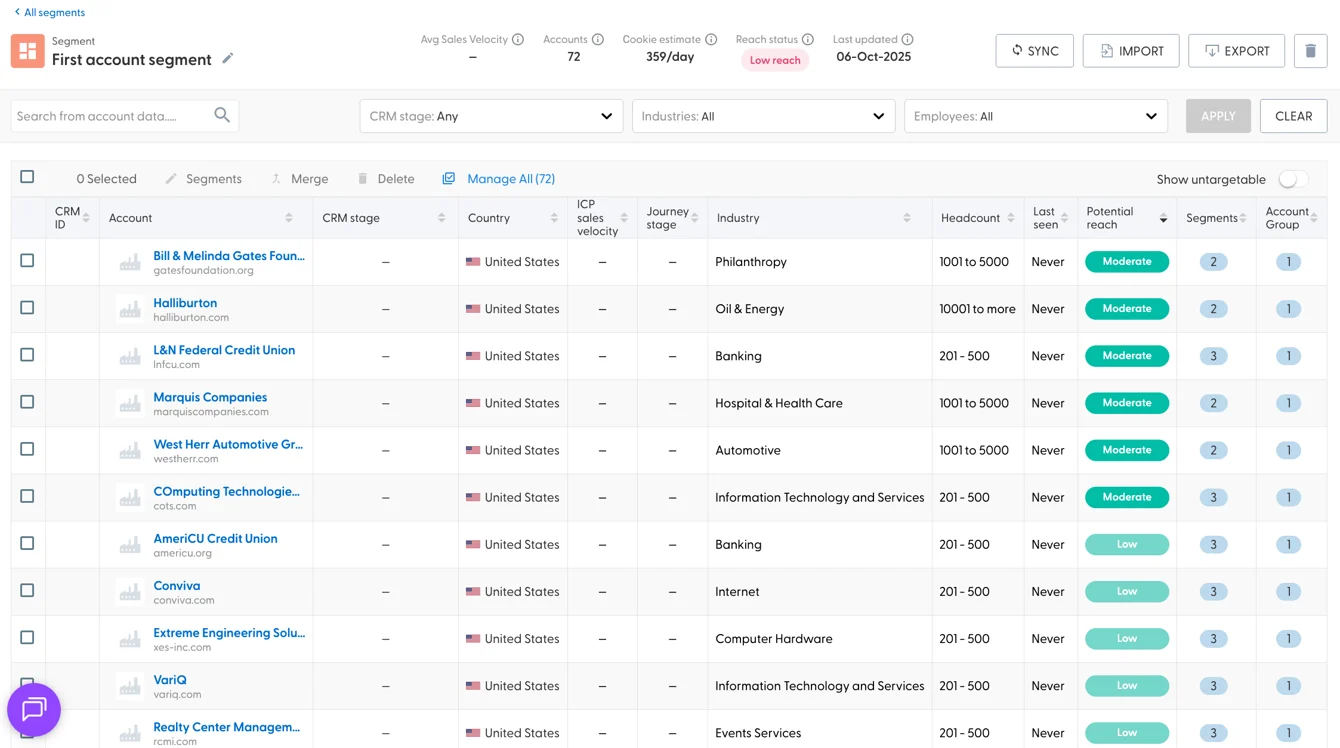
CRM ID: the account's ID in your connected CRM. Blank if no CRM is connected.
Account: the account name and domain, with a link to the account's analytics.
CRM stage: a status based on your CRM data. See Understanding CRM Stages.
Country: the country where the account is headquartered.
ICP sales velocity: the account's Sales Velocity ICP score.
Journey stage: In-market, Engaged or Hot. See the progression analytics article.
Industry: the account's primary industry.
Headcount: the account's size.
Last seen on site: when the account last visited your website.
Potential reach: Low, Moderate or High, based on the cookie estimate. The higher the potential reach, the higher the engagement you can expect. Internet Service Providers show Untargetable.
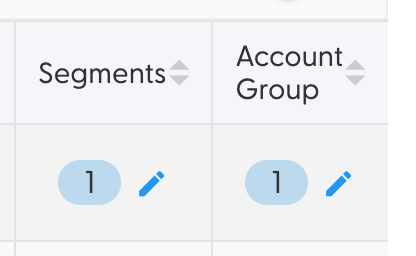
Segments: the number of segments the account belongs to. Hover and click the pencil icon to add the account to, or remove it from, other segments.
Account Group: the number of entities (domains and CRM records) grouped under this account. Hover and click the pencil icon to open the account details.
Account details panel
The side panel has three tabs:
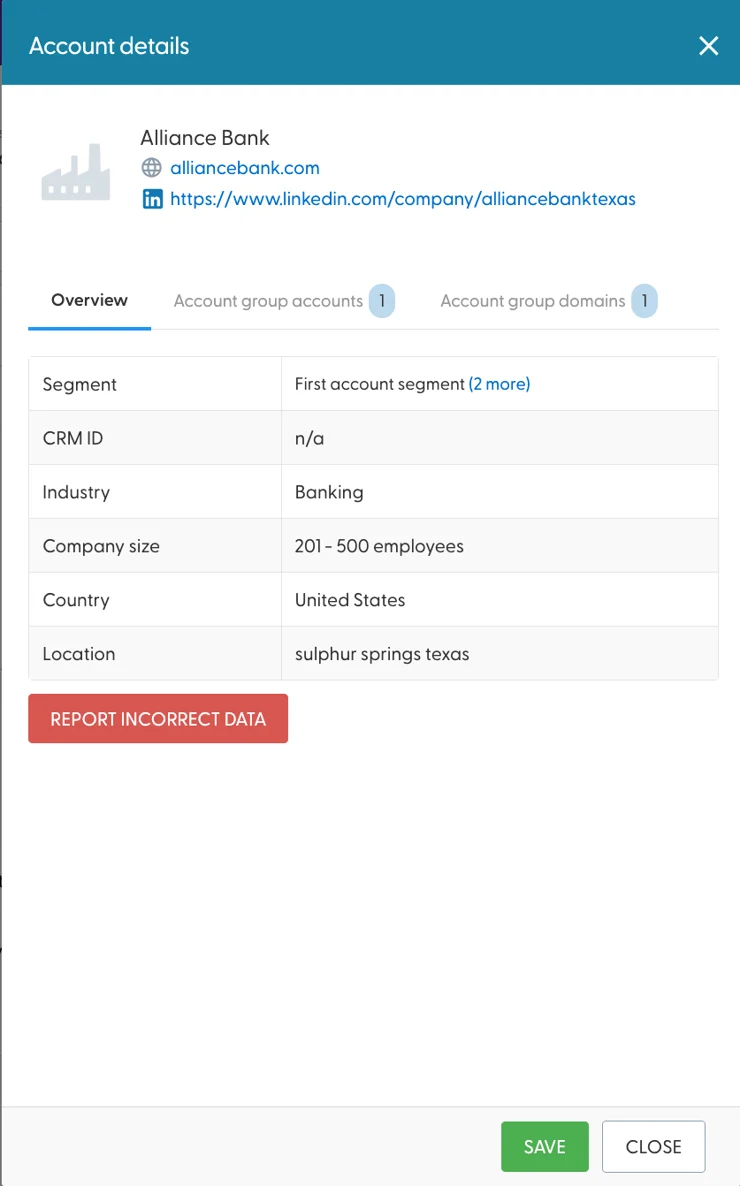
Overview: company details, with an option to report incorrect data.
Account group accounts: other accounts merged into this one.
Account group domains: all domains of this account. You can add more domains here.
For how account groups work, see How do account groups work, and how do I merge accounts?
What's next
Need help? Reach out to your Solutions Engineer via the chat in the bottom-left corner of the N.Rich platform, by email or Slack.