How to sync a segment to LinkedIn as a matched audience
Last updated: October 9, 2026
Turn on LinkedIn sync for any N.Rich segment to create a LinkedIn matched audience you can target in LinkedIn Campaign Manager. You manage the audience in N.Rich only.
Before you start
Your LinkedIn Ads account must be connected and Automatically sync LinkedIn data must be on. See How to connect LinkedIn to N.Rich.

Why use it
LinkedIn complements N.Rich ABM: LinkedIn shows ads on its own network, while N.Rich uses programmatic display and the Google Display Network, so there is very little overlap. Syncing means you build and manage target account audiences in one place. Example use cases:
Run persona-based campaigns to high-intent segments (net new, engaged or hot).
Generate persona-based form fills (leads) from any N.Rich segment.
Use N.Rich ABM as a cost-efficient warm-up channel and target on LinkedIn only the accounts showing clear intent in N.Rich.
Turn on sync for a segment
Go to the Segments page and find the segment.
Find the LinkedIn icon in the segment's row. Grey means the segment is not synced.
Click the LinkedIn icon and confirm in the prompt to start the sync.
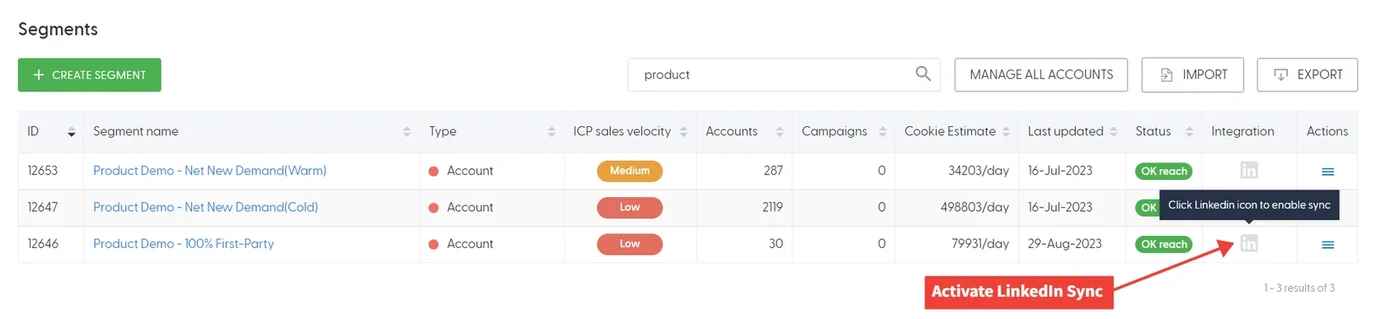
The icon is now in colour, which means the segment is syncing. A matched audience is created in your LinkedIn Ads account. Hover over the icon to see the sync status.
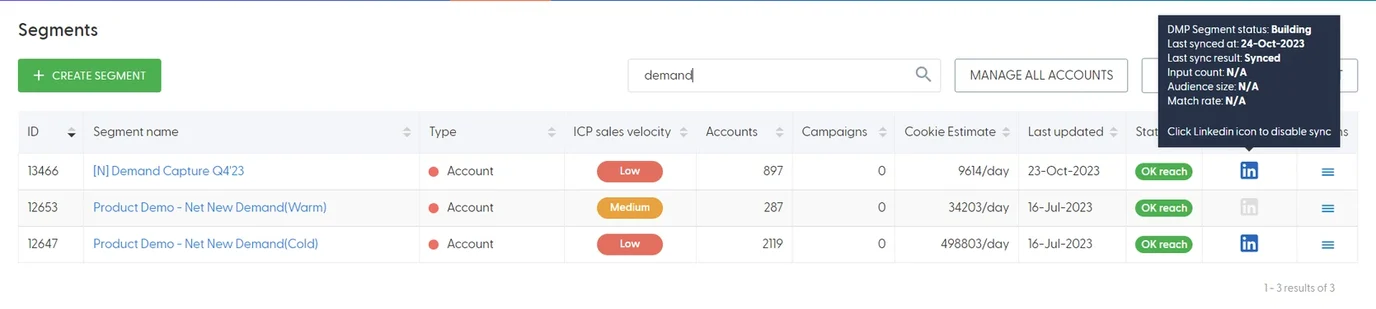
A LinkedIn matched audience in the building phase.
To stop syncing a segment, click the LinkedIn icon again.
Intent report segments
Each intent report automatically gets a segment with a matching name in the Segments table. To create a LinkedIn matched audience from an intent report, turn on LinkedIn sync for that segment.
How long it takes
Building a new matched audience takes up to 48 hours.
Changes to the segment, such as accounts added or removed, reach LinkedIn within up to 48 hours.
Each sync sends both added and removed accounts.
Accounts are matched to LinkedIn by company domain.
Use the audience in LinkedIn Campaign Manager
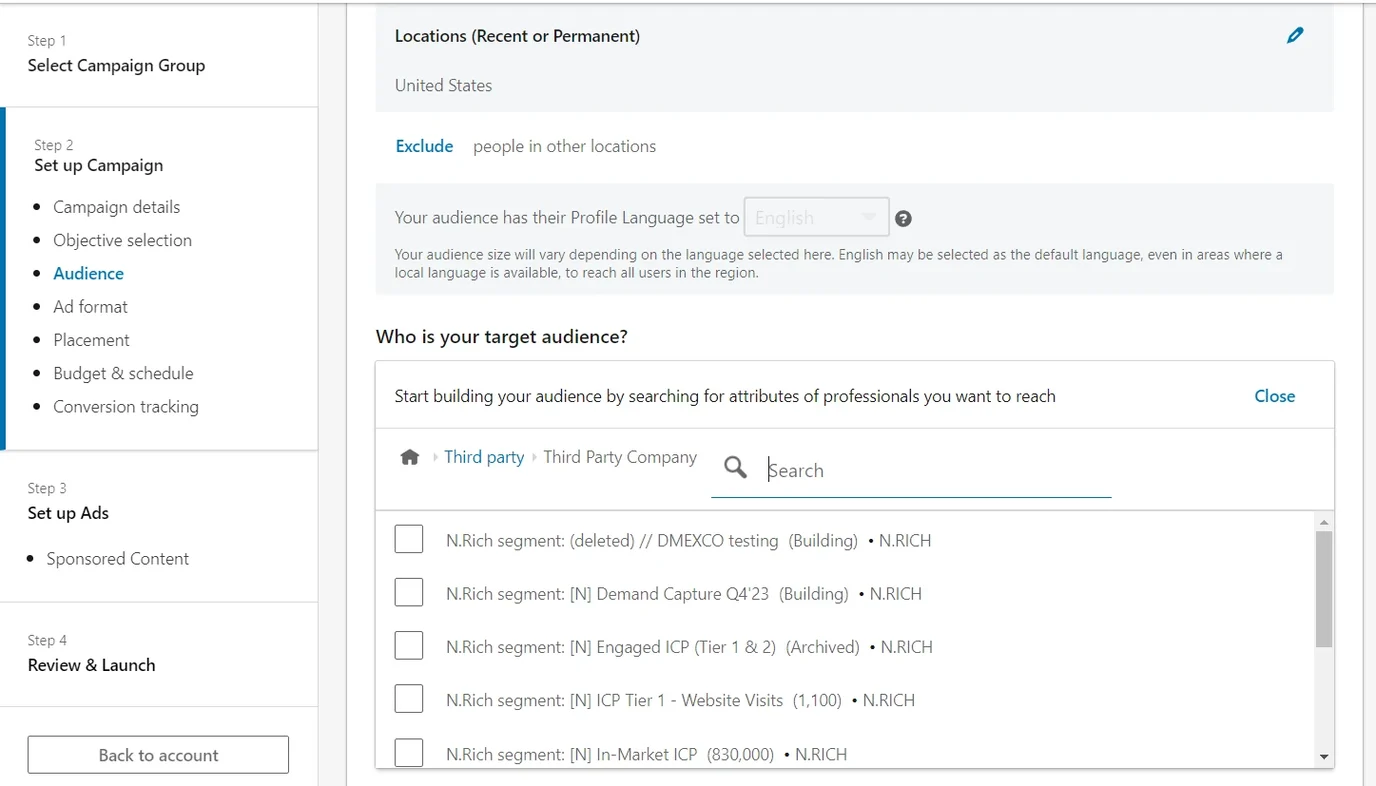
N.Rich segments appear in LinkedIn as matched audiences. You can find them in two places:
Plan > Audiences
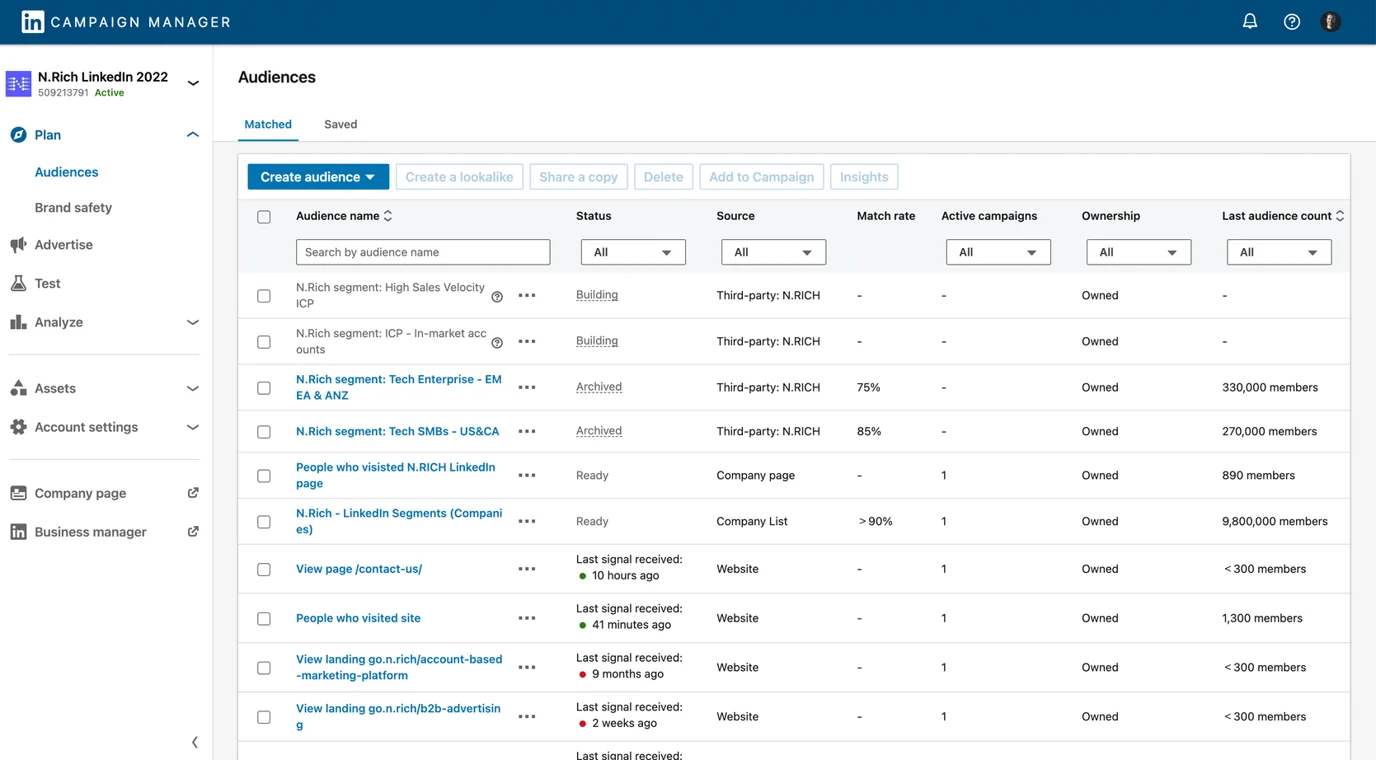
During campaign creation, in the audience selection step.
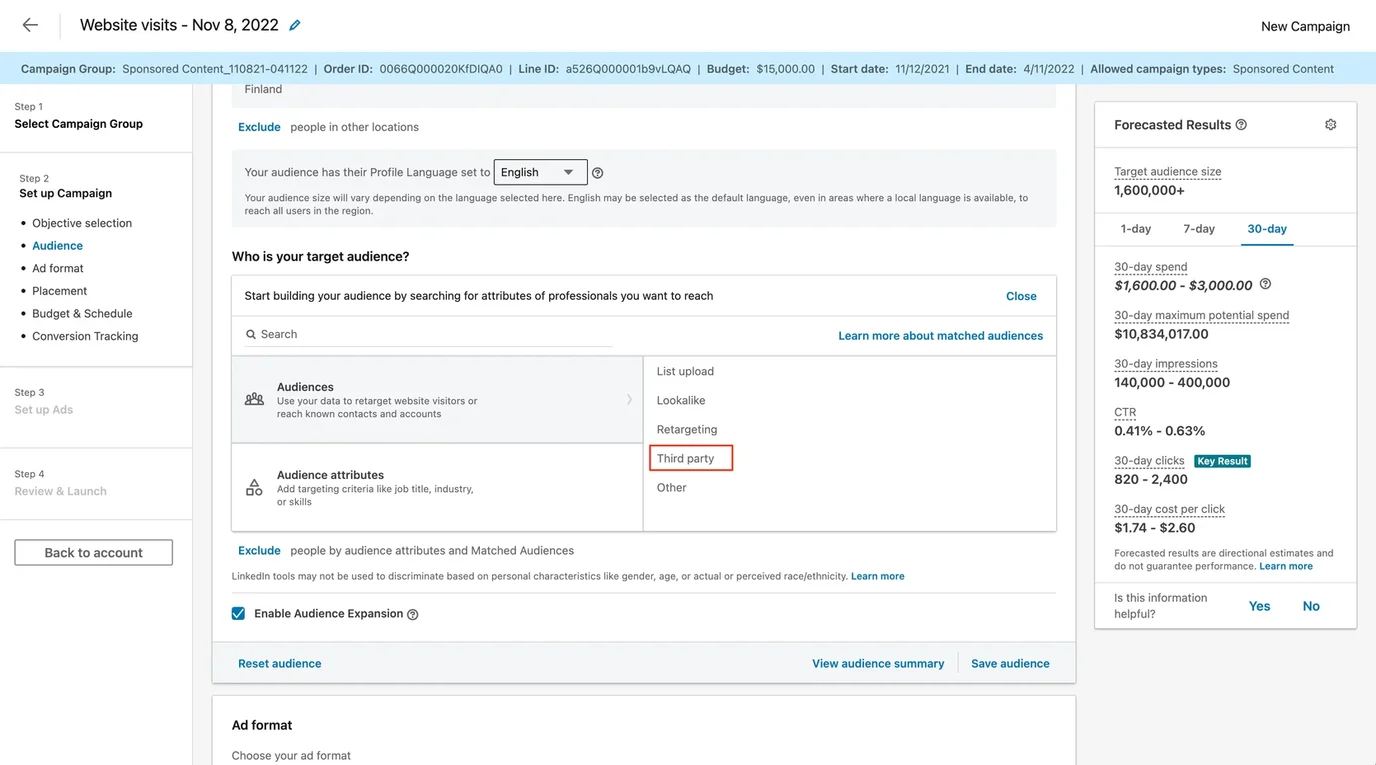
During campaign creation, go to the target audience selection, choose to narrow or exclude your audience, then select Audiences > Third party > Third party company. You see all third-party audiences in your account, including the ones from N.Rich.
Unused audiences
LinkedIn archives matched audiences that are not used in a campaign for 30 days. Using the audience in a campaign again unarchives it.
What's next
Need help? Reach out to your Solutions Engineer via the chat in the bottom-left corner of the N.Rich platform, by email or Slack.