How do I add, remove or copy accounts between segments?
Last updated: October 7, 2026
The same account can be in as many segments as you need. Add selected accounts to other segments, delete them, or copy a whole segment into another one.
Add selected accounts to other segments
Open a segment and tick the accounts you want. The checkbox at the top selects all accounts on the current page.
Click Segments and choose the existing segments to add the accounts to, or create a new segment.
To change the segments of a single account, hover over the number in its Segments column and click the pencil icon. You can add the account to other segments or remove it from them.
Delete selected accounts
Select the accounts and click Delete.
Copy a whole segment into another segment
Open the segment you want to copy and click Manage All.
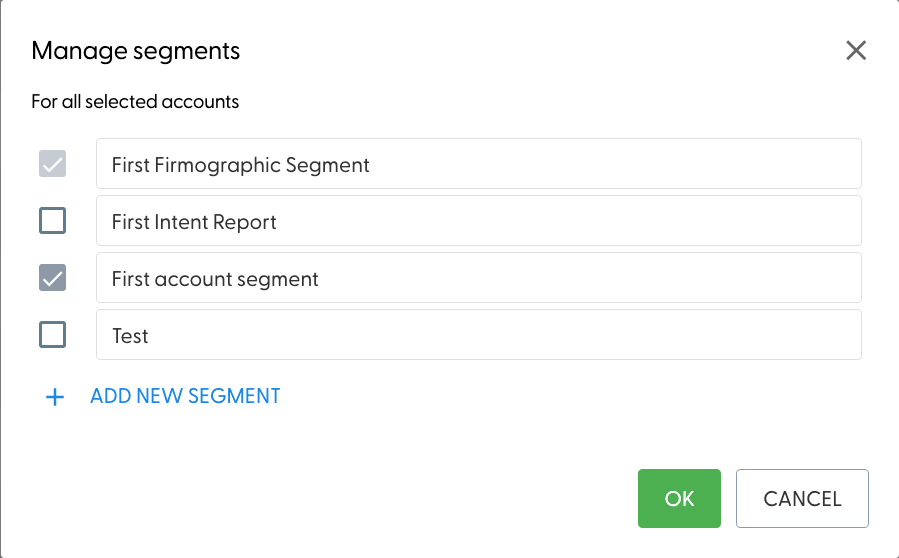
Tick the target segment, or choose + Add new segment, and click OK. All accounts of the current segment are added to the target segment.
Undo a copy
Go back to the original segment and click Manage All again.
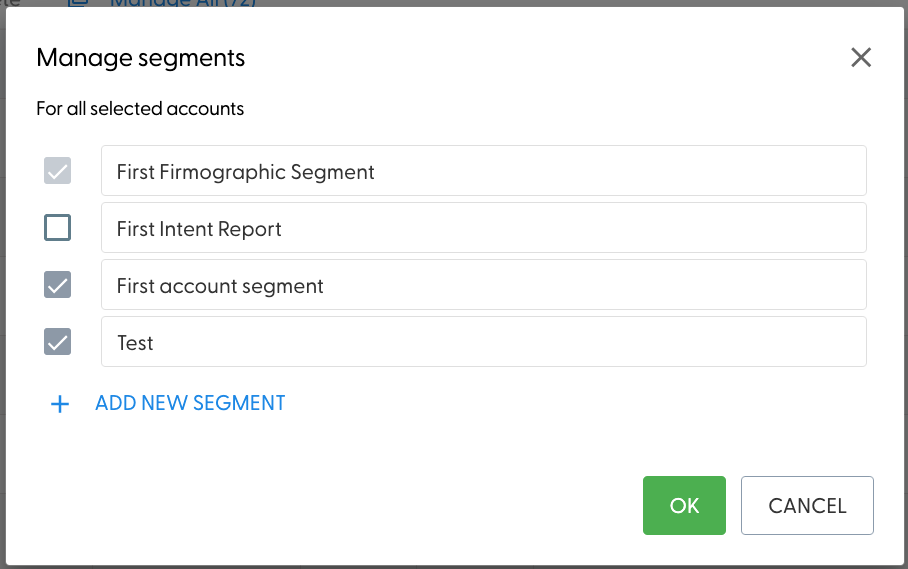
Untick the target segment and click OK. The accounts of the current segment are removed from the target segment.
What's next
Need help? Reach out to your Solutions Engineer via the chat in the bottom-left corner of the N.Rich platform, by email or Slack.