Segments
Last updated: April 2, 2026
All accounts in N.Rich are organised in Segments. This article aims to cover them in detail.
In the Getting started guide, we glanced over creating a single firmographic segment. In this article, we shall go in-depth, and cover everything there is to Segments at N.Rich
First, some basic, ground rules:
You can create as many segments as you wish, regardless of the plan you are on.
The same account can be in as many segments as needed.
Segments can be made by you, made for you by N.Rich or dynamically made over time based on rules you define (see Workflows for more info on this last one)
Three types of segments can be created - Account, Firmographic and Lookalike.
To navigate to the Segments page, click on 'Segments' in the menu - or, click on one of these links (depending on where your N.Rich instance is hosted):
Once there, you will see a page like this:
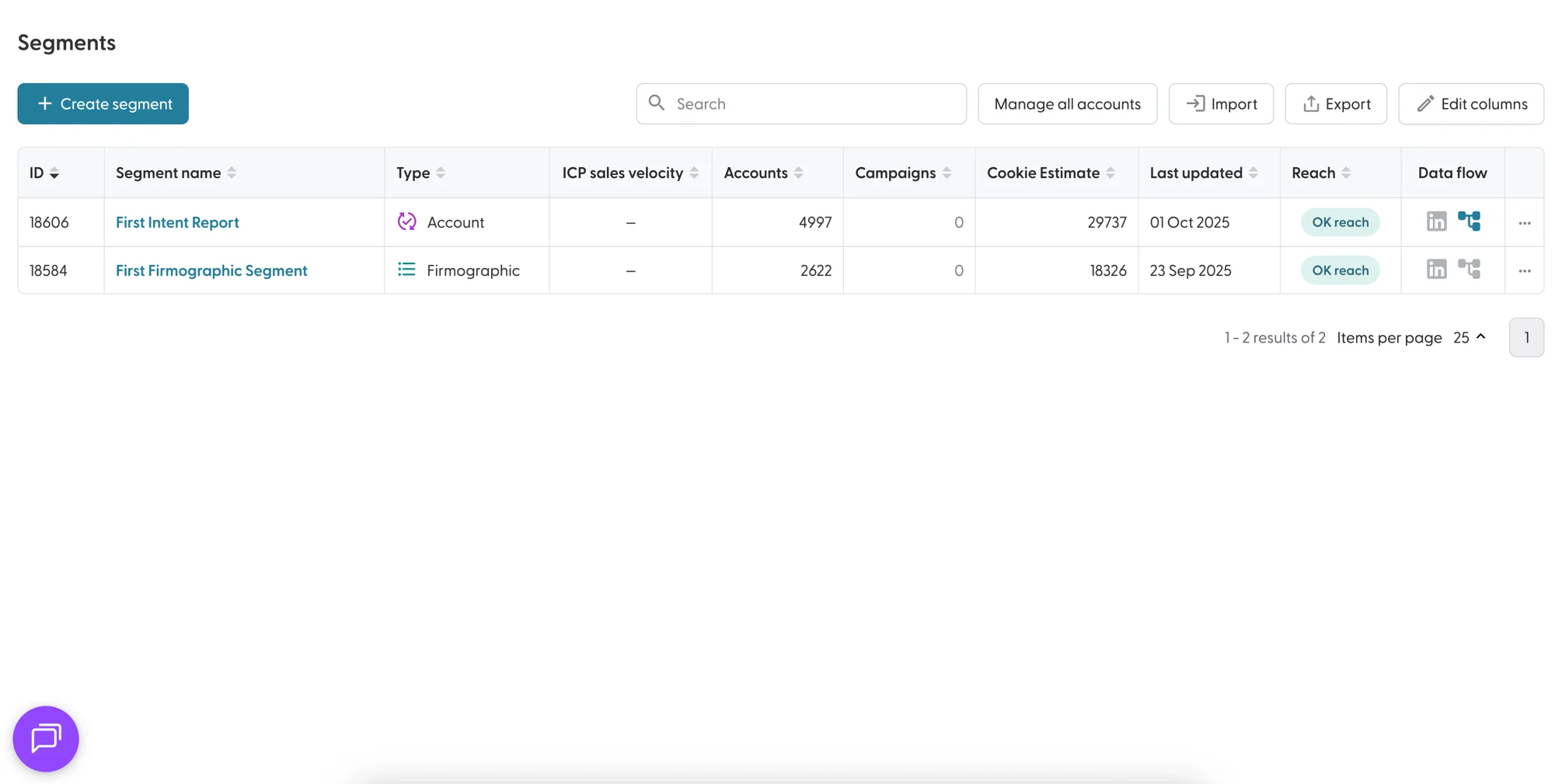
To see a detailed writeup of this page, please see the All Segments View article here.
Creating Segments
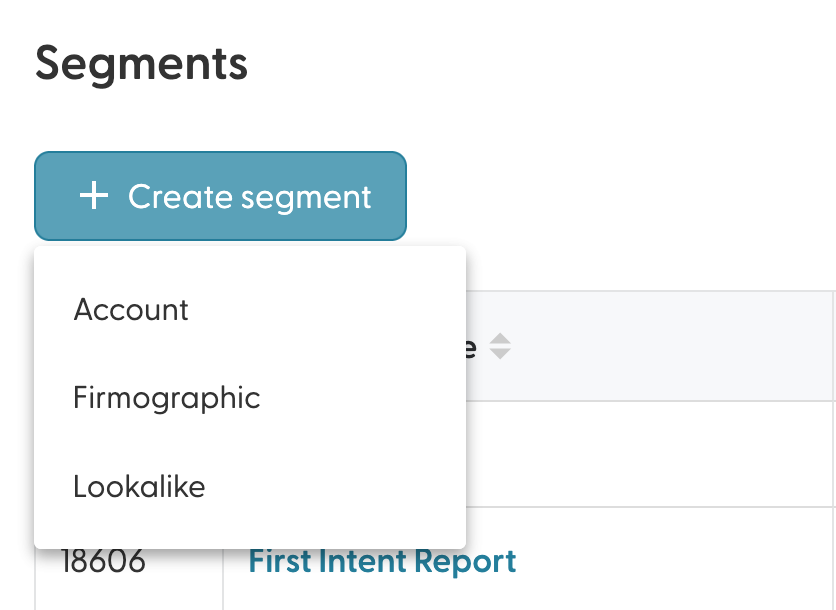
The three types of segments that can be created are:
The primary difference between these segment types is how they are created. By default, all segments are static segments. All segments can be linked to workflows to become dynamic segments. You can only import new accounts into Account segments. Importing accounts into Firmographic or Lookalike segments is not possible. You can export account details from all segments.
Creating Account Segments
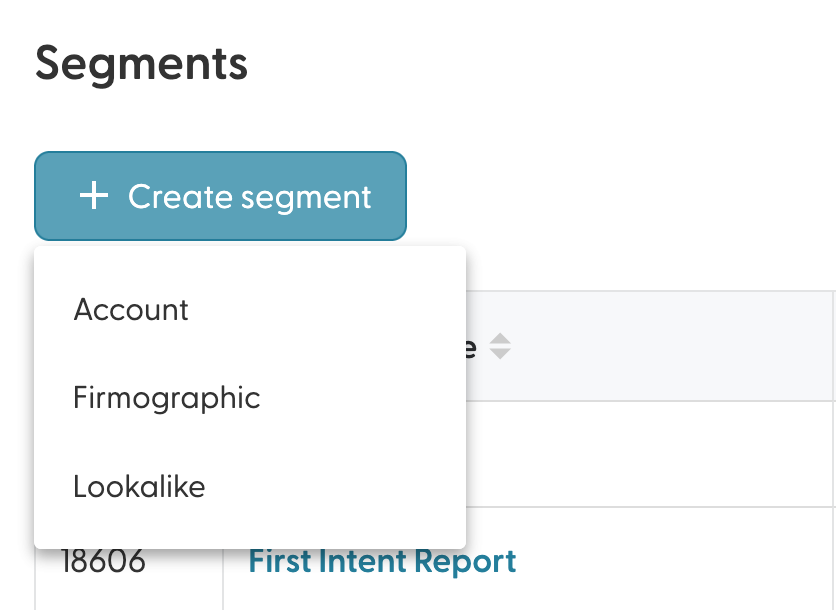
To create an account segment, from the Segments page, click "+ Create segment" and choose Account:
Give your segment a name
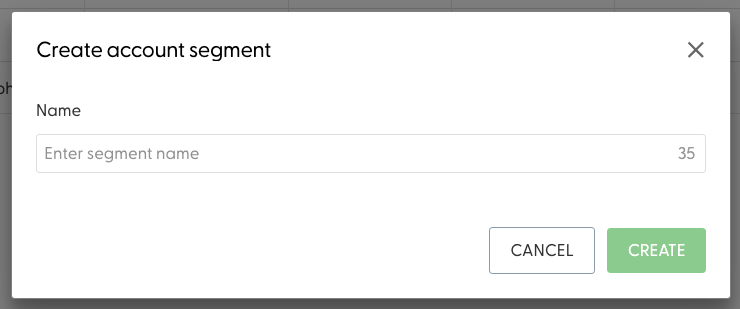
Upon doing so, you are led to the Single Segment view for your new, empty Account Segment.
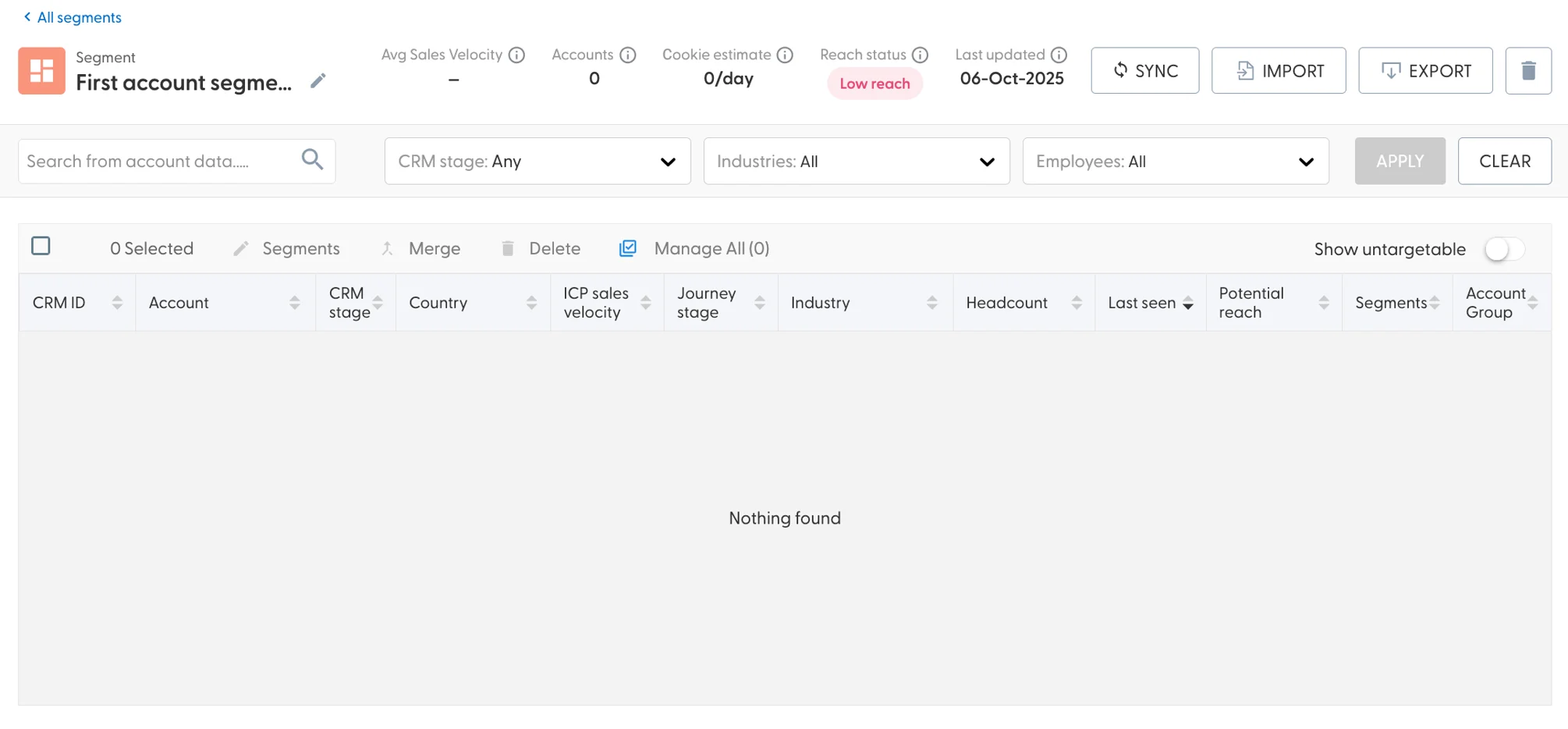
For a deep-dive into the Single Segment View and all options on it, see this article.
Account import
To add your first accounts to your Account segment, select the "Import" button in the top right. This will launch the Import Wizard offering three options:
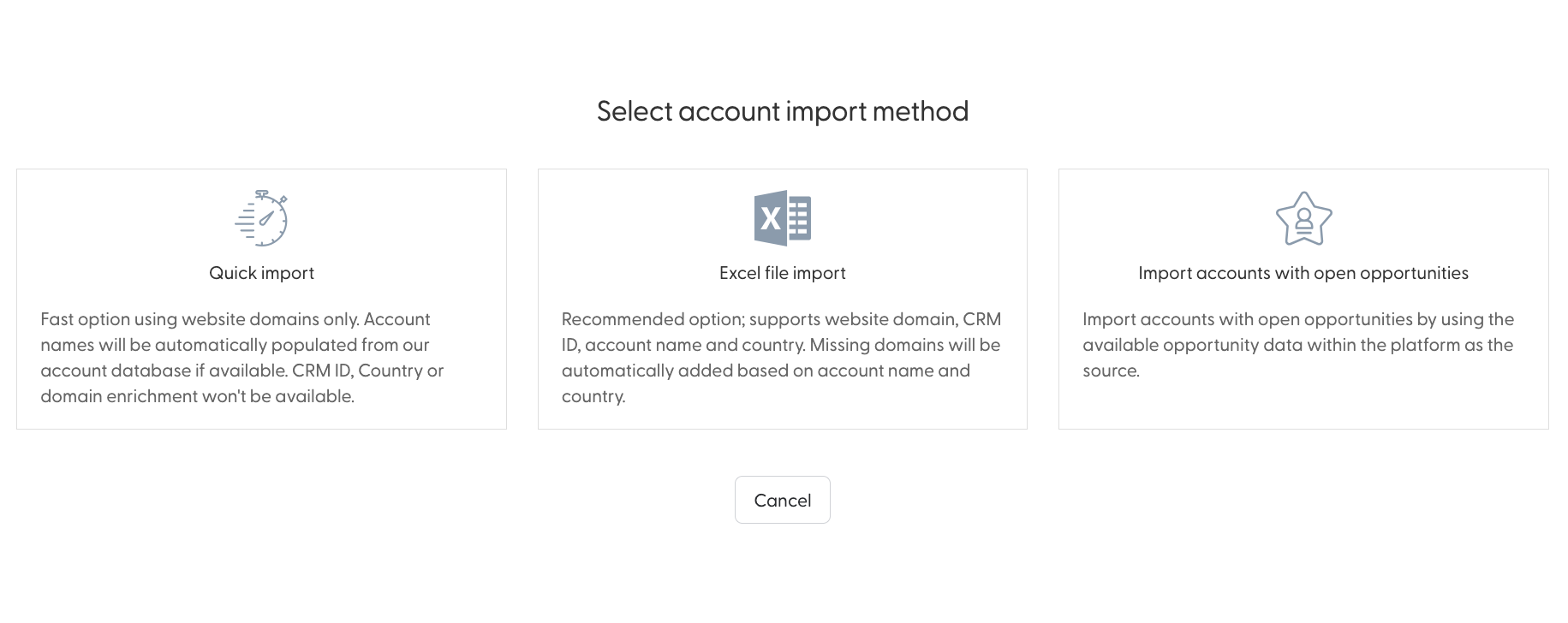
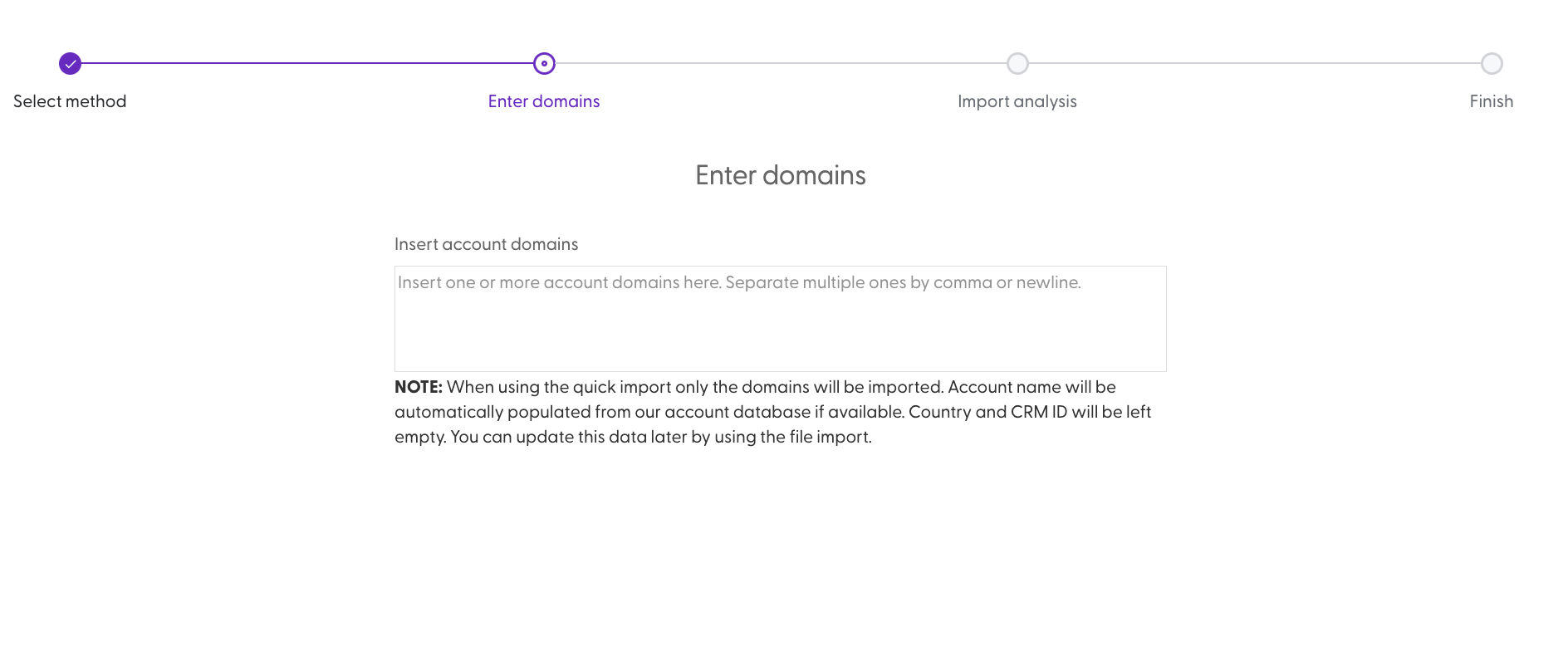
The Quick import is, as the name suggests, the fastest option available. It will take any comma or newline separated list of domains - or even, just a single domain. We will try to automatically populate the account name, but the CRM ID and Country will not be auto-populated. You can, later on, do another excel import to add this info (accounts with a matching name and domain will be enhanced instead of duplicated)
The flow is simple, offering a single text area where you can drop in your list of domains:
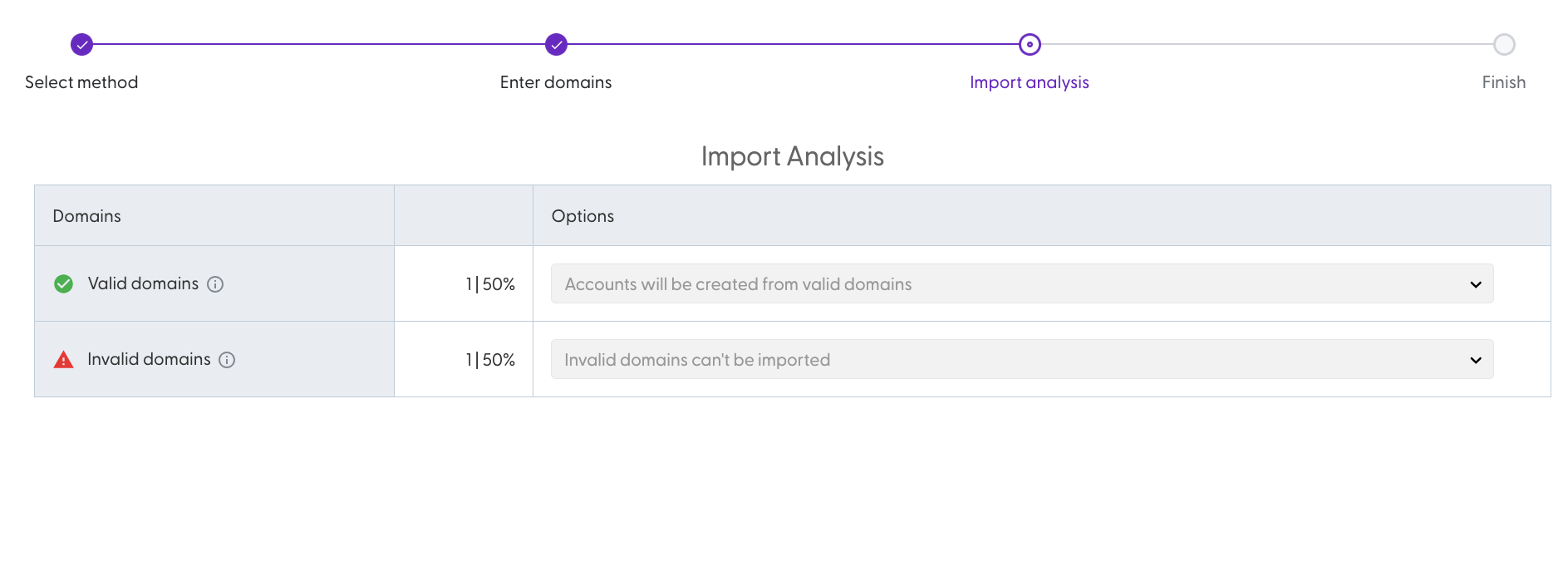
Upon doing so, the platform will tell you whether the domains you have added were valid or not (we will not create accounts out of invalidly formatted domains)
Upon moving forward, a message informing you that the import is underway will greet you. We will additionally send you an email when your import is done (depends on the number of domains you have pasted in)
Excel import on the other hand is a more robust way of adding account data to N.Rich:
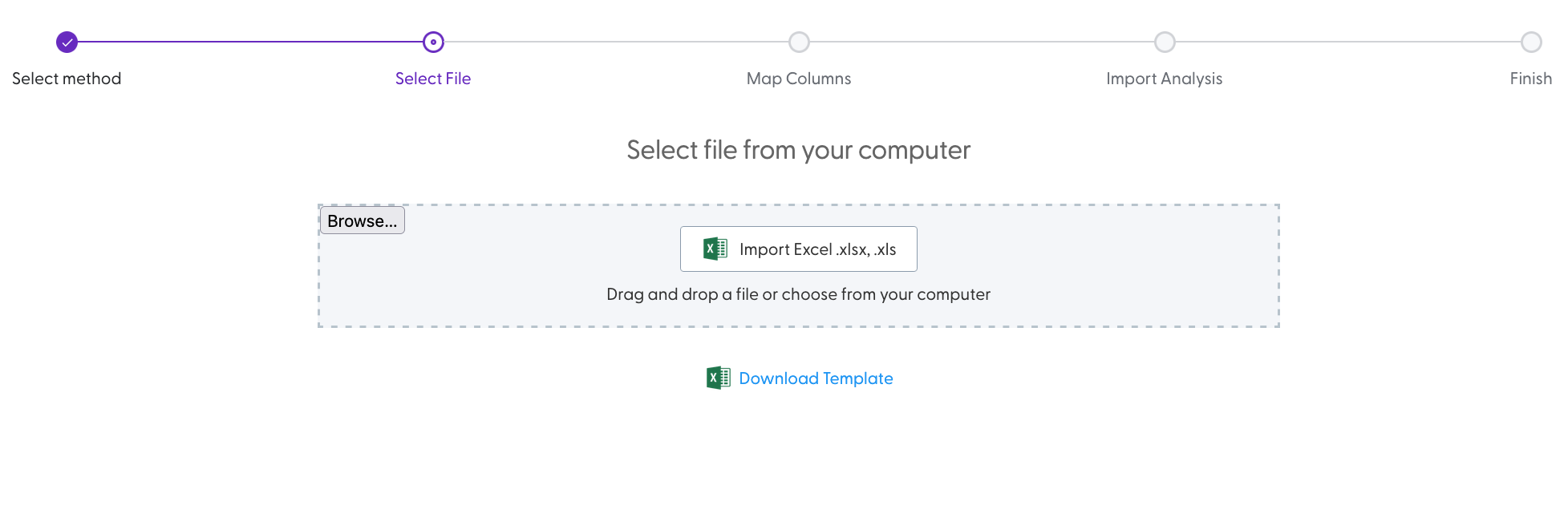
The template for import is available on this page as well. The form will accept all excel files in .xlsx and .xls format, and even if you try importing a different set of columns than the ones in our template, attempt to complete your upload. Upon selecting a file, you can additionally delete it and replace it with a different file.
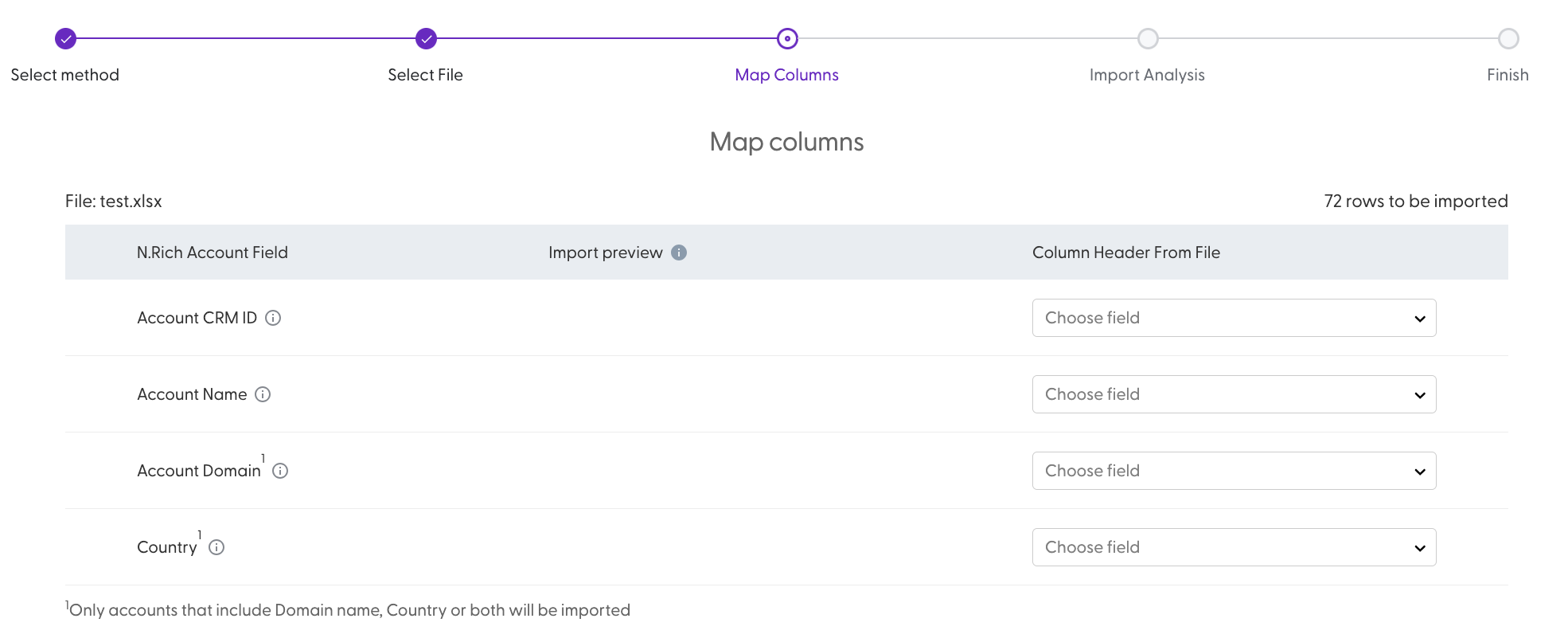
The next step expects you to map the columns from your file against 4 columns we are looking to populate - the CRM ID, Name, Domain and Country of each account. From the drop-downs, select these columns. You will not be able to proceed unless you map:
Only the domain
Account name and Country
Any other combination of fields including the above two
Upon doing so, you will see the import analysis:
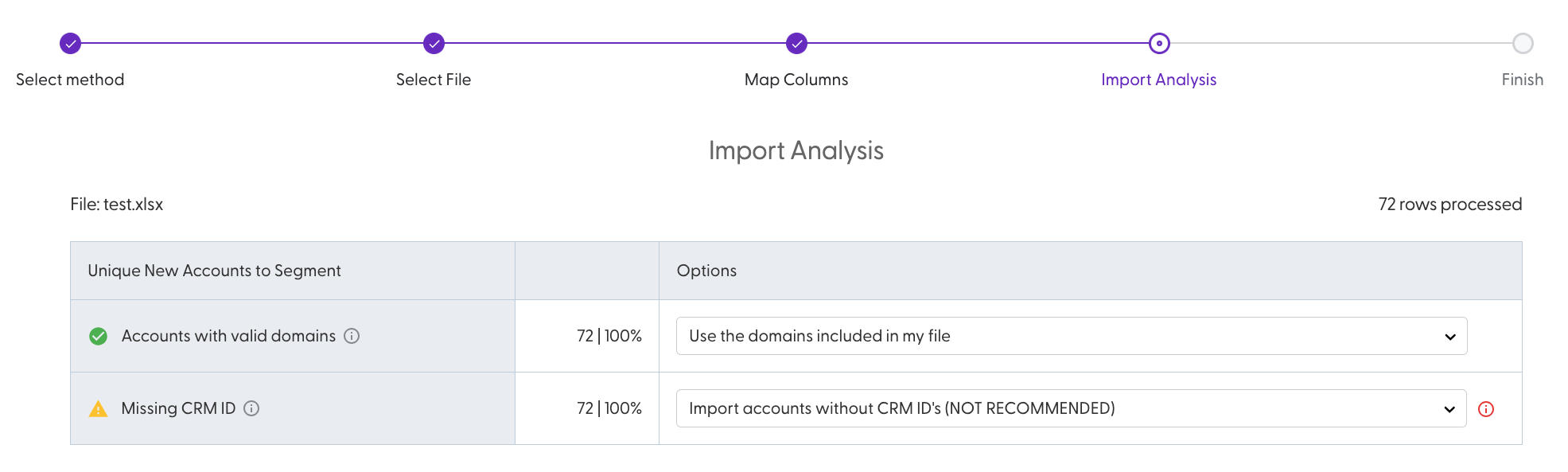
To troubleshoot and explore all possible options of the import analysis, see here.
In terms of the option to Import accounts with open opportunities, it relies on your CRM data as a source where it will pull in any accounts with open opportunities - selecting it will give you an import analysis of accounts that are deemed valid or invalid based on the CRM data present. The same data requirements that exist for Excel import apply here - we need valid domain names, OR account names and countries to successfully import your opportunities.
Creating Firmographic Segments
To begin, click the '+Create segment' button and select Firmographic:
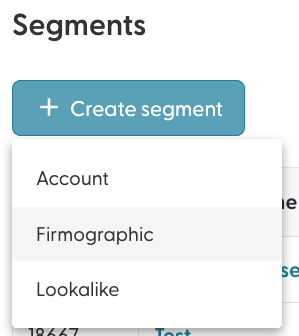
Give your segment a name:
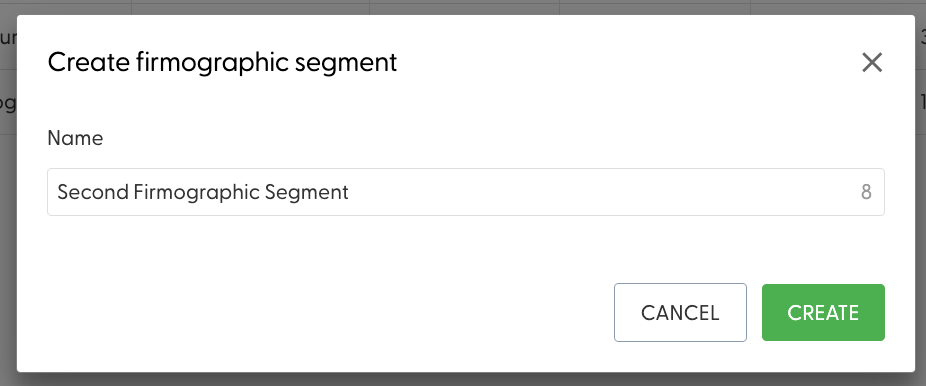
Next, we will see a slightly modified Single Segment View, with an additional Firmographic input area and no import option. You can not import accounts yourself into a Firmographic segment. The purpose of this segment is for N.Rich to, based on the criteria you define, discover accounts that match it and generate a segment for you. These parameters are available:
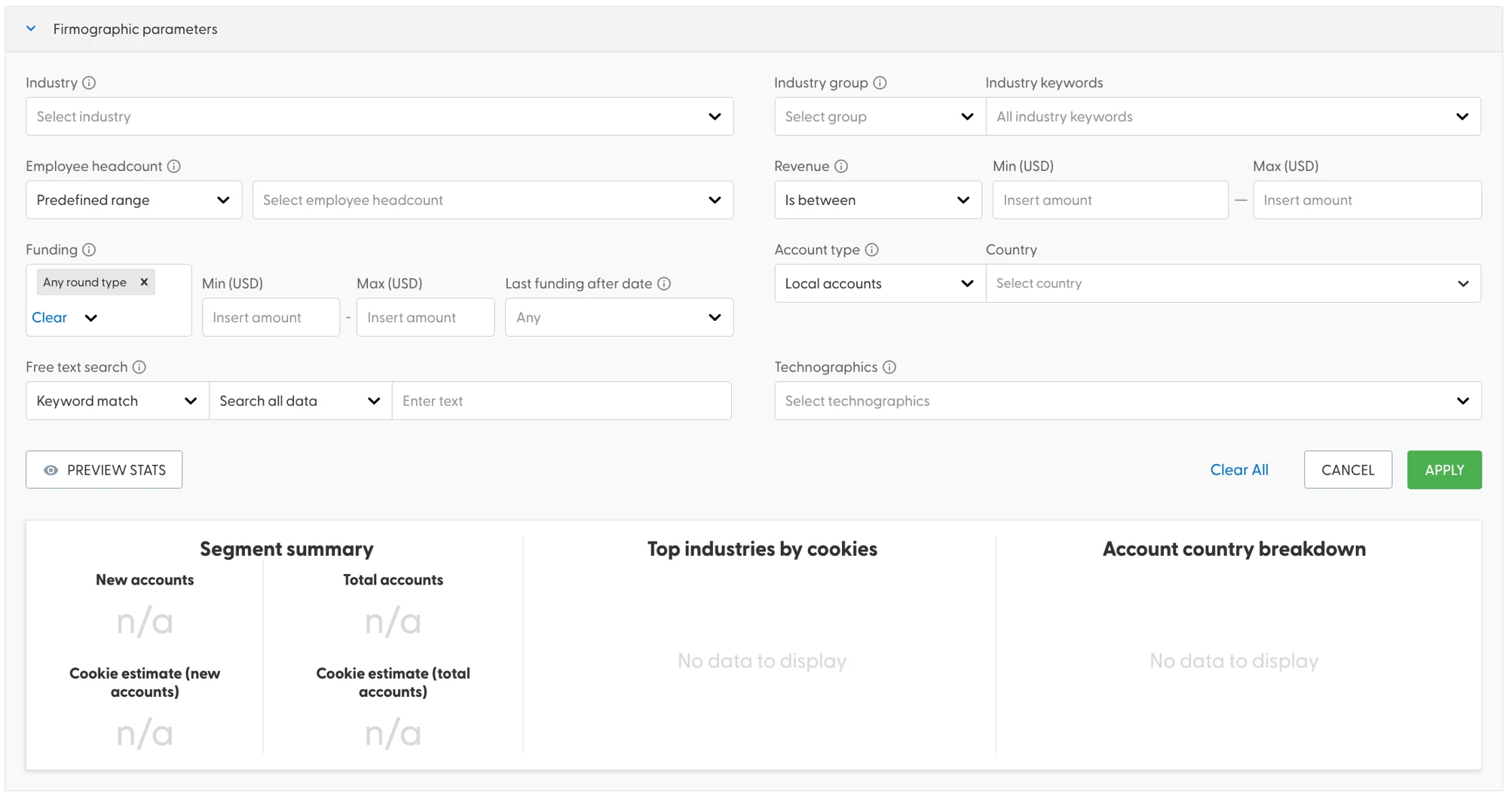
You can define the Industry, Industry group, custom industry keywords, Choose between pre-defined sets of headcount ranges or input your own, custom one.
Select how much revenue should accounts in this segment have OR if it is known/unknown. Choose between different types of funding rounds and define the amount of funding raised as well as when the last round was raised. Choose whether you are after local accounts based in a specific country, international or both.On top of all that, you can also add keywords found in the name and/or description of companies and choose specific technologies the companies in these segment should be using in order to be a match.
Upon making your selection, click on "Preview Stats" in the left to see if your search will yield results:
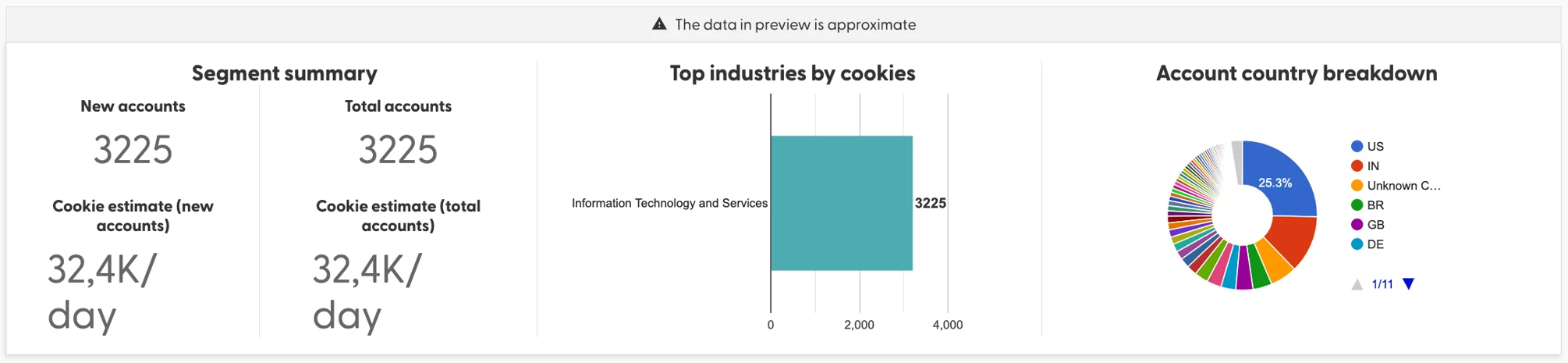
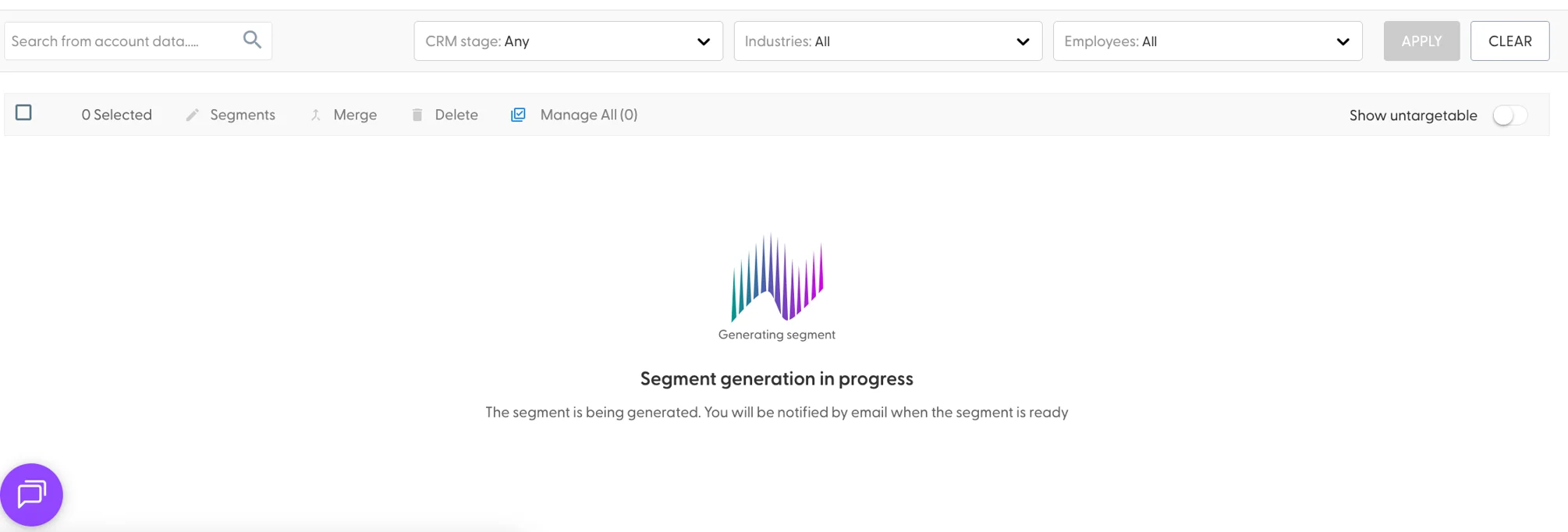
When you are happy with the results, click "Apply" to instruct N.Rich to begin generating your segment. Depending on how large it is, it might take a while. We will send you an email once done.
Creating Lookalike Segments
Lookalike segments are generated based on either an arbitrary list of domains (or email addresses) or one or more existing segments.
To create a Lookalike segment, from the Segments page, click on "+ Create Segment" and choose Lookalike
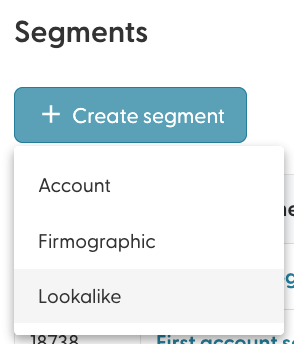
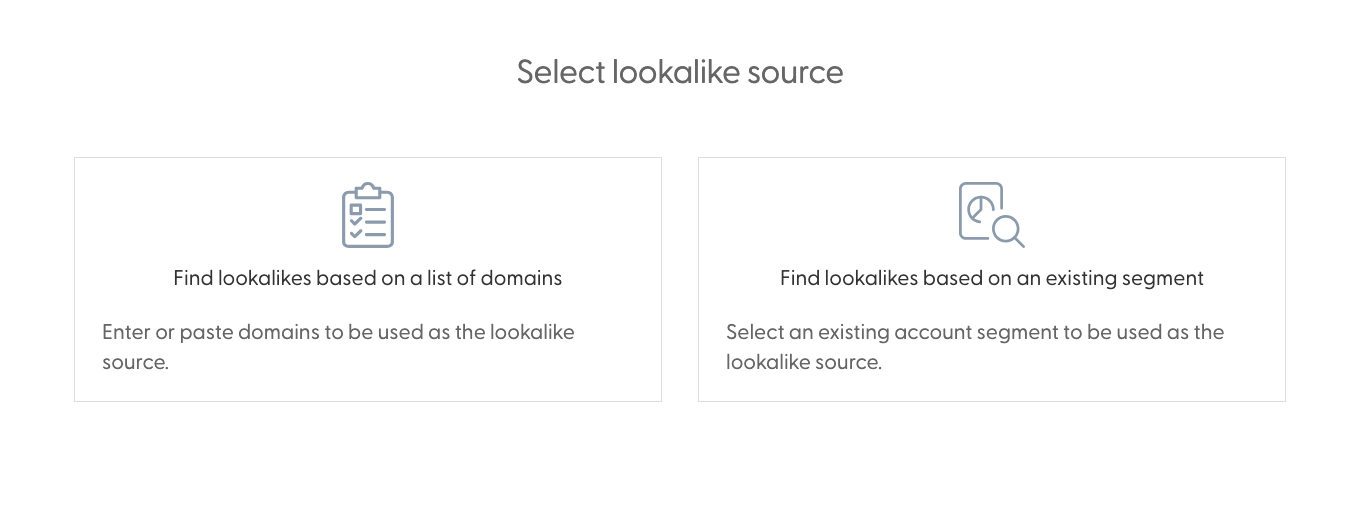
Two options will be available on the resulting screen:
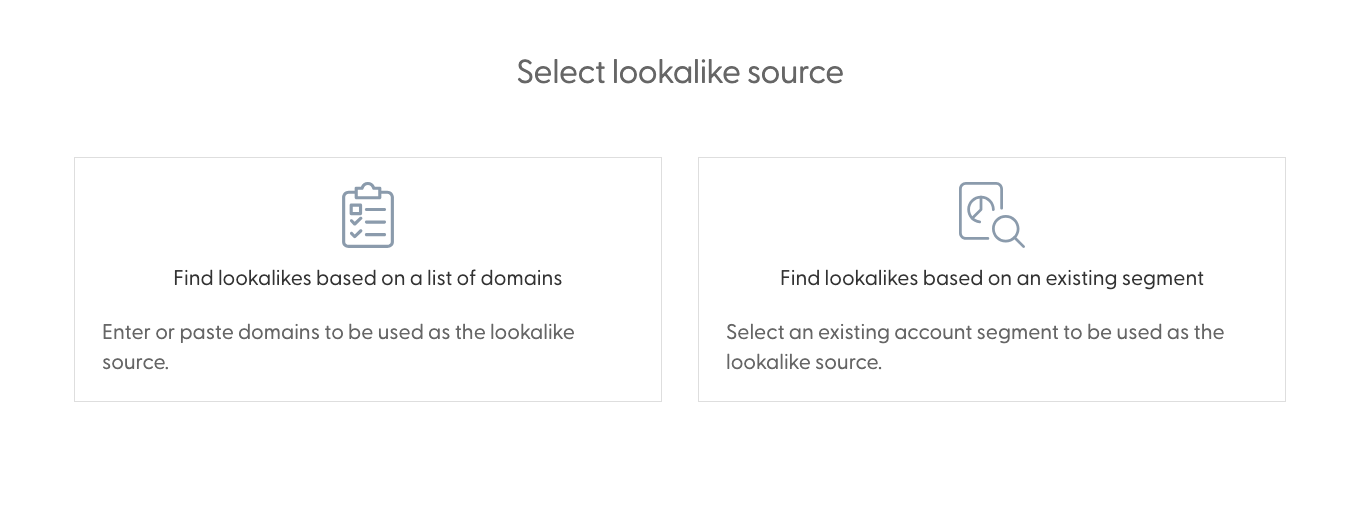
The first thing Find lookalikes based on a list of domains asks for is a list of 25 or more domains or email addresses (or even a mix of two) separated by new line characters:
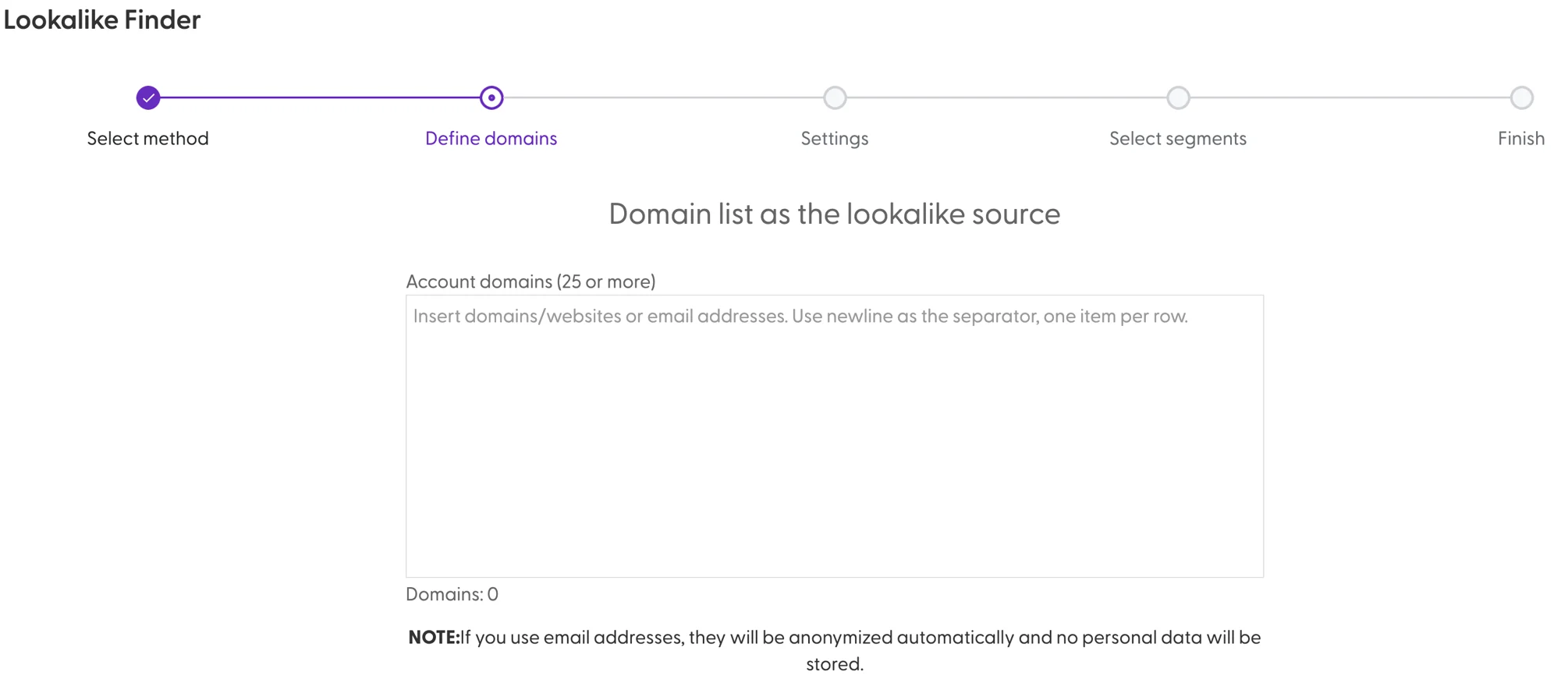
As you add domains or email addresses, the counter at the bottom of the text area will increase to indicate how many domains we are able to recognise. While you can proceed to the next step with less than 25 domains, we do not recommend that you do, as the quality of the lookalike will be lower. The more domains you add here, the higher the quality of the lookalike segments will be. Any email addresses you add to this text box will only be used to extract the domains - this data will not be saved nor used in any other capacity.
Once you are done adding domains, the next page will ask for a few details:
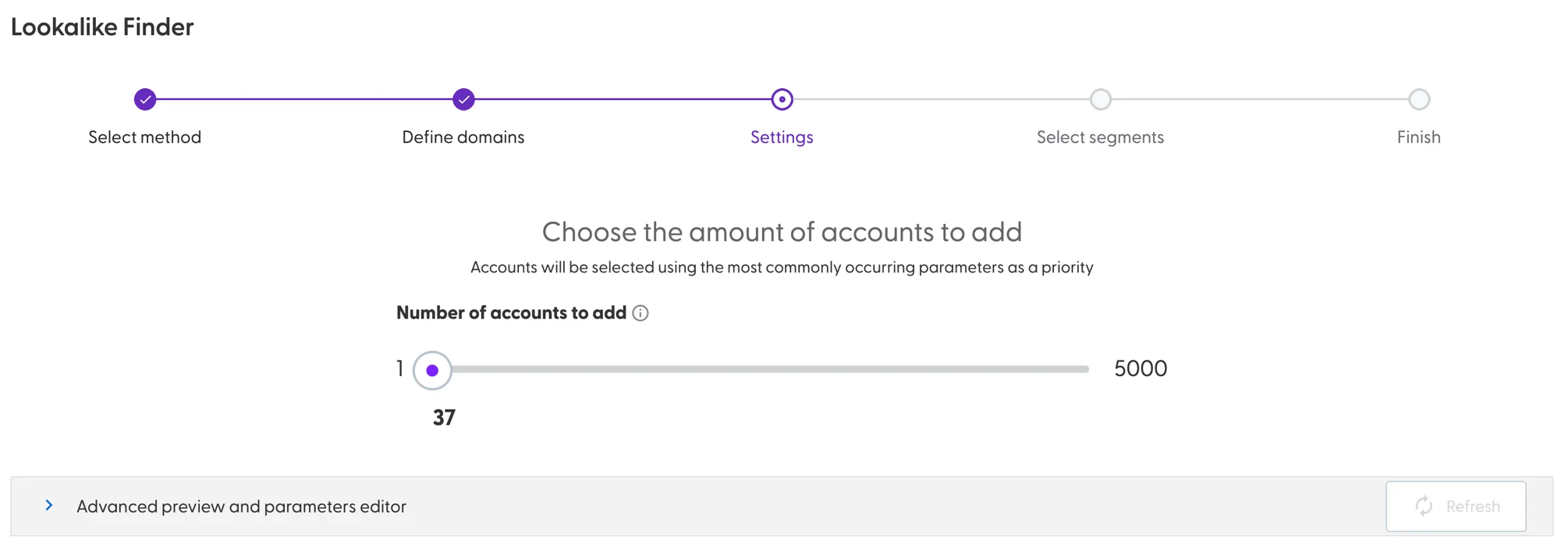
Primarily, how many accounts do you wish the new resulting segment to have - the suggested number of accounts will be generated automatically based on the number of domains you have added in the previous step. You can ask the system to give you less or more accounts, but keep in mind that going above the recommended number will cause the system to generate accounts with lower similarity.
The advanced preview and parameter edit area allows you to specify additional firmographics and technographics regarding your new segment and give those an specific or automatic weight.
Finally, you are asked whether you wish the lookalike accounts to be added to a new segment, or one or more existing segments:
Optionally, you can choose to sync the existing segment with LinkedIn. Once done, N.Rich will begin generating your lookalike segment and when ready, email you that it has been generated.
In order to Find lookalikes based on an existing segment, you first need to select one existing segment (selecting multiple is not possible):
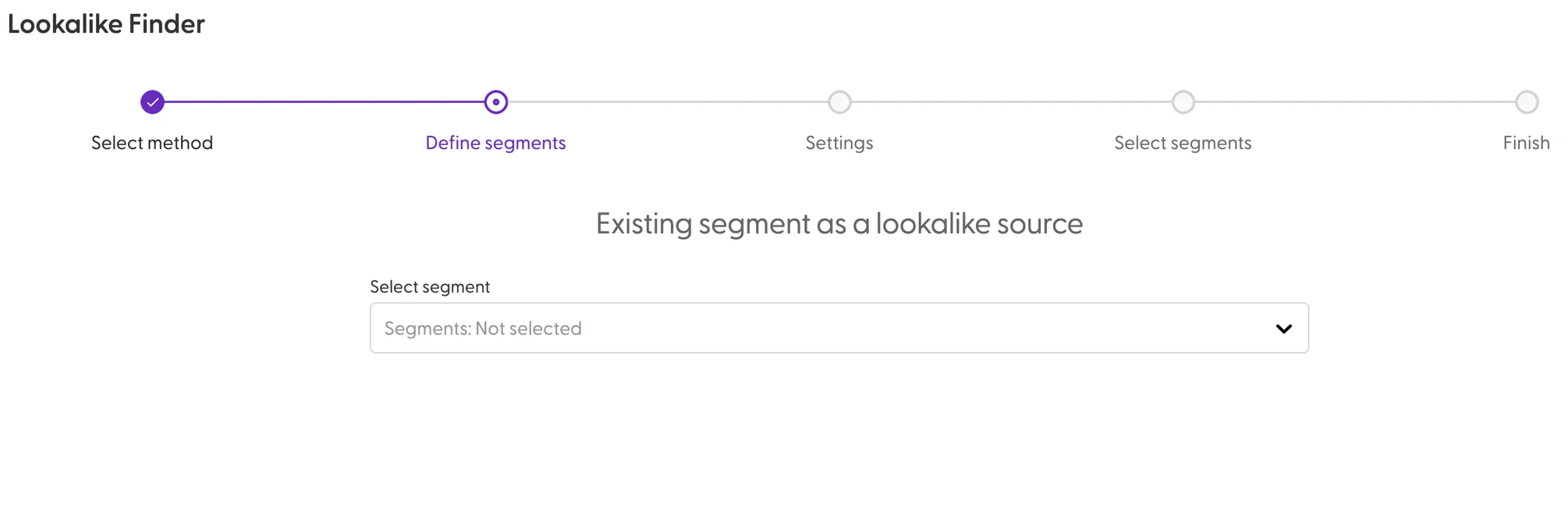
Upon doing so,
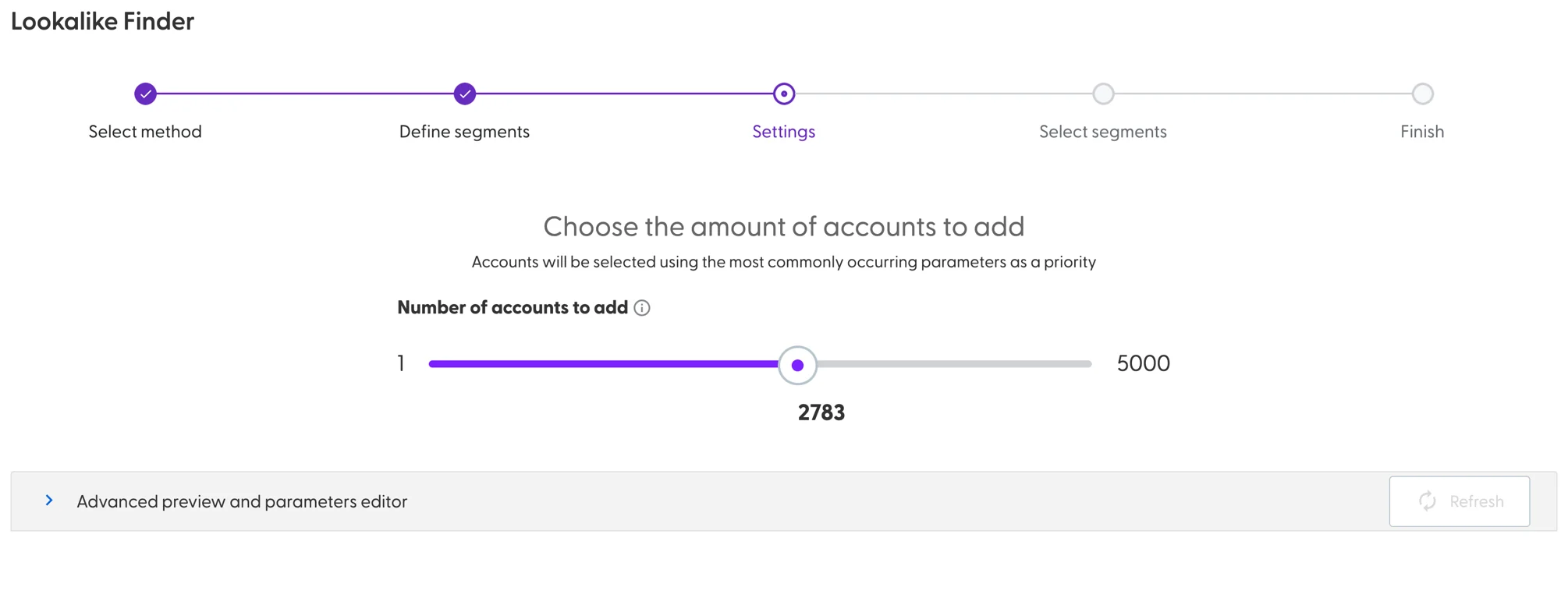
Primarily, how many accounts do you wish the new resulting segment to have - the suggested number of accounts will be generated automatically based on the size of the selected segment. You can ask the system to give you less or more accounts, but keep in mind that going above the recommended number will cause the system to generate accounts with lower similarity.
The advanced preview and parameter edit area allows you to specify additional firmographics and technographics regarding your new segment and give those an specific or automatic weight.
Finally, you are asked whether you wish the lookalike accounts to be added to a new segment, or one or more existing segments:
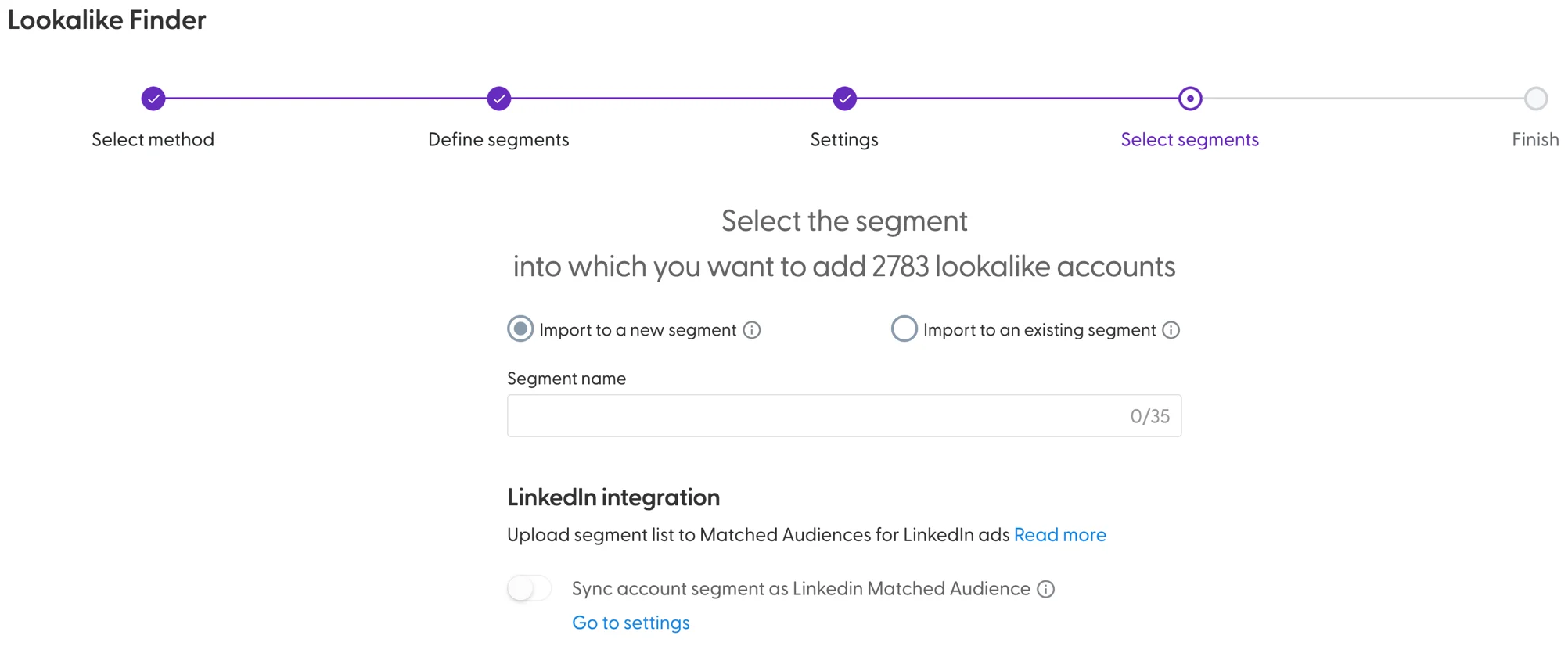
Optionally, you can choose to sync the existing segment with LinkedIn. Once done, N.Rich will begin generating your lookalike segment and when ready, email you that it has been generated.
Synchronising segments with your CRM (HubSpot only)
As we have seen, N.Rich can import segments from various sources. Apart from bringing data into N.Rich, its also important to understand how to take data out of N.Rich and back into your CRM. This segment covers the details.
For users leveraging HubSpot as their primary CRM, N.Rich supports both automatic and manual synchronisation of accounts - you can read about it here.
Account grouping
N.Rich will automatically group accounts that are imported with the same domain, regardless of the source of these accounts (whether they are imported from a file or via the CRM)
These are the implications of account grouping:
All CRM IDs and domains associated to an accounts are grouped under the account (the system does this automatically when you import)
When targeting either campaigns or intent reports, you should select the countries or states you want to target. This way, you won’t target any irrelevant entities (or locations)
Groups include all the domains associated with the company. This ensures you always have the full reach available of the account. You can add more domains to an account group.
When reviewing opportunity influence you can always measure the overall marketing influence instead of measuring a “wrong” account.
The fields in Salesforce/Hubspot will be populated to the main entry of the account group (ie parent)- so it’s crucial to ensure the main entry is selected correctly. N.Rich does this automatically, but it’s good to keep an eye on it. It’s easy to change the main entry and the main domain of the account.
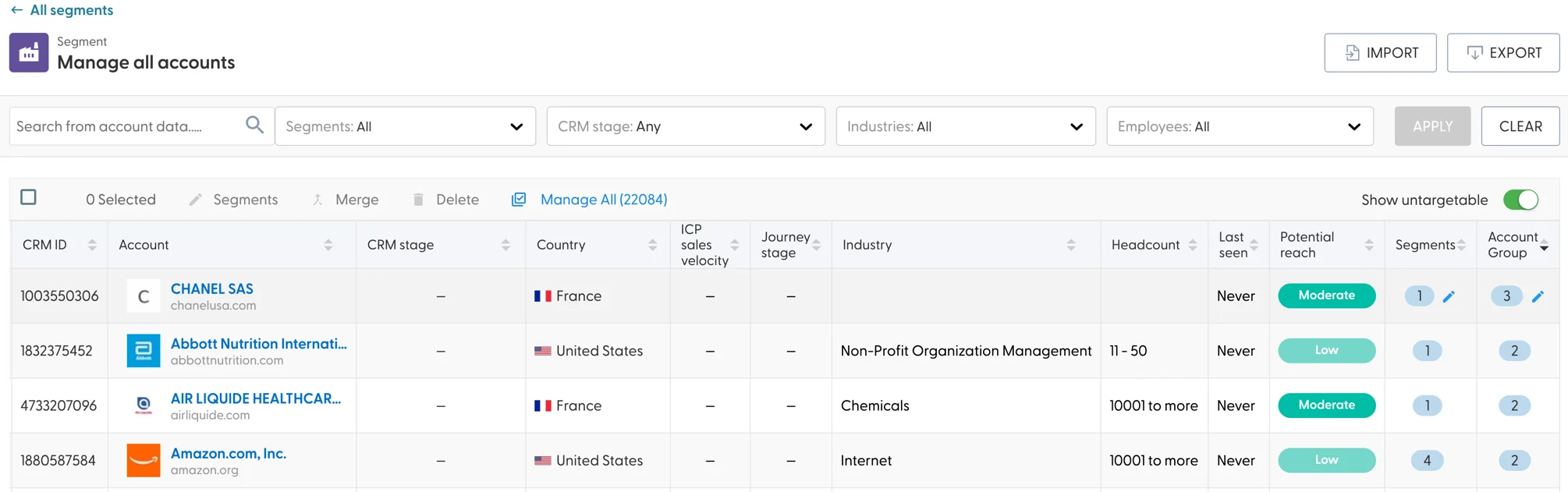
To reveal an account group, click on the pencil icon next to the number in the "Account Group" column.
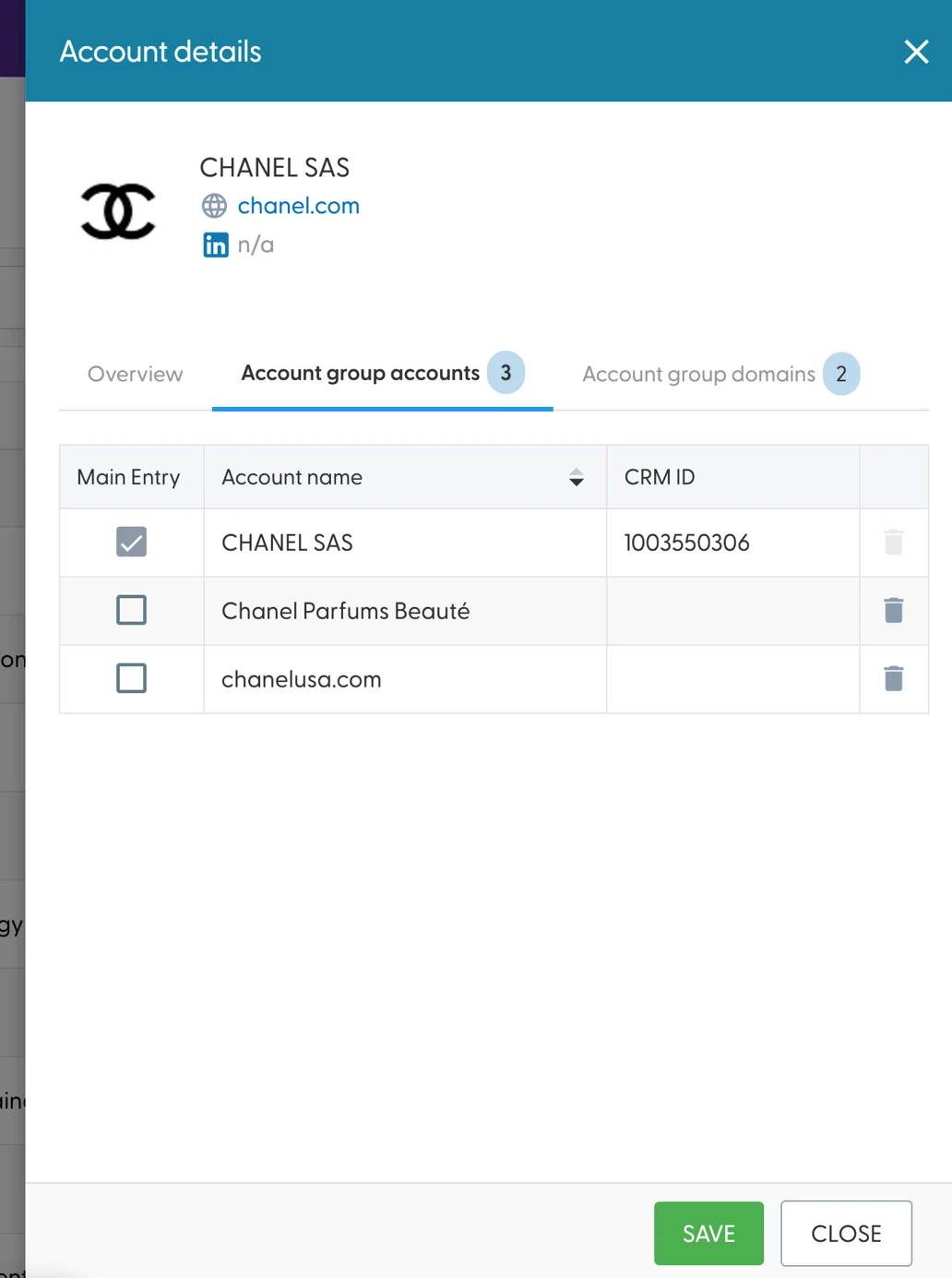
It will reveal a sidebar allowing you to define which one is the main account (and thus the recipient of CRM engagement data):
The Account Group domain tab allows you to define more (unique) domains:
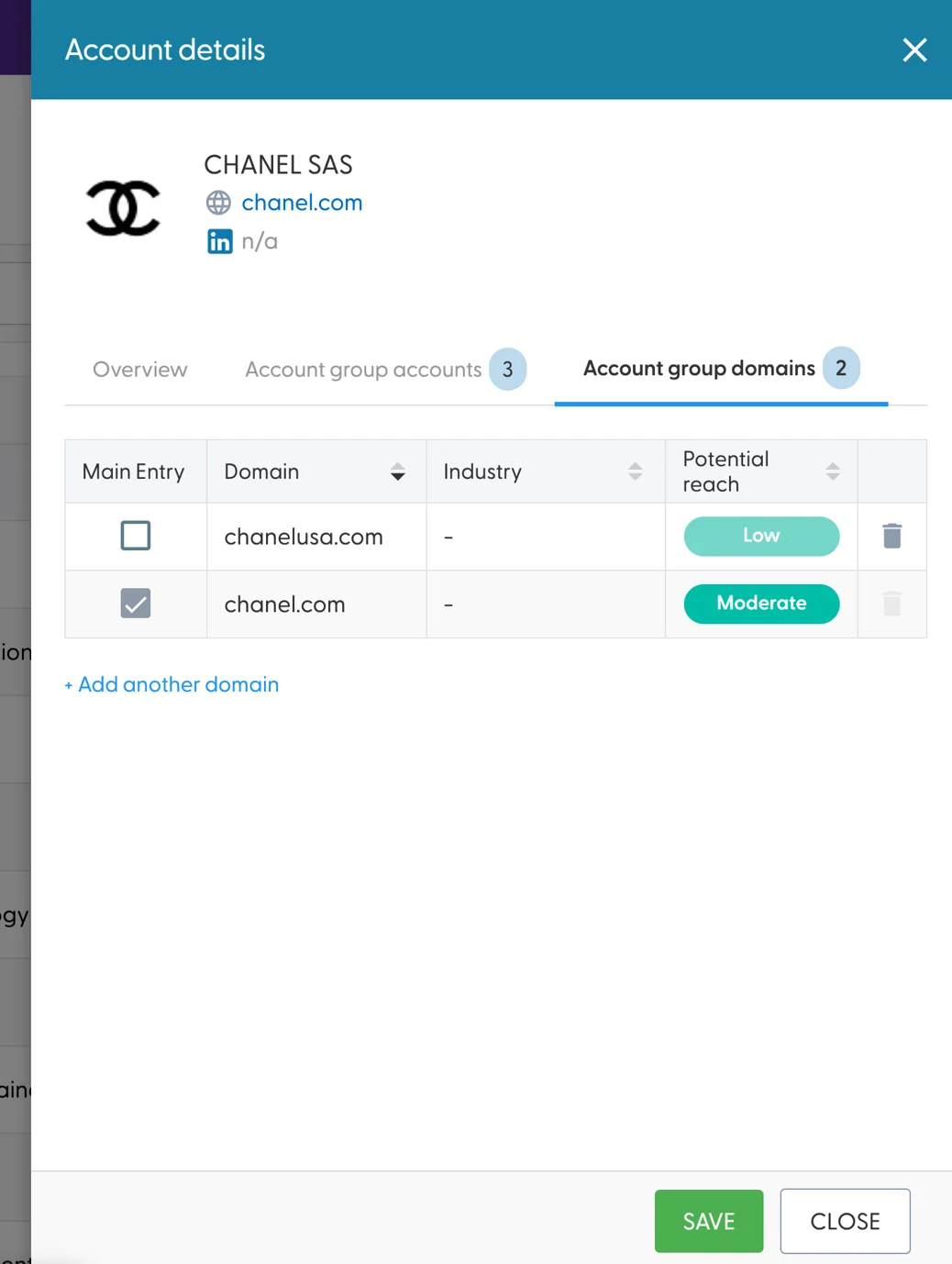
It is not possible to add domains that belong to other accounts - to do so, you should first delete the other account before associating its domain with an existing account.