Exporting a segment
Last updated: June 29, 2026
This article explains how to download an Excel file containing all accounts in a segment - including firmographic data, CRM stage, segment membership, and alternative identifier data.
How to export
The Export button appears in two places:
Single segment view - open any segment and click Export in the top-right header, alongside Import, Sync, and Delete.
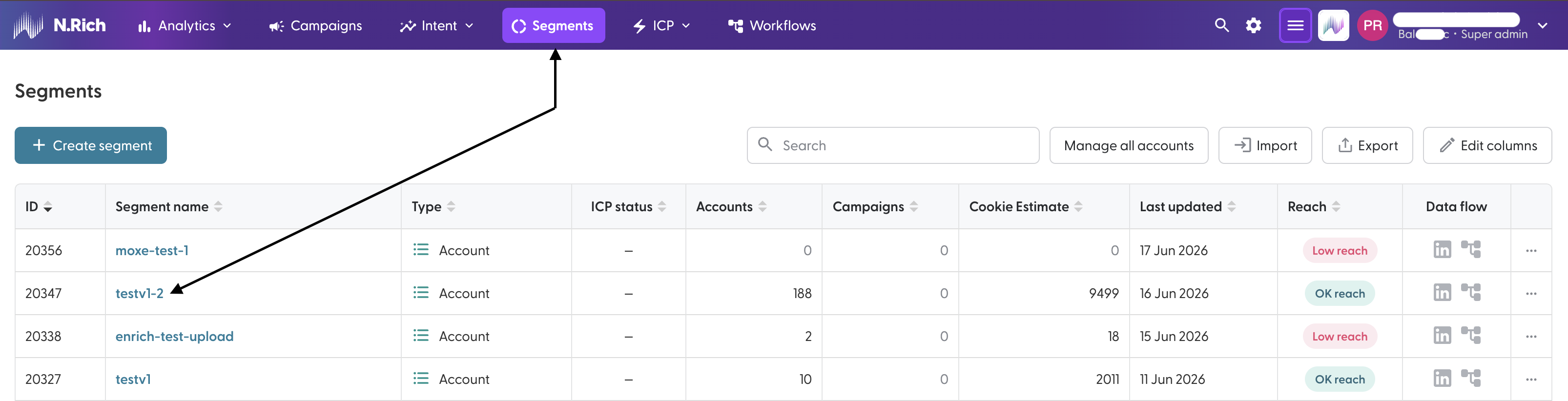

All accounts view - from the main Segments page, click Manage All in the top-right to see all accounts across segments, then click Export.


Navigate to the segment you want to export.
Optionally apply filters - by CRM stage, industry, headcount, or search. What you see on screen is exactly what exports.
Click Export. The file downloads to your browser immediately.
ℹ The export is a point-in-time snapshot. If accounts are added or removed after you export, re-export to get the latest data.
The downloaded file
The file is named NRich_{segment name}_export_{DD_MM_YYYY}.xlsx. When exporting across multiple segments via Manage All, it is named NRich_segments_export_{date}.xlsx.
The spreadsheet contains three data sheets, plus a Summary sheet showing the export timestamp and the email of whoever generated it, as well as the account name:
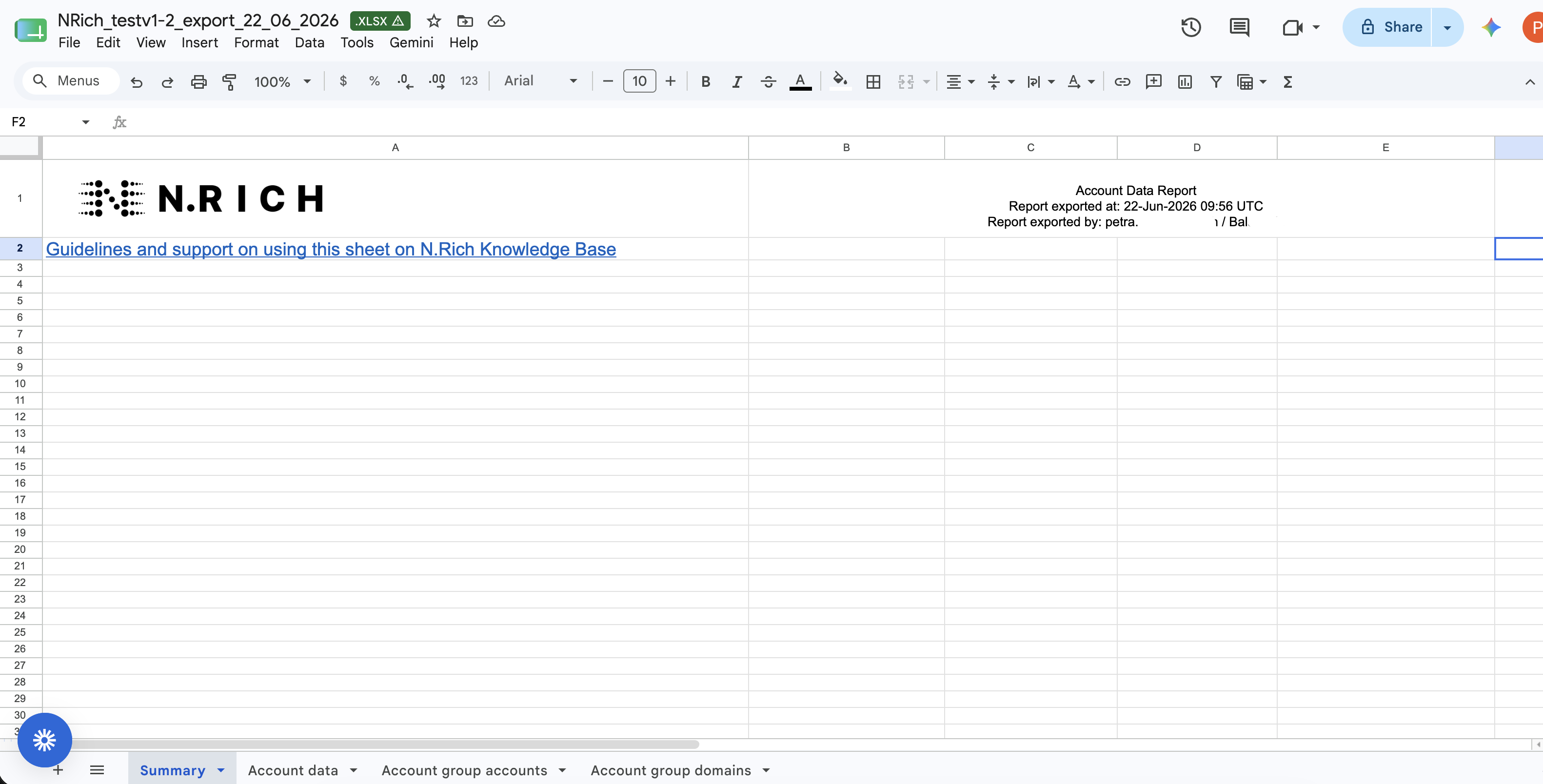
1. Account data
The main sheet. One row per account, plus a header stamp at the top showing who exported the file and when.
Column | What it contains |
|---|---|
CRM ID | The account's ID in your connected CRM. Shows n/a if no CRM is connected or the account has no match. Internal auto-generated prefixes are cleaned from this field. |
Account name | The company name as it appears in N.Rich. |
Account country | The country where the account is headquartered. Shows Unknown if not resolved. |
Full URL to the account's LinkedIn company page, where available. | |
Primary domain | The main website domain used to identify the account. |
Industry | The primary industry the account operates in. |
Industry group | One or more broader industry categories, comma-separated. |
Industry keywords | Specific keywords associated with the account's industry classification, comma-separated. |
Employees | Headcount range (e.g. 201 - 500, 1001 to 5000). |
CRM stage | One of stages derived from CRM data: New prospect, In CRM, Pipeline, Client, Recently lost. Blank if no CRM is connected. |
Segment | The name of the segment this account belongs to. If the account is in more than one segment, this field shows Multisegment as a signal — see the Multisegment column for the full list. |
Multisegment | Only populated when an account belongs to more than one segment. Contains a semicolon-separated list of all segment names (e.g. Segment A;Segment B;Segment C). Empty for single-segment accounts. |
Empty fields default to n/a.
2. Account group accounts
Lists cases where the same account exists under more than one CRM record - for example, after a merge or duplicate import. Each row shows the primary account (CRM ID + name) alongside the alternative CRM ID and account name it has been grouped with. Use this sheet to identify and reconcile duplicate account records.
Column | What it contains |
|---|---|
CRM ID | The primary account's CRM ID. |
Account name | The primary account's name. |
Other CRM ID | An alternative CRM ID associated with the same account. |
Other Account name | The account name associated with the alternative CRM record. |
ℹ If an account has no alternative CRM records, it will still appear in this sheet with the same values in both the primary and "Other" columns - this is expected behaviour.
3. Account group domains
Lists all domains associated with each account - not just the primary domain. Useful when an account operates under multiple websites or regional domains. Each row links back to the primary account via its CRM ID, account name, and primary domain.
Column | What it contains |
|---|---|
CRM ID | The primary account's CRM ID. |
Account name | The primary account's name. |
Domain | The account's primary domain. |
Other domains | An alternative domain associated with this account. Accounts with multiple alternative domains have one row per domain. |
Controlling which accounts are included
Any filters active at the time of export are applied to the file. The available filters are:
Filter | Behaviour |
|---|---|
Search | Matches on account name, any domain, or CRM ID. |
Industries | Limit to one or more specific industries. |
Headcount | Filter by company size range. |
CRM stage | Filter by business phase. |
Segments | When exporting across multiple segments, accounts in any selected segment are included (OR logic). |
ℹ Untargetable accounts - Accounts flagged as untargetable (primarily Internet Service Providers) are hidden from the segment view by default and excluded from exports. To include them, toggle "Show untargetable accounts" in the segment view before clicking Export - the export will then reflect whatever is visible on screen.

ℹ Filters combine with AND logic. The exception is when exporting across multiple segments via Manage All - in that case, accounts from any of the selected segments are included, and the other filters then narrow down within that combined pool.