How do I create a firmographic segment?
Last updated: October 7, 2026
A firmographic segment is built by N.Rich: you set the company criteria and N.Rich finds the accounts that match. Use it to discover new accounts that fit a profile.
You can't import accounts into a firmographic segment yourself. To add your own list, use an account segment.
Create the segment
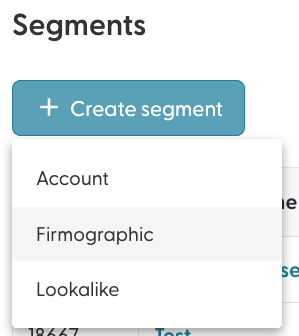
Go to the Segments page, click + Create segment and choose Firmographic.
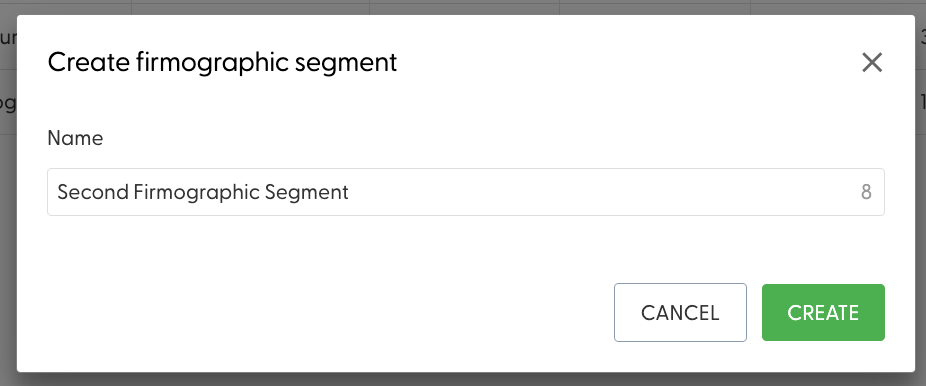
Give your segment a name.
The segment opens with a firmographic input area instead of an Import button. Set your criteria.
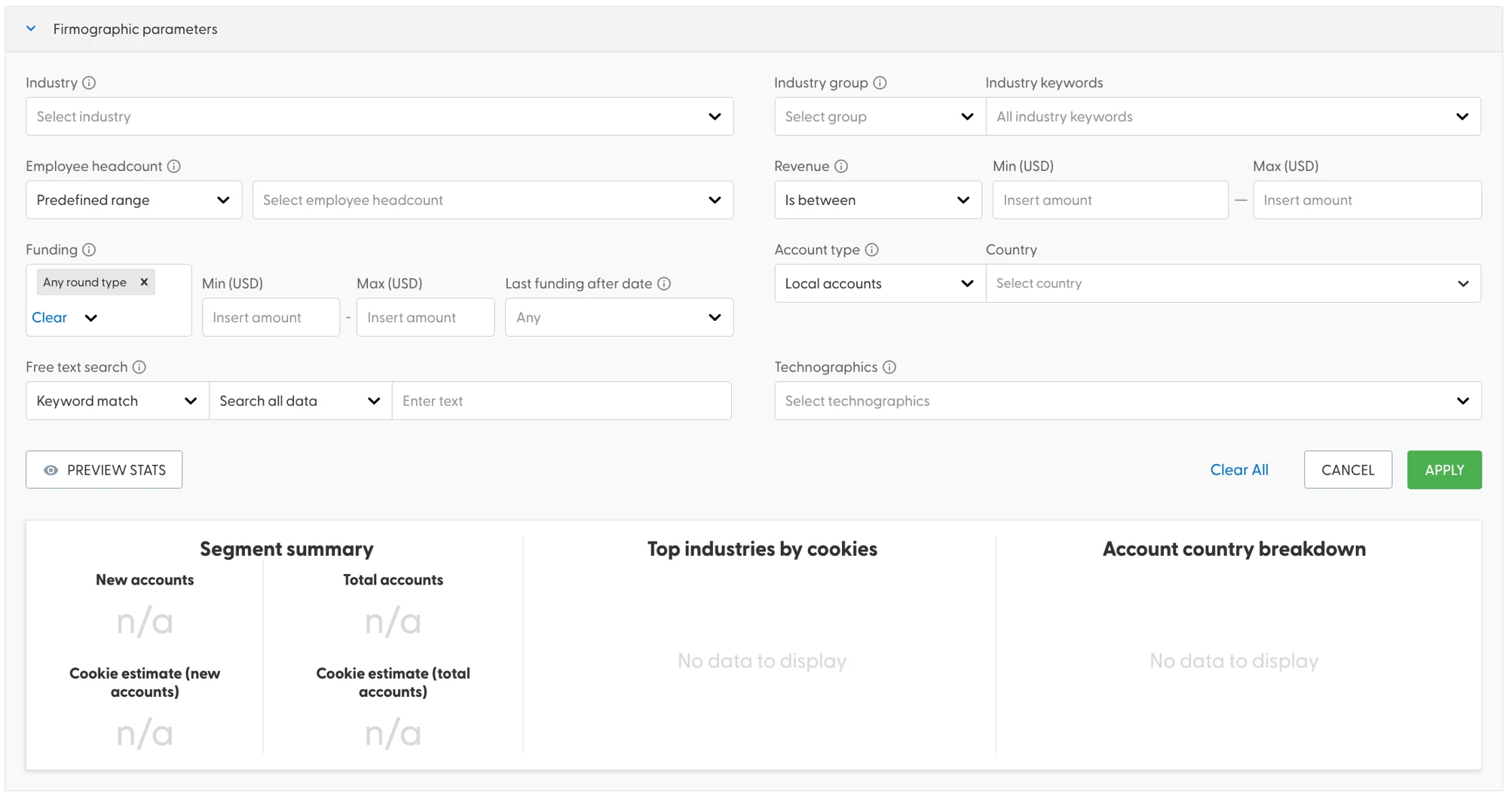
Criteria you can set
Industry, industry group and custom industry keywords
Headcount: a predefined range or your own custom range
Revenue: a revenue range, or whether revenue is known or unknown
Funding: type of funding round, amount raised and when the last round was raised
Location: local accounts based in a specific country, international accounts, or both
Keywords found in the company name and/or description
Technologies the companies should be using
Preview and generate
Click Preview Stats on the left to see whether your criteria return results.
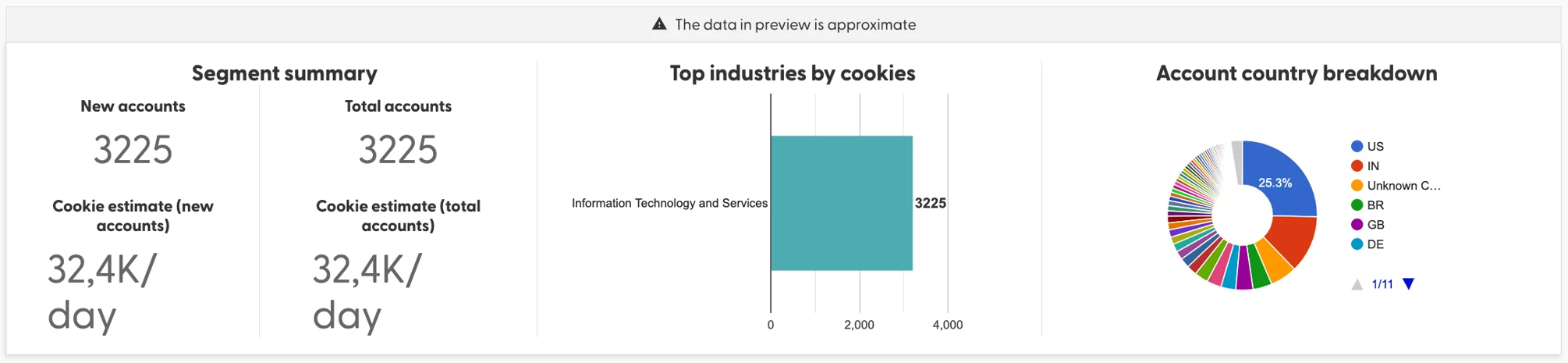
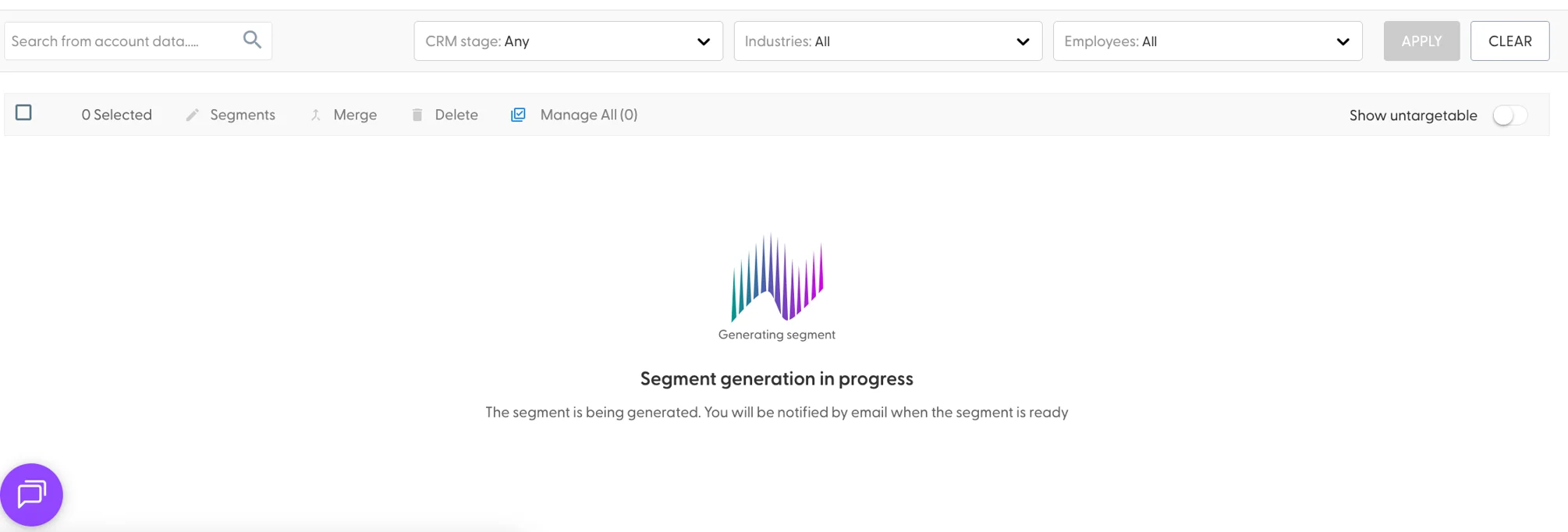
When you are happy with the results, click Apply. N.Rich starts generating your segment. Large segments can take a while, and you get an email when it is done.
A segment can hold up to 20,000 accounts. If your criteria match more, narrow them down.
What's next
Need help? Reach out to your Solutions Engineer via the chat in the bottom-left corner of the N.Rich platform, by email or Slack.