How to create a CRM-based workflow
Last updated: October 9, 2026
A CRM-based workflow keeps your N.Rich segments in line with your CRM. Use it to sync a HubSpot company list, a Salesforce report or accounts with a specific opportunity status into a segment.
Before you start
Your CRM must be connected to N.Rich. See How to connect HubSpot to N.Rich or How to connect Salesforce to N.Rich.
When you select CRM as the source, you choose what to sync from:
Company list: a HubSpot company list. See below.
Salesforce report: see How to sync a Salesforce report to a segment.
Opportunity data: accounts with open, won or lost opportunities. See below.
CRM-based workflows run daily.
Sync a HubSpot company list to a segment
Use this when you manage target accounts as company lists in HubSpot and want the same accounts in an N.Rich segment.
List size limit: 50,000 accounts
A workflow can't be created or saved with a list of more than 50,000 accounts. If a linked list grows past 50,000, the workflow is skipped entirely until the list is below the limit again.
Go to Workflows and click + Create workflow.
Select CRM and click Next.
Select Company list.
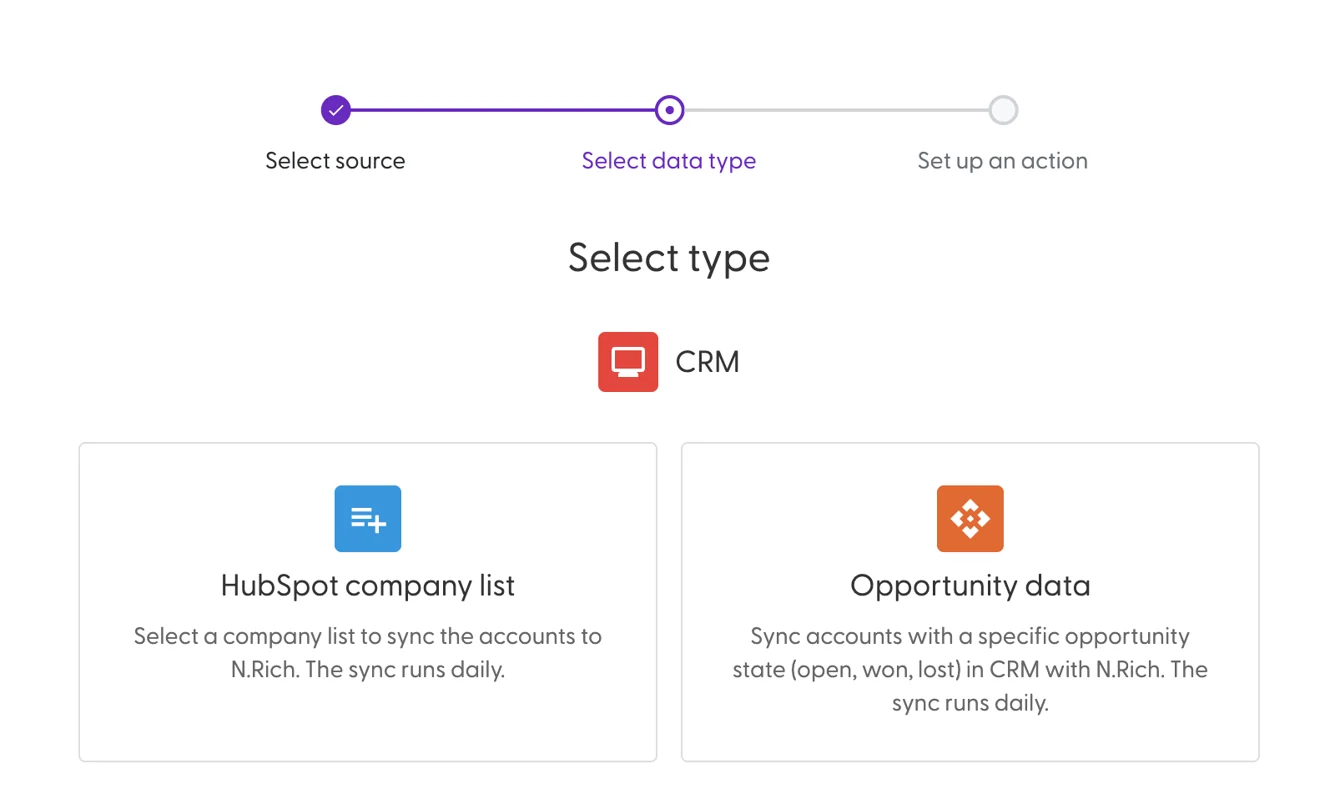
Enter a name for the workflow.
Choose the HubSpot list to sync.
The action is always Sync: accounts added to the list are added to the segment, and accounts removed from the list are removed from it.
Select the segment to update. You can also create a new segment here.
Click Create.
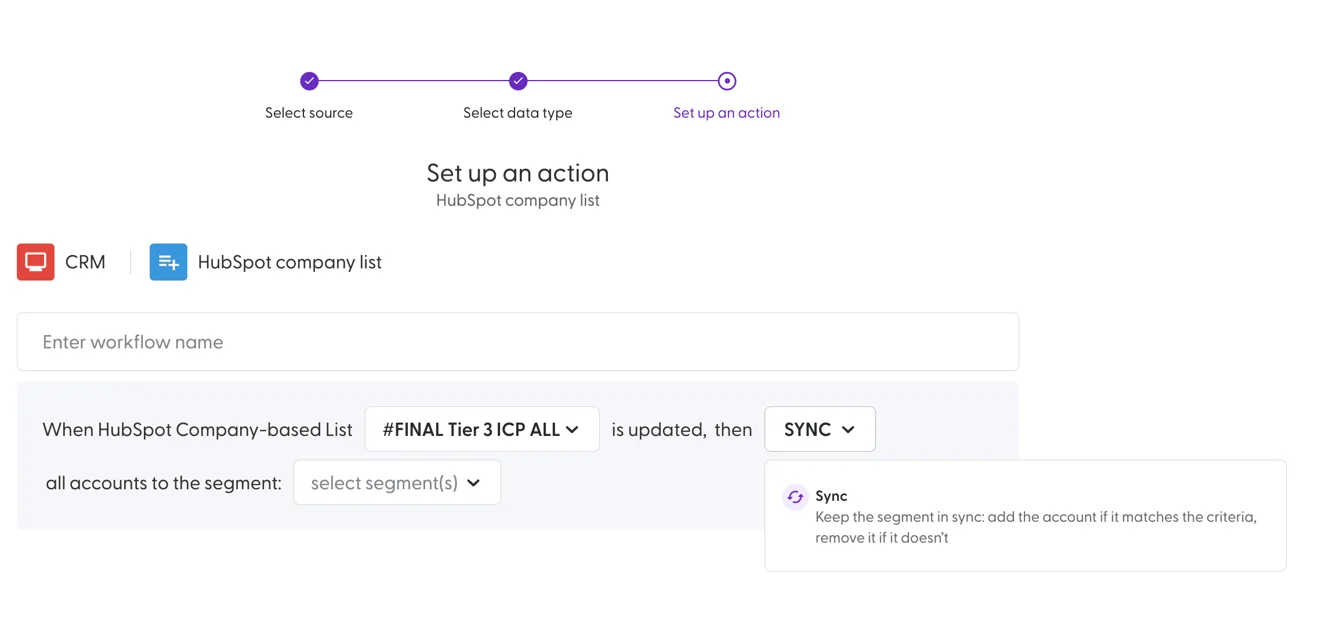
The segment follows the list, so make changes in HubSpot rather than in the segment. To split a list (for example by industry), create separate lists in HubSpot and sync each one to its own segment.
Create a workflow from opportunity data
Use this to act on opportunity events, for example to target accounts with open opportunities or exclude won accounts from prospecting campaigns.
Go to Workflows and click + Create workflow.
Select CRM and click Next.
Select Opportunity data.
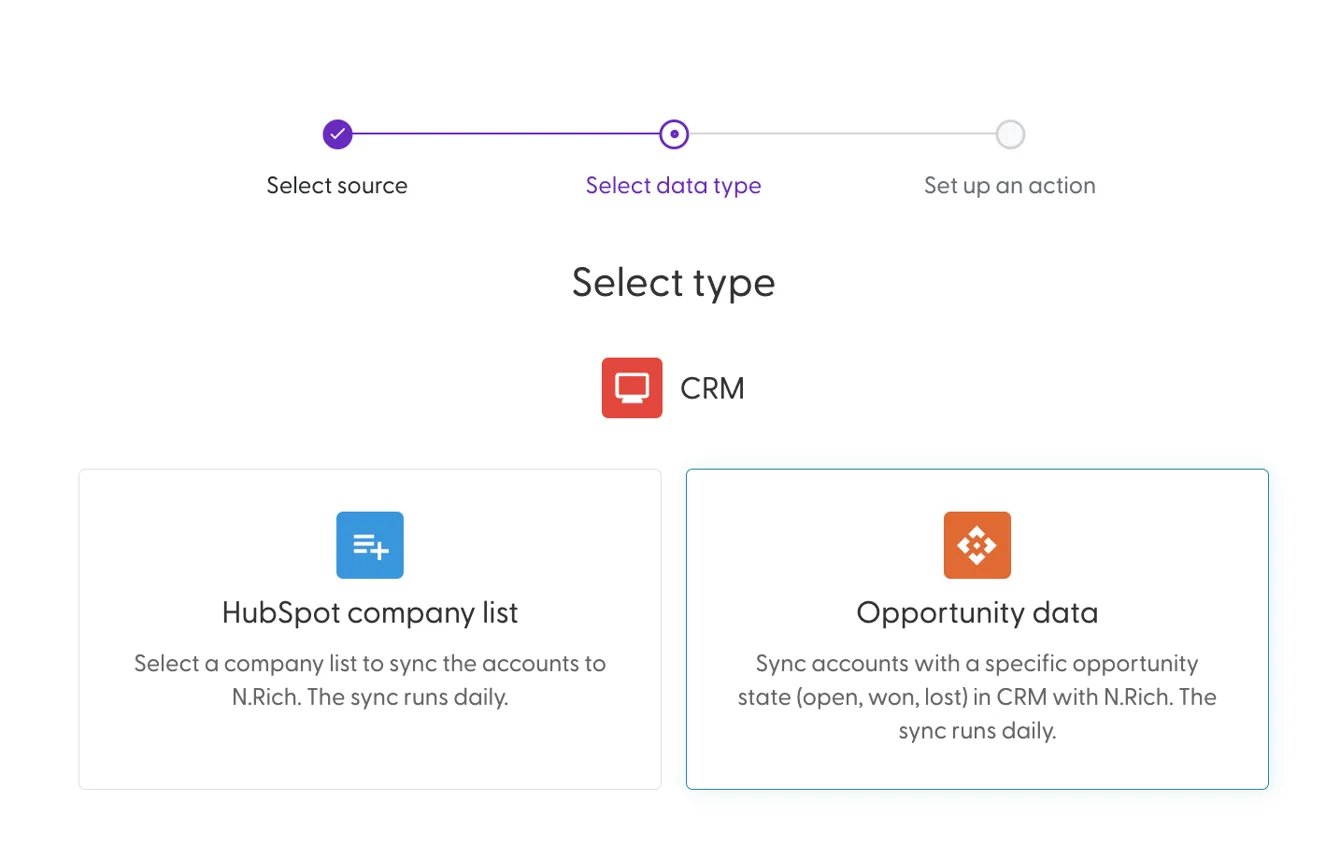
Enter a name for the workflow.
Select the account type: Any account, Net new account or Existing client.
Select the opportunity type: Open, Won or Lost.
Select the opportunity event: Created (the opportunity was created) or Closed (the opportunity was closed).
Set the time frame: Any time, After date (only opportunities after a date you pick) or In last X days.
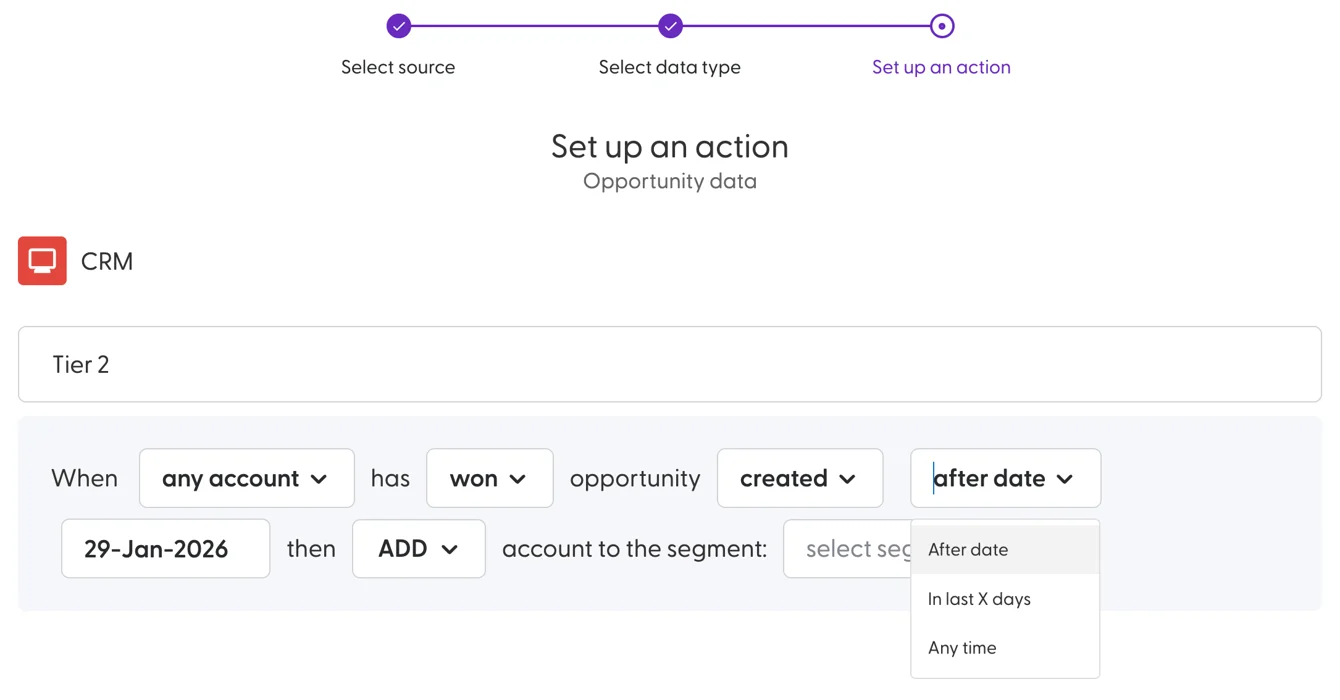
Choose the action: Add, Move or Remove. See What are workflows and how do they work? for what each action does.
Select the segment(s) to update. For Move, select the segment(s) to move accounts from and the segment(s) to move them to.
Click Create.
To import accounts with open opportunities into a segment once, rather than keep them updated, see How do I import accounts into a segment?
Example: keep a segment of accounts in active pipeline
Goal: target accounts while they have an open opportunity, and stop as soon as the deal is won or lost.
Create a segment called Open opportunities.
Create three opportunity data workflows:
Any account, Open opportunity, created any time: Add to Open opportunities.
Any account, Won opportunity, closed in the last 30 days: Remove from Open opportunities.
Any account, Lost opportunity, closed in the last 30 days: Remove from Open opportunities.
What's next
Need help? Reach out to your Solutions Engineer via the chat in the bottom-left corner of the N.Rich platform, by email or Slack.