How do I manage my workflows?
Last updated: October 9, 2026
The Workflows page lists every workflow in your account. Use it to check when a workflow last ran, switch workflows on or off, edit them and delete them.
Open the Workflows page
Click Workflows in the top menu. Each workflow is one row in the table.
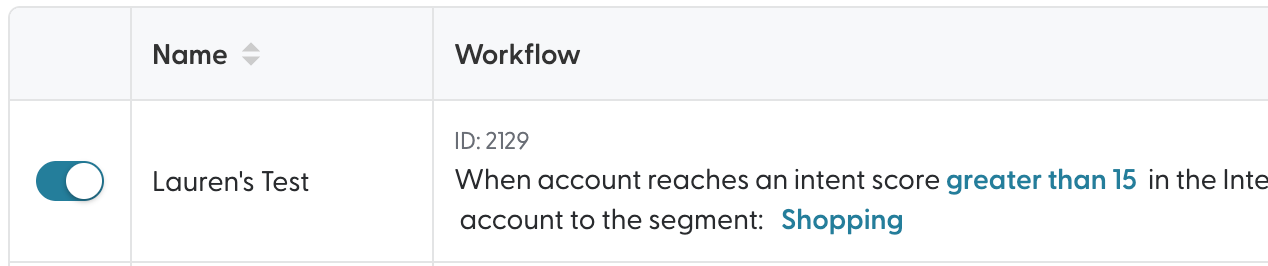
What each column shows
Column | What it shows |
Toggle | On: the workflow is active and runs on schedule. Off: the workflow is paused. |
Name | The workflow name, or No name if none was set. Click it to open and edit the workflow. |
Workflow | A summary of the rule: the condition, the data used, the action and the segment(s) it updates. |
Source | The data source, for example Intent, CRM or Advertisement. |
Created | The date the workflow was created. |
Last executed | The last date the workflow ran successfully. A dash means it has not run yet. |
Find a workflow
Search bar: search by workflow ID, name, segment, campaign or intent report.
Source filter: show only workflows from one data source.
Pause or edit a workflow
To pause a workflow, switch its toggle off. Switch it back on to resume. Pausing keeps all settings.
To edit a workflow, click its name, change the settings and save.
Delete a workflow
Click the trash can icon at the end of the row.
Click Delete to confirm.
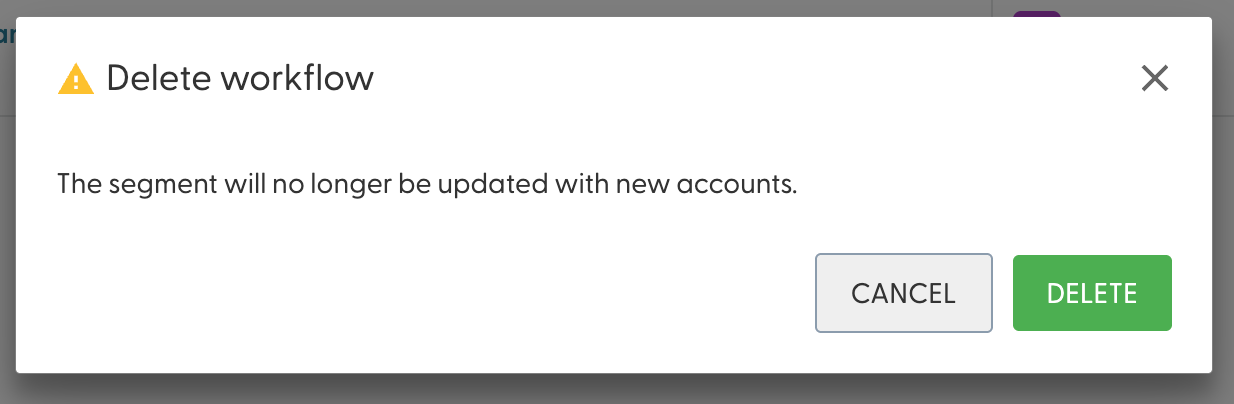
Deleting a workflow cannot be undone and stops all future runs. If you might need the workflow later, pause it instead.
Good habits
Give each workflow a name that says what it does, for example "Intent 60+ sync to Hot accounts".
Check Last executed regularly to make sure your workflows are running.
Review your workflows about once a month so they still match your goals.
What's next
Need help? Reach out to your Solutions Engineer via the chat in the bottom-left corner of the N.Rich platform, by email or Slack.