How to create an intent-based workflow
Last updated: October 9, 2026
An intent-based workflow updates your segments based on the intent scores in one of your intent reports. Use it to keep a segment of high-intent accounts up to date automatically.
Before you start
You need at least one intent report. See How to create an intent report.
Create the workflow
Go to Workflows and click + Create workflow.
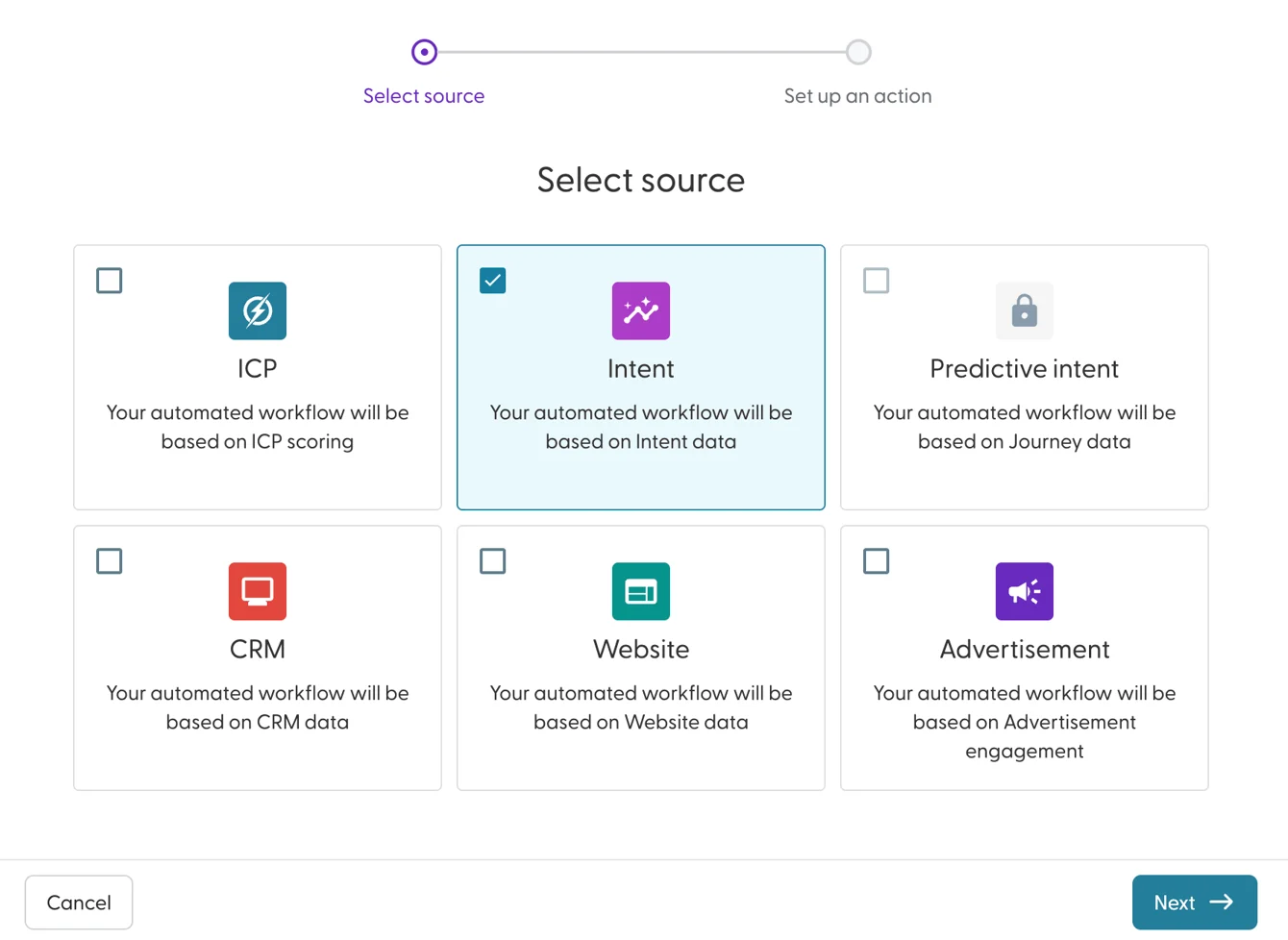
Select Intent and click Next.
Enter a name. Include the intent report, the threshold and the action, for example "Master report 60+ sync to Hot accounts".
Choose how the score is compared: greater than, greater than or equal to, less than, less than or equal to, or between.
Select the intent score: 0, 1, or 5 to 95 in steps of 5.
Select the intent report the scores come from.
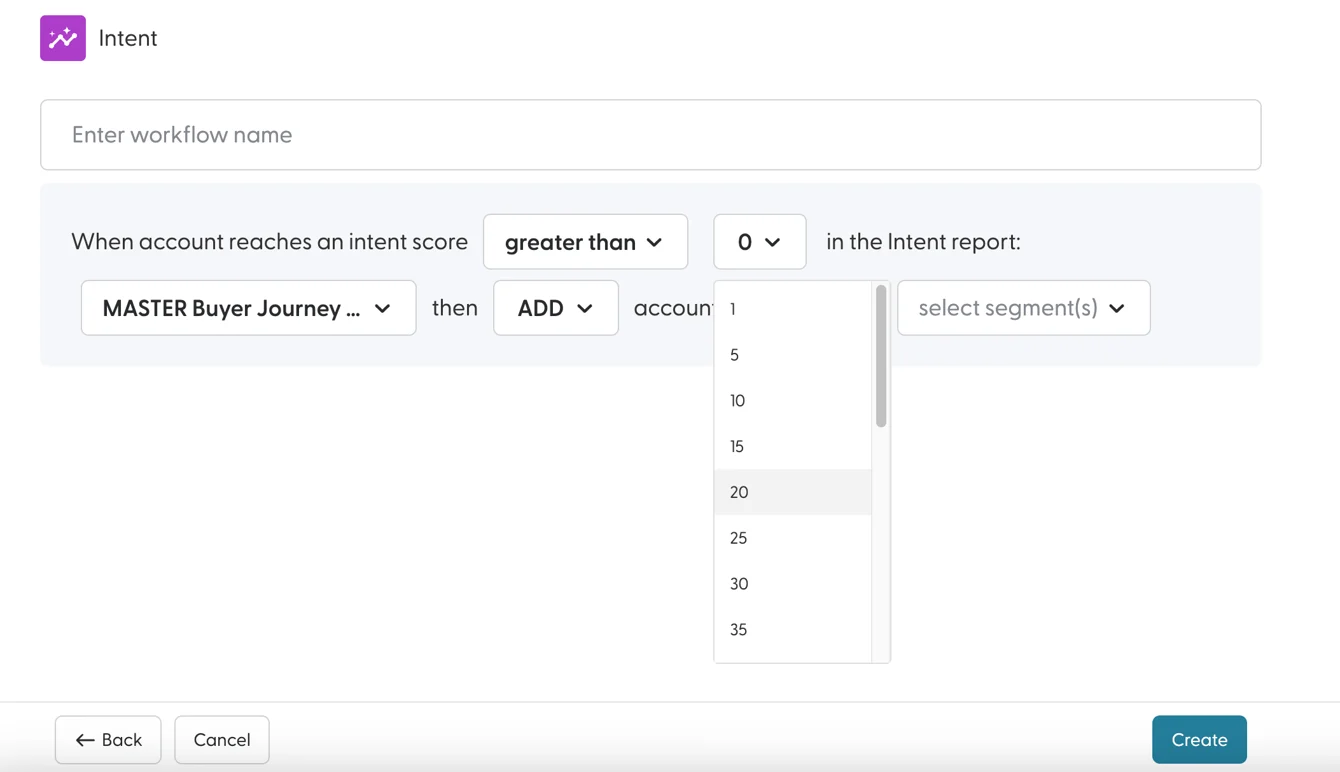
Choose the action: Add, Move, Remove or Sync. See What are workflows and how do they work? for what each action does.
Select the segment(s) to update. You can also create a new segment here. For Move, select the segment(s) to move accounts from and the segment(s) to move them to.
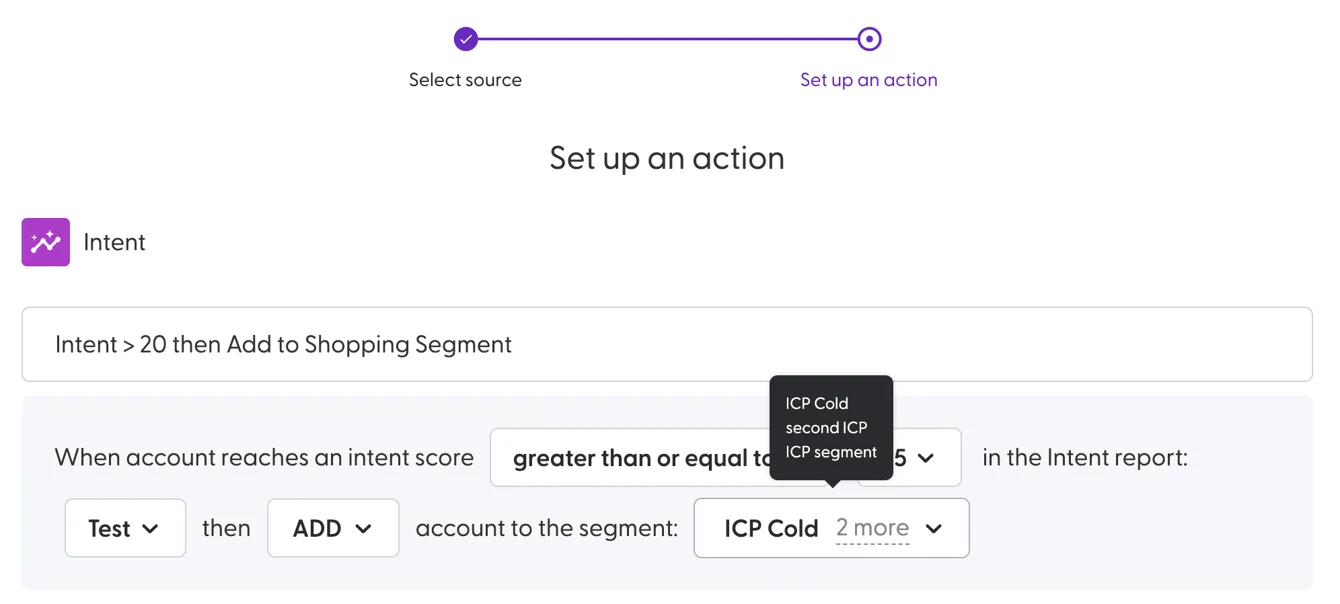
Click Create.
The workflow is active straight away and runs at the next scheduled run.
Example: keep a Hot accounts segment up to date
Goal: one segment that always holds the accounts with the highest intent, to use in a decision-stage campaign.
Create a segment called Hot accounts.
Create an intent-based workflow: when an account has an intent score greater than or equal to 60 in your intent report, Sync to Hot accounts.
Use Hot accounts as the audience of your campaign.
Because the action is Sync, accounts whose score drops below 60 leave the segment on the next run. Use one Sync workflow per segment.
Want one segment per buyer journey stage (In-Market, Engaged, Hot)? Create a progression workflow from Progression Analytics instead of building several intent workflows. See Getting started with Progression Analytics.
What's next
Need help? Reach out to your Solutions Engineer via the chat in the bottom-left corner of the N.Rich platform, by email or Slack.