How to create a website-based workflow
Last updated: October 9, 2026
A website-based workflow updates your segments based on how often accounts visit your website. Use it to group accounts that are actively looking at your site, for example for retargeting.
Before you start
The N.Rich tag must be installed on your website. See Getting started with the N.Rich Website Tag.
Visits tracked in both Cookieless and Standard mode count.
The workflow counts visits to your website as a whole. You can't limit it to specific pages or URLs.
Create the workflow
Go to Workflows and click + Create workflow.
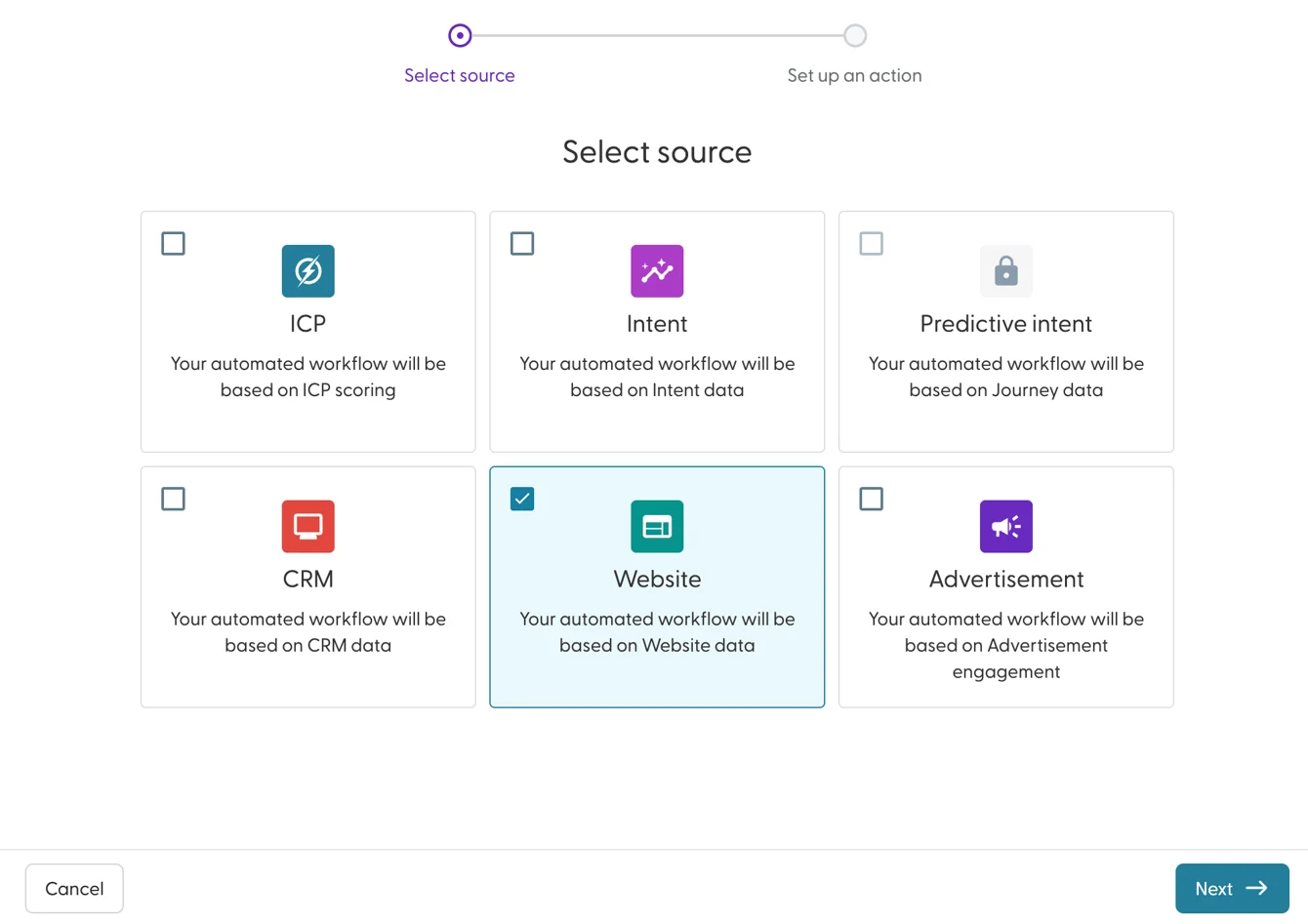
Select Website and click Next.
Enter a name that says what the workflow does, for example "Website 3+ visits in 7 days add to Retargeting".
Choose the number of visits from the drop-down: from 1 or more times to 5 or more times, or from 2 or less times to 5 or less times.
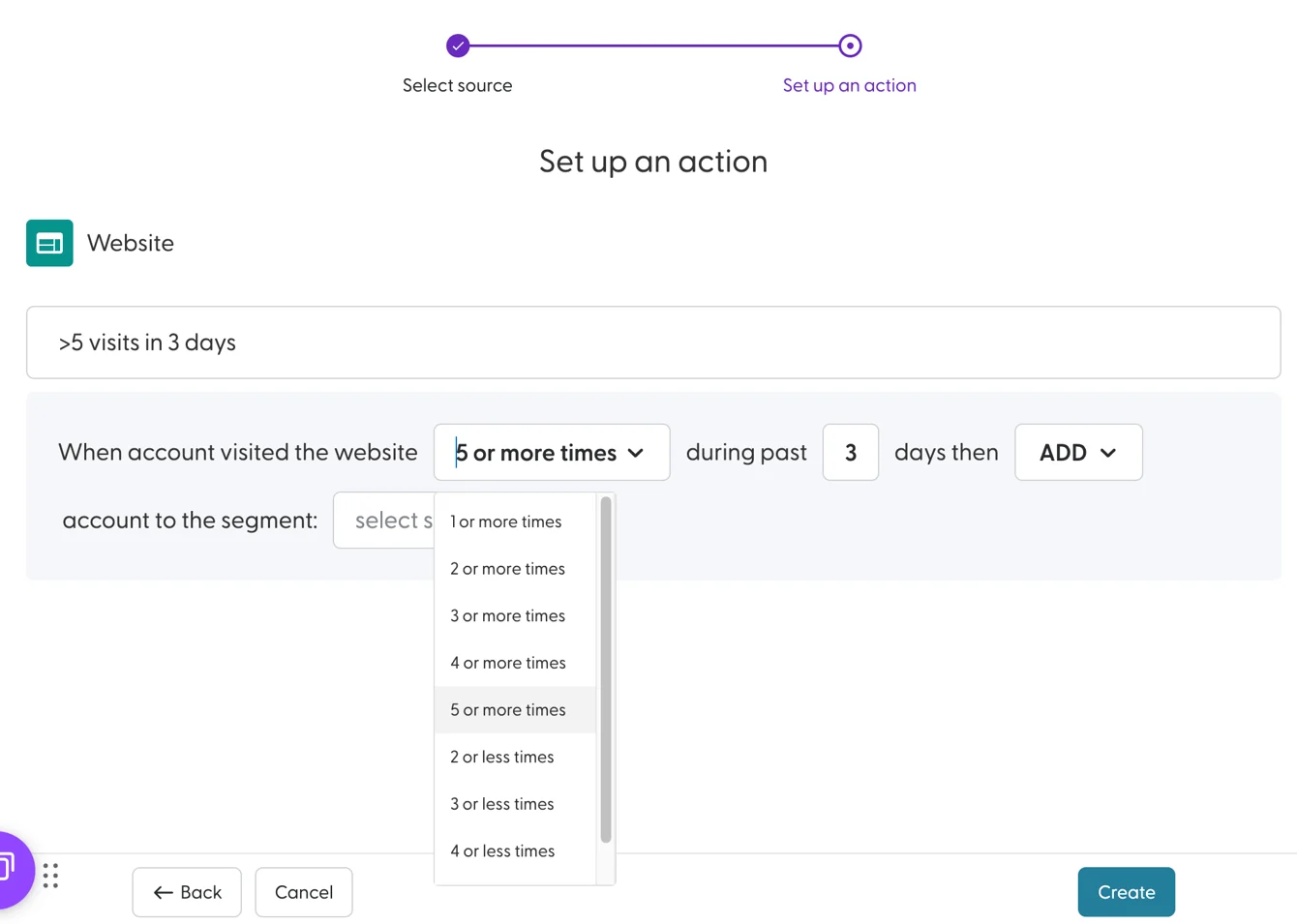
Set during the past X days (0 to 90) to define how recent the visits must be.
Choose the action: Add, Move or Remove. See What are workflows and how do they work? for what each action does.
Select the segment(s) to update. You can also create a new segment here. For Move, select the segment(s) to move accounts from and the segment(s) to move them to.
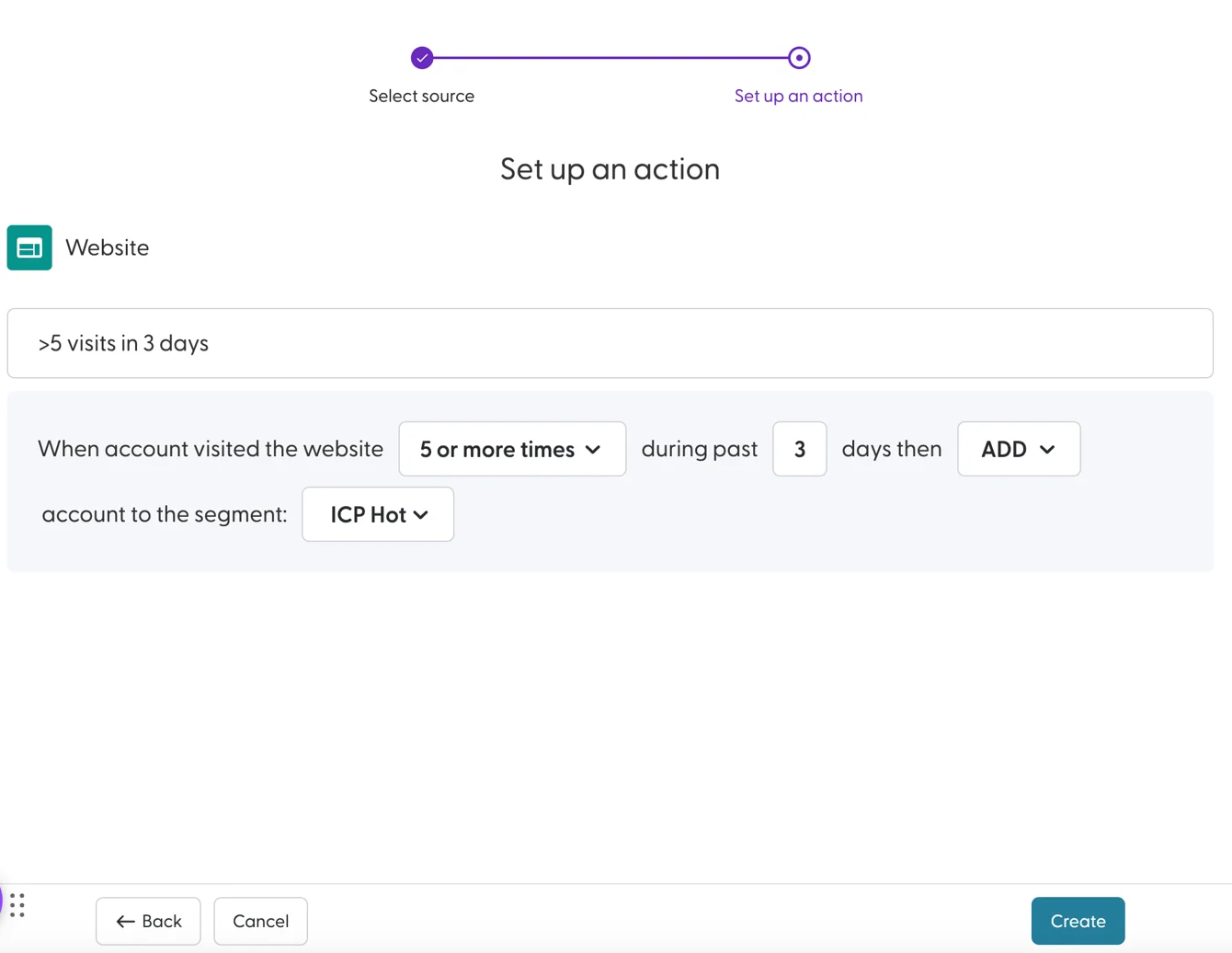
Click Create.
The workflow is active straight away and runs at the next scheduled run.
Example: build a retargeting segment from website visits
Goal: advertise only to accounts that visited your site several times recently, instead of to every visitor.
Create a segment called Website engaged: retargeting.
Create a website-based workflow: when an account visited the website 3 or more times during the past 7 days, Add it to Website engaged: retargeting.
Use the segment as the audience of your retargeting campaign.
What's next
Need help? Reach out to your Solutions Engineer via the chat in the bottom-left corner of the N.Rich platform, by email or Slack.