How to read an intent report
Last updated: October 8, 2026
An intent report lists the accounts it monitors with their intent score, topics and trend. This guide shows where to find each piece of information. It applies to both Buyer Journey and Custom intent reports.
The intent reports list
The list shows all your intent reports, how many accounts each one monitors, when it was last updated and when it was created. To export, clone or delete a report, see How to export, clone, rename or delete an intent report.

Click a report's name to open it.
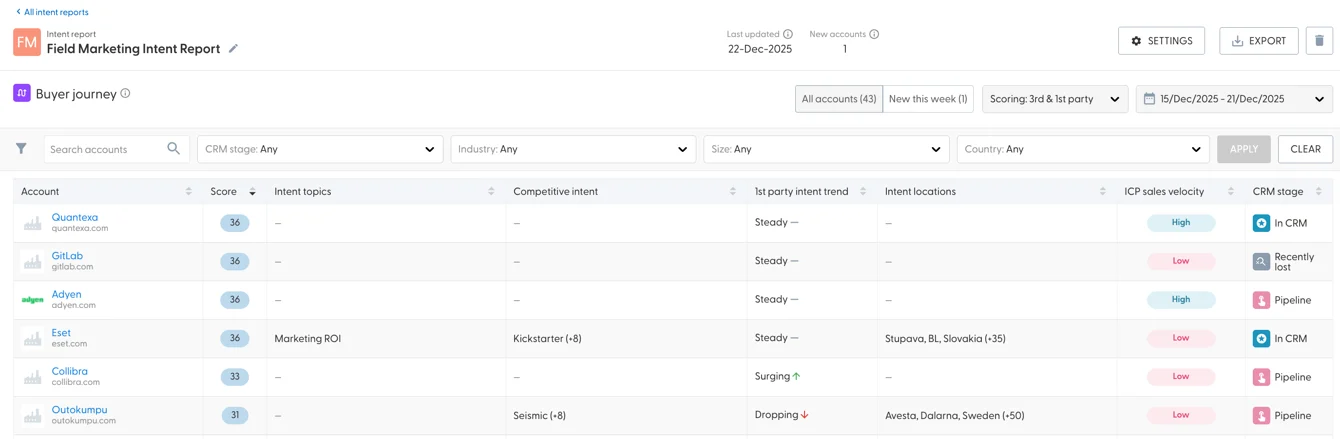
Choose what you see
All or new accounts: show every account in the report, or only accounts that are new to it.
Data source: show first-party intent, third-party intent, or both.
Week: use the week picker to look at any of the last 12 weeks. Intent data is updated once a week, see When is intent data updated?
Filters: filter accounts by name, CRM stage, industry, size and country, then select Apply. Clear removes all filters.
To change what the report monitors, open its settings in the top right.
What each column shows
Column | What it shows |
Account | The account name. Click it to open the account overview. |
Score | The composite intent score from 0 to 100. Hover over it to see the first-party and third-party scores. What the score means: How is the intent score calculated? |
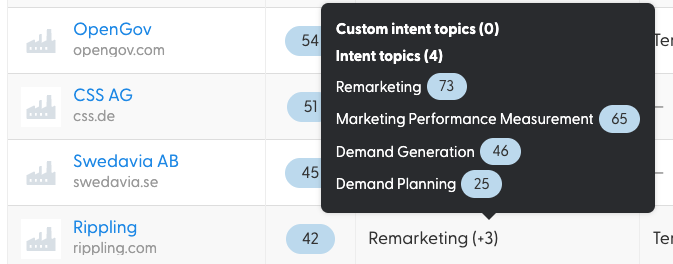
Intent topics | The topics the account shows intent for, with a score per topic |
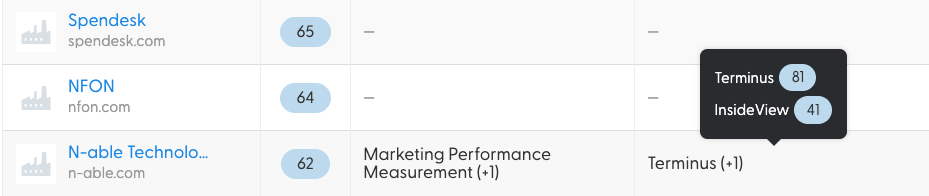
Competitive intent | The competitors the account shows intent for, with a score per competitor |
First-party intent trend | Surging, Steady or Dropping compared with last week |
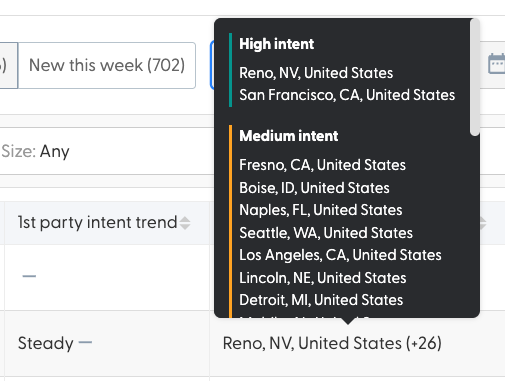
Intent locations | Where the intent comes from and how strong it is per location |
ICP sales velocity | High, Medium or Low, from the sales velocity analytics. Shows a dash if Sales Velocity ICP is not set up. |
CRM stage | The CRM stage the account is in |
Topic and competitor scores:
Intent locations:
What's next
Need help? Reach out to your Solutions Engineer via the chat in the bottom-left corner of the N.Rich platform, by email or Slack.