How to export, clone, rename or delete an intent report
Last updated: October 8, 2026
Manage your existing intent reports from the intent reports list or from inside a report. Use this guide to export accounts, copy a report, rename it or remove it.
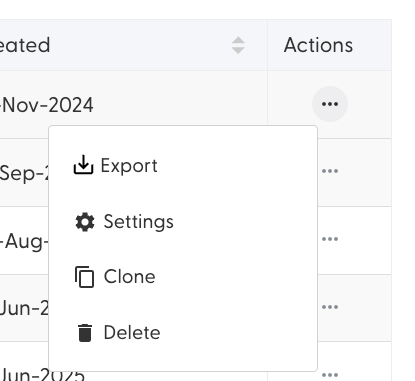
In the intent reports list, the actions for each report are on the right:
Export an intent report
From the list: select Export next to the report.
From inside a report: select Export in the top right. You can export all accounts in the report, or only the accounts that match your current filters.
The export downloads as an Excel file (.xlsx).
Clone an intent report
Select Clone next to the report in the list to start a new report from an existing one.
Rename an intent report
Open the report and click the pencil icon next to its name.
Change an intent report's settings
Select Settings next to the report in the list, or open the report and select settings in the top right. You can change everything you set when creating the report.
Delete an intent report
Select Delete next to the report in the list. Topics used only in a deleted report no longer count towards your topic limit.
What's next
Need help? Reach out to your Solutions Engineer via the chat in the bottom-left corner of the N.Rich platform, by email or Slack.