What's on the Campaigns page?
Last updated: October 7, 2026
The Campaigns page lists every campaign in your N.Rich account. This article explains each control and column so you can find, compare and act on your campaigns.
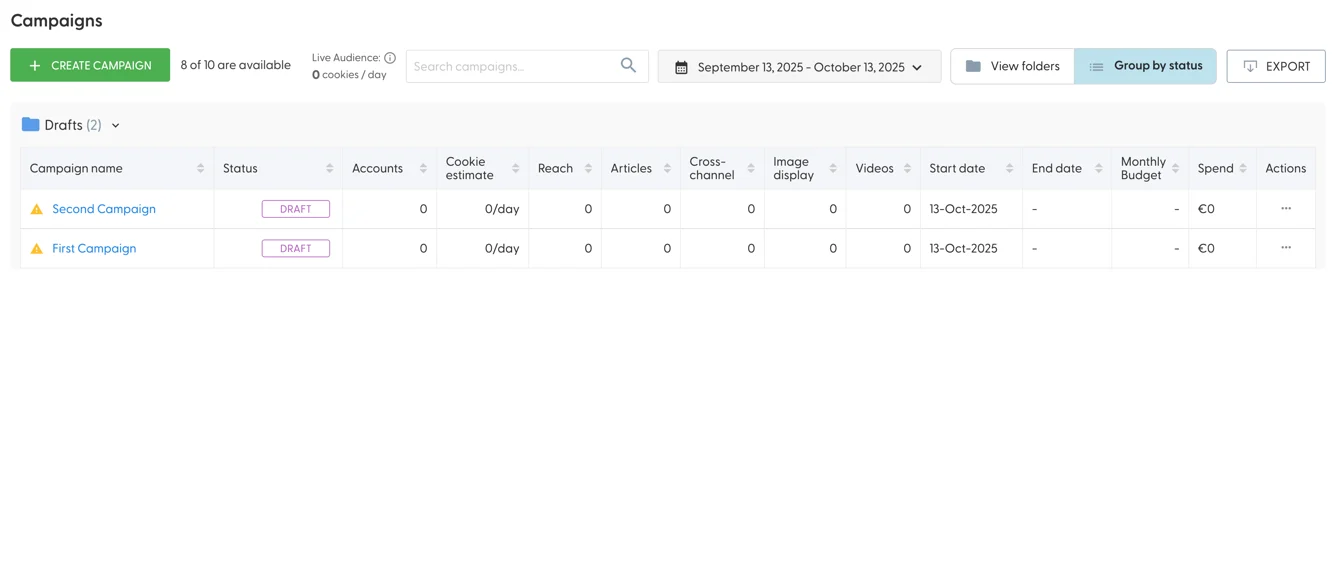
The top bar
+ Create campaign starts a new campaign. See How do I create a campaign?
Campaign allowance shows how many more campaigns you can create. Every campaign counts toward it, including drafts, stopped and finished campaigns. When the allowance is used up, the Create campaign button becomes inactive: delete a campaign you no longer need, or contact your Account Manager to raise your limit.
Live audience shows how many unique cookies are targetable across your live campaigns. With no live campaigns it shows zero. It doesn't take country limits into account, so it can be higher than the real targetable audience of campaigns limited to specific countries.
Search filters campaigns by name.
Date picker sets the time frame for the Reach and Spend columns.
Group by status / View folders switches between the automatic status folders and your own folders. See How do I organise campaigns into folders?
Export downloads your campaigns and their ads. See How do I clone, export or delete a campaign?
Status folders
Group by status is the default view. It sorts your campaigns into folders by their state: Drafts, Launched, Stopped and Finished. Setting a campaign live moves it to Launched, stopping it moves it to Stopped, and so on.
Inside the Launched folder, campaigns are sorted by status, with LIVE campaigns at the top. This folder used to be called "Live". It was renamed because a campaign in it can be in more than one state, for example Live or Learning.
The campaigns table

ID: the campaign's unique ID. Useful when you contact your Solutions Engineer.
Campaign name: click it to open the campaign. A yellow alert icon may show next to the name: hover over it to see what needs your attention.
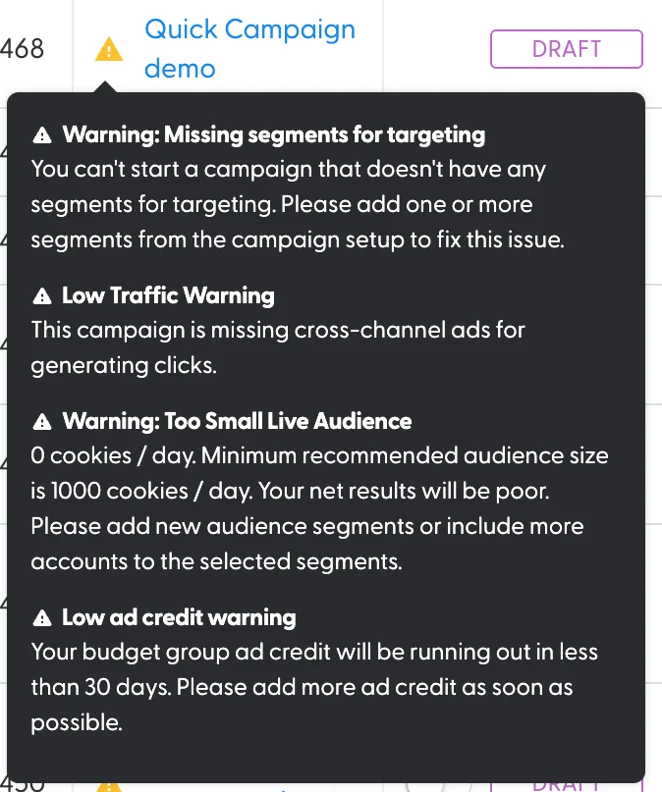
For campaigns in Learning, a Learning badge also shows next to the name. Hover over it to see "Learning since [date] ([N] days)". See Google Ads Learning Stage for what this means.
Status: Draft, Live, Stopped or Finished. When a campaign is ready to launch, the switch in this column starts or stops it. See What do campaign and delivery statuses mean?
Accounts: how many accounts the campaign targets, across all its target segments, minus accounts in its excluded segments.
Cookie estimate: the number of cookies in scope of the campaign.
Reach: how many cookies the campaign has reached in the time frame set in the date picker.
Articles, Cross-channel, Image display, Videos: how many ads of each type the campaign has.
Start date and End date: when the campaign runs. The end date is empty for campaigns that run continuously.
Monthly budget: how much the campaign is allowed to spend per month. If budget auto-rollover is on, a green (+amount) badge can show next to it. See How does budget auto-rollover work?
Spend: how much the campaign spent in the selected time frame.
Actions: Setup, Clone, Clone to account, Change history and Delete. See How do I clone, export or delete a campaign?
What's next
Need help? Reach out to your Solutions Engineer via the chat in the bottom-left corner of the N.Rich platform, by email or Slack.