How do I create a campaign?
Last updated: October 7, 2026
Create a campaign to start showing ads to the accounts in your segments. You can set everything up at once, or start with just a name and add the details later.
Before you start
Have at least one segment with the accounts you want to target.
Check you have a free campaign slot. If the + Create campaign button is inactive, you've used up your allowance: delete a campaign you no longer need, or contact your Account Manager to raise your limit.
Create the campaign
Open the Campaigns page and click + Create campaign. A side panel opens with two choices:
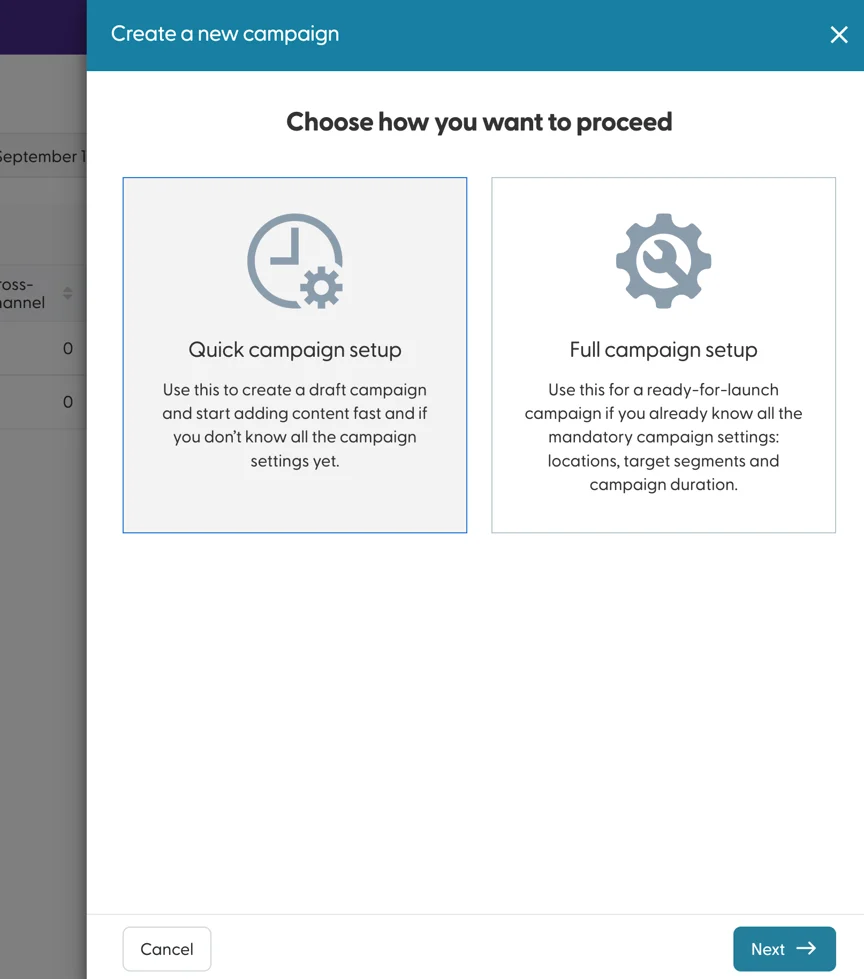
Pick a setup:
Quick campaign setup asks only for a name, so you can start building ads right away. Use it when you don't have all the details yet.
Full campaign setup asks for all the details now. Use it when you know them.
Fill in the campaign settings. You'll need all of them before you can launch the campaign:
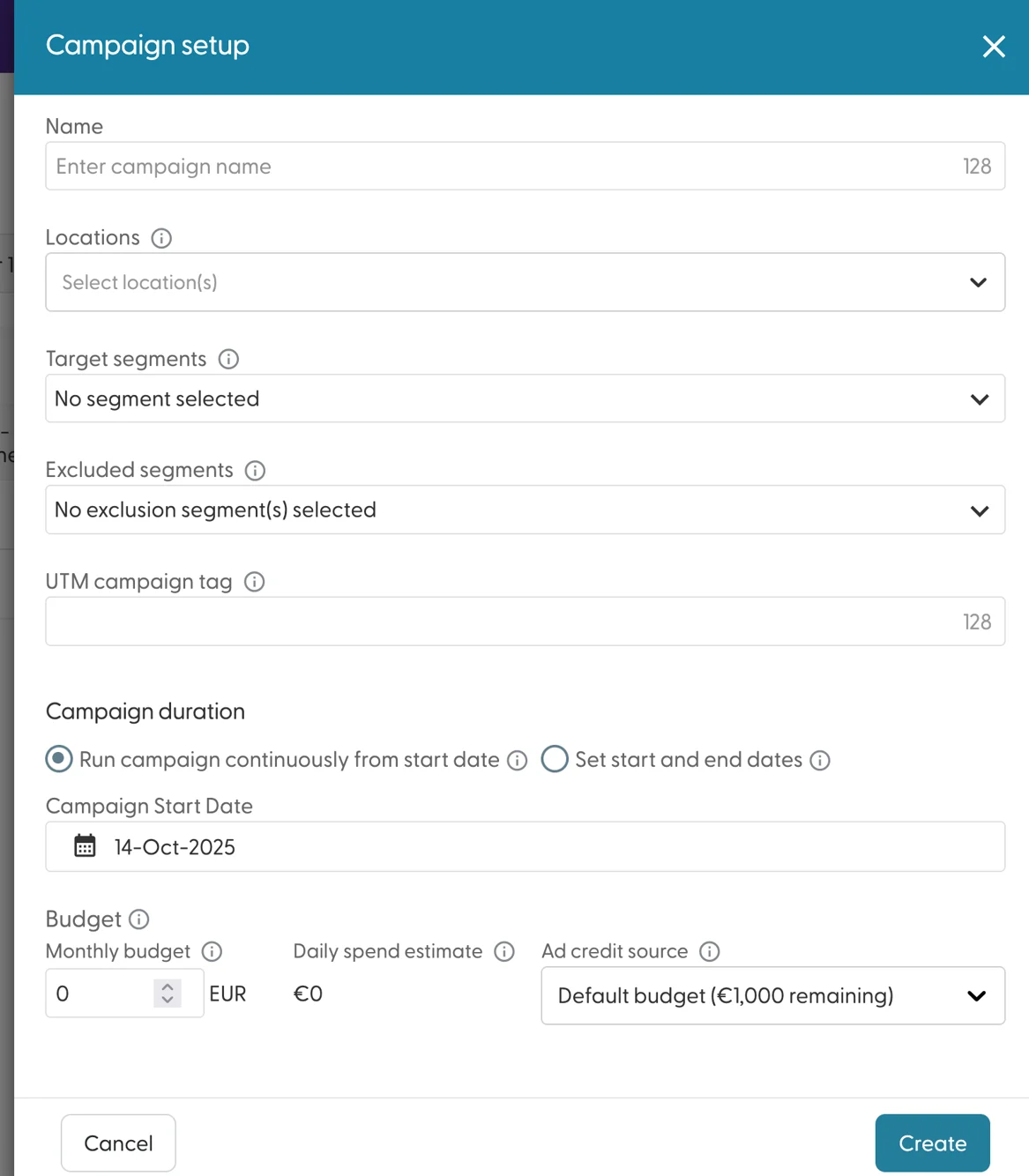
The settings are name, locations, target and excluded segments, UTM campaign tag, duration, monthly budget and ad credit budget source. See What does each campaign setting do? for what each one means.
Save the campaign. A prompt asks what you want to do next:
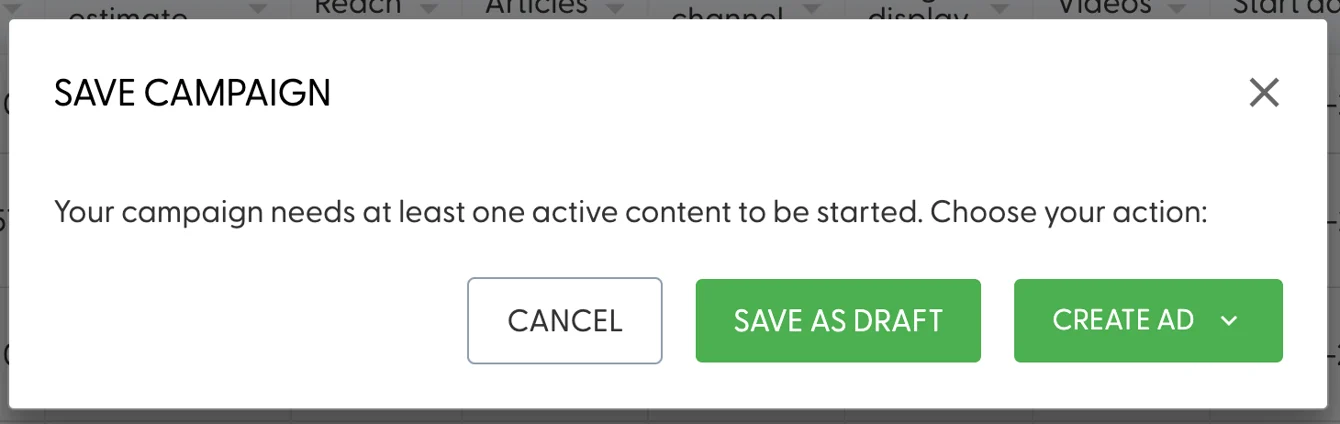
Cancel or Save as draft takes you back to the Campaigns page. The campaign is saved as a draft.
Create ad takes you straight to creating one of the four ad types. See How do I create ads?
Launch the campaign
Your campaign stays in Draft until you launch it. Once it has its settings and ads, use the switch in the Status column on the Campaigns page to set it live.
What's next
Need help? Reach out to your Solutions Engineer via the chat in the bottom-left corner of the N.Rich platform, by email or Slack.