How do I organise campaigns into folders?
Last updated: October 7, 2026
Folders help you keep the Campaigns page tidy, for example by product, region or quarter. This article shows how to create folders, move campaigns into them and reorder them.
Switch to folder view
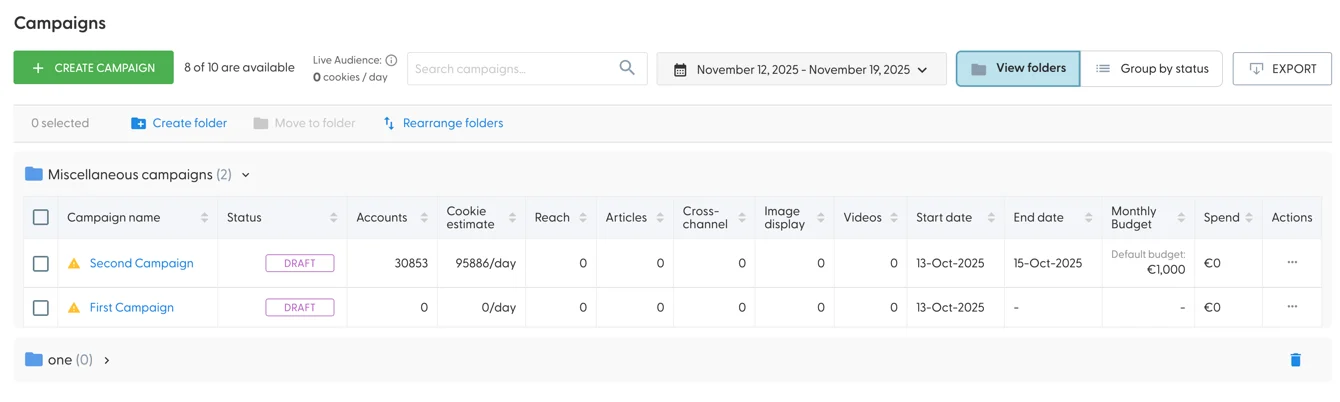
On the Campaigns page, switch from Group by status to View folders. This shows your own folders and the folder actions:
Create a folder
Click Create folder and give it a name of up to 127 characters. There's no limit to how many folders you can create.
Move campaigns into a folder
New campaigns go into the Miscellaneous campaigns folder. To move a campaign, tick the checkbox to the left of its name and choose the folder.
Reorder folders
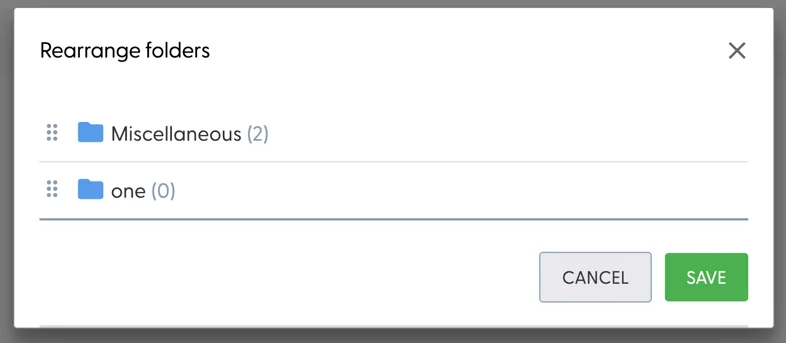
Click Rearrange folders to move folders up or down the page:
Collapse or delete a folder
Click anywhere to the right of a folder's title to collapse or expand it.
An empty folder you created shows a trash can icon on the right. Click it to delete the folder. Folders with campaigns in them can't be deleted.
What's next
How do I clone, export or delete a campaign?
Need help? Reach out to your Solutions Engineer via the chat in the bottom-left corner of the N.Rich platform, by email or Slack.