How do I clone, export or delete a campaign?
Last updated: October 7, 2026
Copy a campaign to reuse its setup, download a list of your campaigns and ads, or remove campaigns you no longer need. All of this happens on the Campaigns page.
Campaign actions
In the Actions column of the Campaigns page, each campaign has these options:
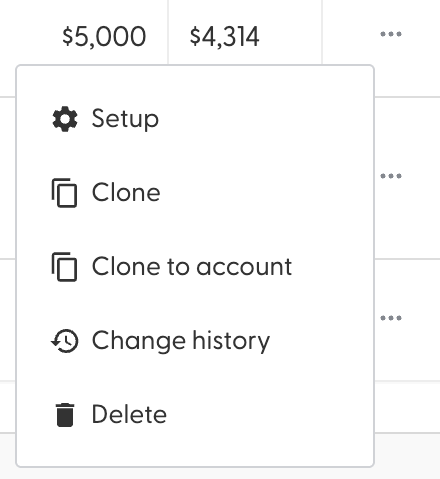
Setup: opens the campaign settings. See What does each campaign setting do?
Clone: creates an exact copy of the campaign and everything in it, including its ads. A clone counts toward your campaign allowance.
Clone to account: copies the campaign to another N.Rich account you have access to.
Change history: shows when the campaign was created, updated, started or stopped, and by whom on your team.
Delete: removes the campaign and everything in it, including its analytics if it has been live. You're asked to confirm first. This can't be undone.
Export your campaigns
Click Export at the top right of the Campaigns page to download an .xls file of your campaigns and their ads. It has one row per ad, with the ad and campaign status, when each was last updated, and the campaign's cookie estimate.
What's next
What can I see and do inside a campaign?
Need help? Reach out to your Solutions Engineer via the chat in the bottom-left corner of the N.Rich platform, by email or Slack.