Single Campaign View
Last updated: October 5, 2026
A writeup covering the view of a single campaign within N.Rich
When first entering a brand new campaign without any ads created, the single campaign view will look like this:
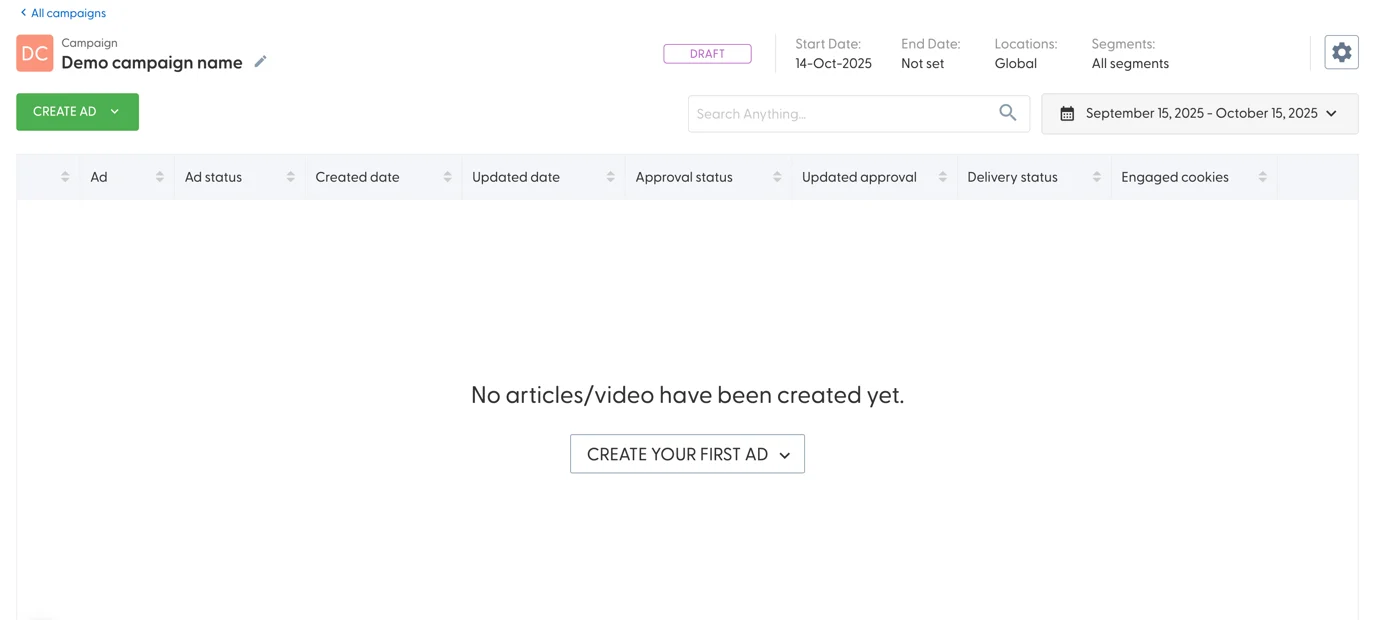
At the very top, on the left, you can see the campaign name with a pencil icon next to it — click the pencil to change the name. On the right, you can see the state of the campaign. Campaigns can be in one of three states: Draft, Live, or Stopped.
For campaigns with Display ads (Cross-channel and Image display ad types), a Learning badge may also appear before the Start Date while the campaign is still settling in. See Google Ads Learning Stage for what this means and how to advise clients.
Further to the right, the cogwheel icon opens the campaign settings, where you can change those settings:
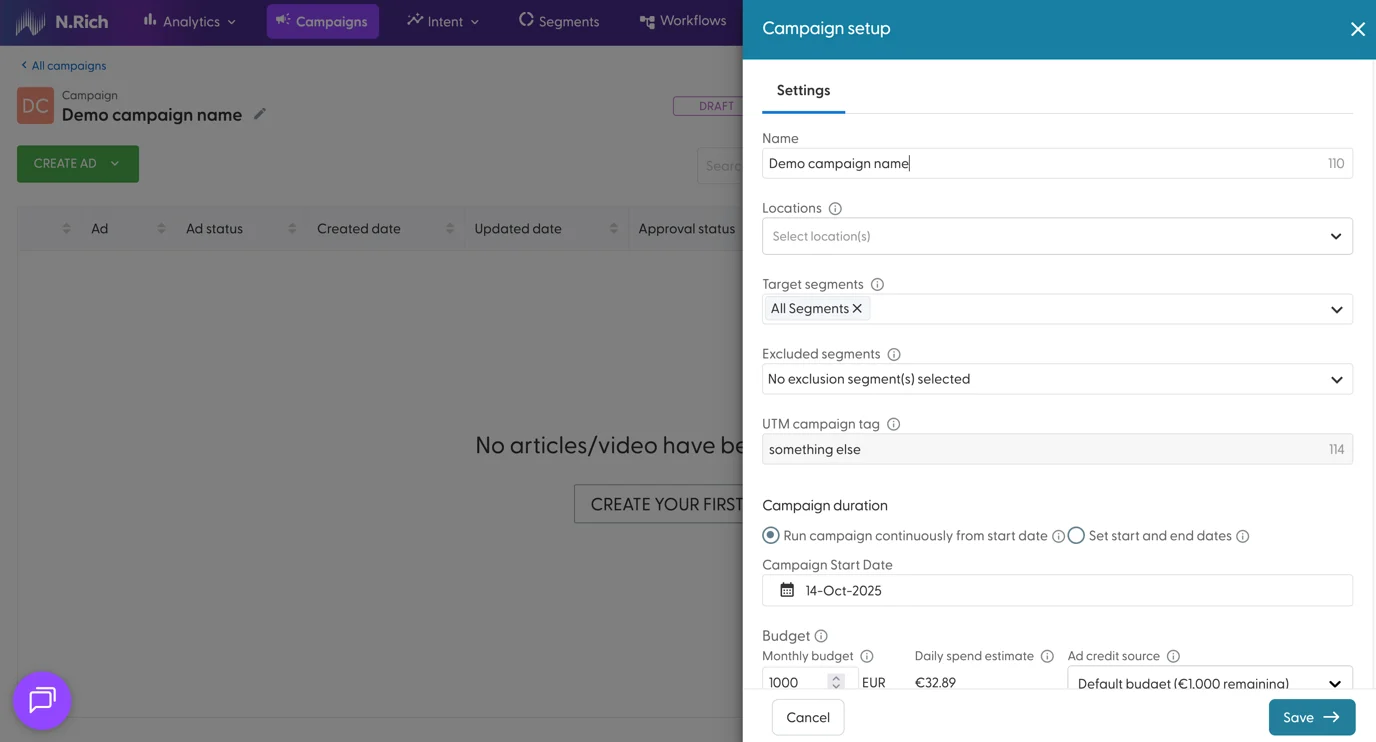
These settings are described in detail on the campaign overview article.
Apply changes confirmation
Editing a Live campaign — "Apply changes" confirmation
When you edit a Live campaign (containing Display Ads) in the settings modal and click Apply changes, a pop-up appears with this message:
"This change may restart the learning phase."
Big edits — like a large budget jump or a major change to the audience, location, or segments — can push the campaign back into Learning. While in Learning, delivery and results can change a lot for up to about two weeks.
Cancel keeps the campaign as it is.
Apply changes saves your edit and continues.
When you can, make all your changes at once. That way you avoid restarting Learning over and over. For more on what Learning, see Google Ads Learning Stage.
Creating Ads
Lower on the page, we have the Create Ad button, giving us the options to create one of the four ad types supported by N.Rich:
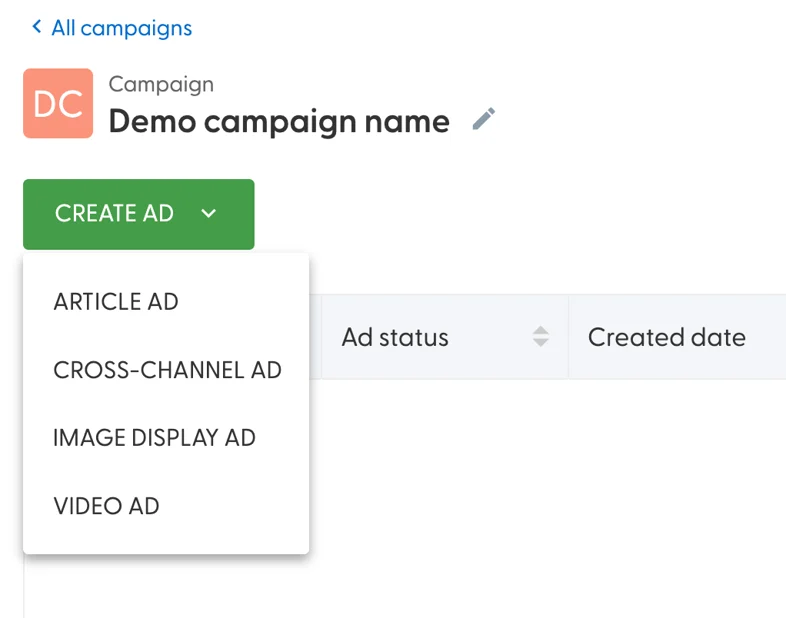
You can explore these in detail over on our ad overview article.
To the right, we have the Search area, allowing you to shortlist ads by name or content within them, as well as a date picker field that influences the timeframe for the engaged cookies in the table bellow.

That said, lets zoom in on the table itself, containing some test ads:
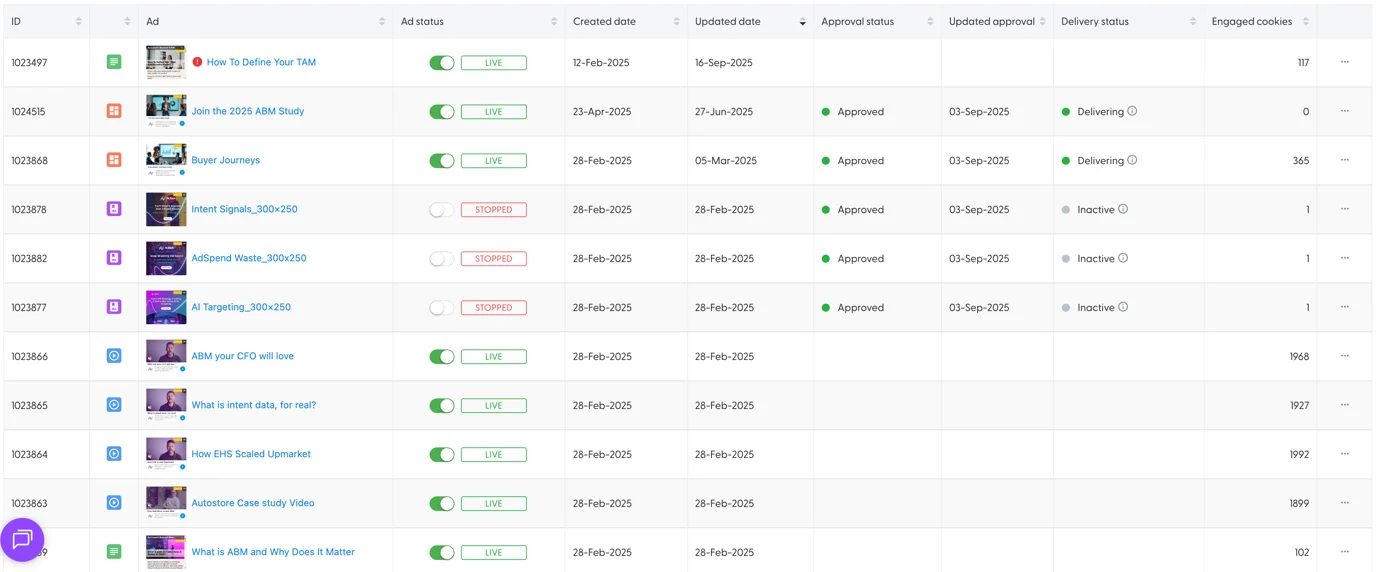
The first row contains the unique ID of each ad within a campaign.
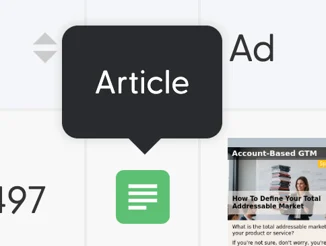
The second, unnamed row holds the icon indicating the type of the ad in question - hovering over the icon reveals the ad type:
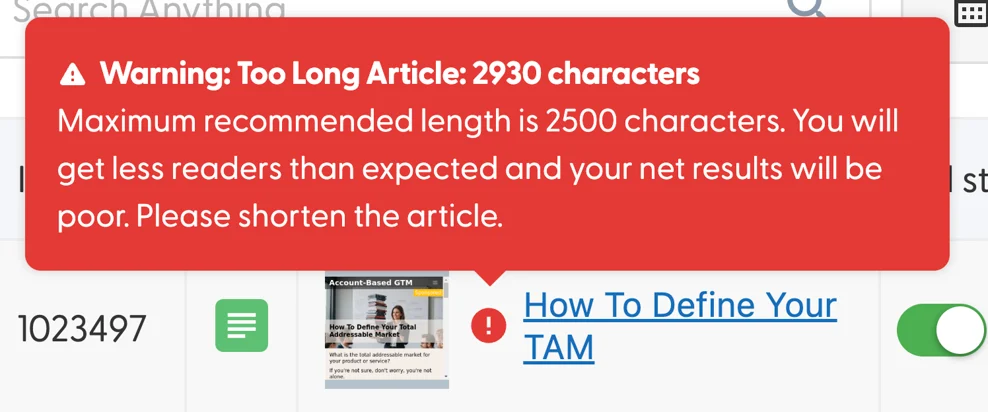
Next up, we have a more complex column containing a title of an ad that also serves as a link to enter the ad itself, next to an image asset from the ad, if available. The same column will hold any content warnings, visible when hovering over them:
The Ad status column will either be Live or Stopped depending on the state of the ad, indicated by the switch next to said status. The switch serves as a quick way of toggling an ad on or off.
Created date and Updated date indicate when an ad was created and updated - if an ad was never modified, its updated date field will be empty.
The Approval status is relevant only for Cross-Channel and Image display ad types, as these run via Google Ad's API and are subject to Google's approval policies.
There are three states in which data in this column can be in:
Approved
Approved (limited)
Rejected
If an ad is rejected or approved with a limitation, hovering over the data in this column will reveal the reasoning behind the decision and lead you to the help article covering disapprovals, including what the recommended action is to address it.
The Updated approval column, also only relevant for Cross-channel and Image display ad types, reflects when was a change in approval status last recorded - this is particularly useful if an ad has been rejected previously or if you have made updates to an ad (any time you make an update to one of these two ad types, your ad will essentially enter a new approval cycle)
Delivery status, once more, only relevant for Cross-Channel and Image display ads, is a sort of a pulse check of the ad- the states you can experiences are:
Delivering with a green indicator - present while the ad has delivered traffic in the past 48 hours.
Not Delivering with a red indicator - present when there is a delivery issue of sorts and when no traffic was recorded in the past 48 hours. When experiencing this on an approved ad, its best to reach out to our support team.
Inactive if the ad has been stopped.
Engaged cookies indicate how many individuals from your account segments have engaged with the ad in question.
Finally, the three dots hold the following ad operations:
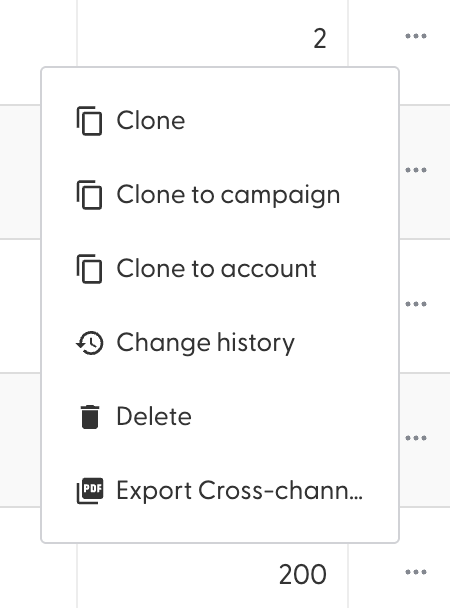
Clone will create a carbon copy of the ad within the same campaign.
Clone to campaign will copy an ad over from one to another campaign.
Clone to account will copy an ad over to a campaign belonging to a different account you have permissions over.
The change history will bring up a log of who created, started, updated or stopped the ad and when.
Deleting will, as expected and after a warning, delete an ad from the campaign. This is irreversible.
Image, Video and Article ads will hold an additional option to copy a preview link - this link can be accessed by anyone and will give the viewer a preview of the ad in its true size.
Cross-channel ads will have an additional "Export cross-channel ad" option that will generate a PDF of all the content combinations available within the ad.
Back to Campaign overview.
Forward to Ad overview.