How to create an ICP-based workflow
Last updated: October 9, 2026
An ICP-based workflow updates your segments based on Sales Velocity ICP scores. Use it to keep a segment of accounts that look most like your best, fastest-converting customers.
Before you start
Sales Velocity ICP must be configured with your CRM opportunity data. See What is Sales Velocity ICP?
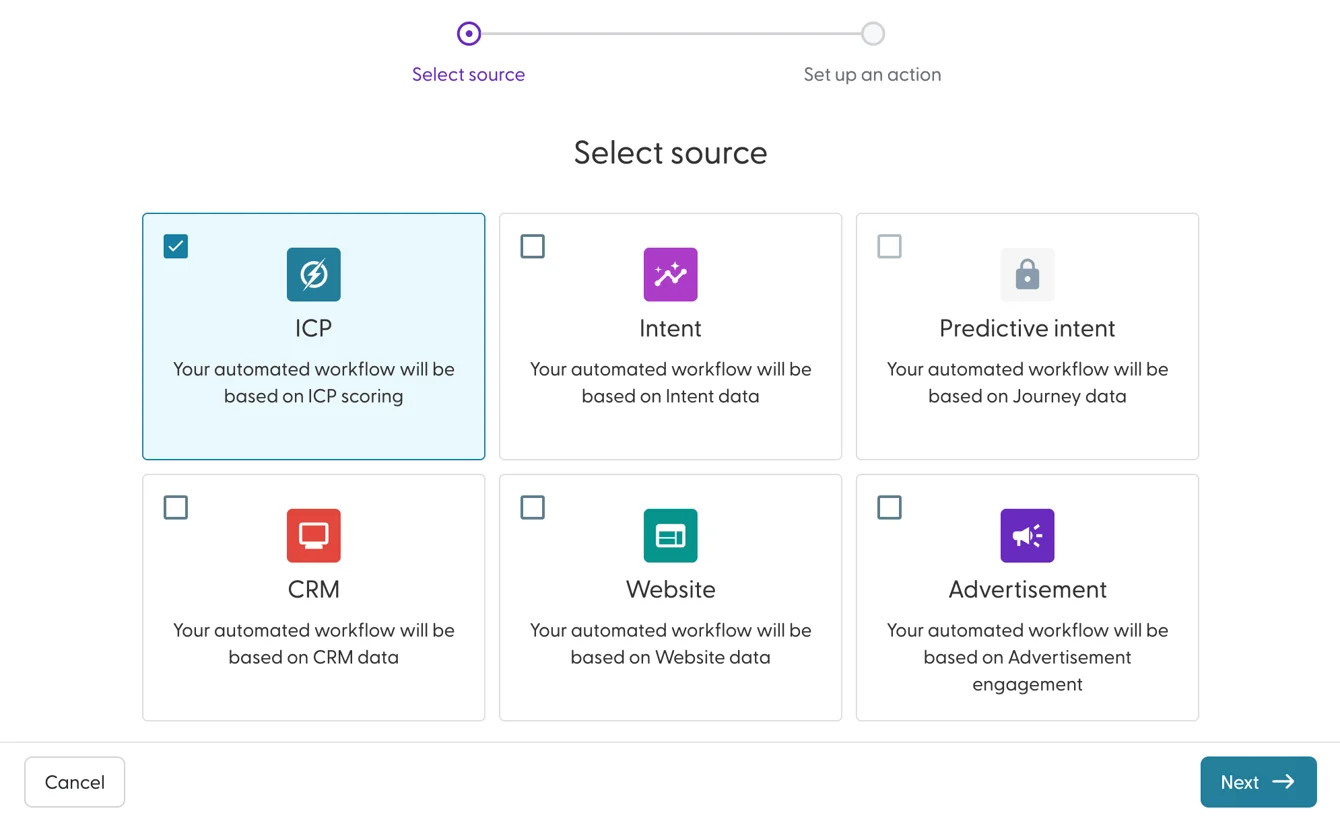
The ICP source must be enabled for your account. If it shows a lock icon, contact your Solutions Engineer.
Create the workflow
Go to Workflows and click + Create workflow.
Select ICP and click Next.
Enter a name that includes the score and the action, for example "ICP 70+ add to High ICP accounts".
Select the Sales Velocity score the account must reach: 30 to 90, in steps of 10.
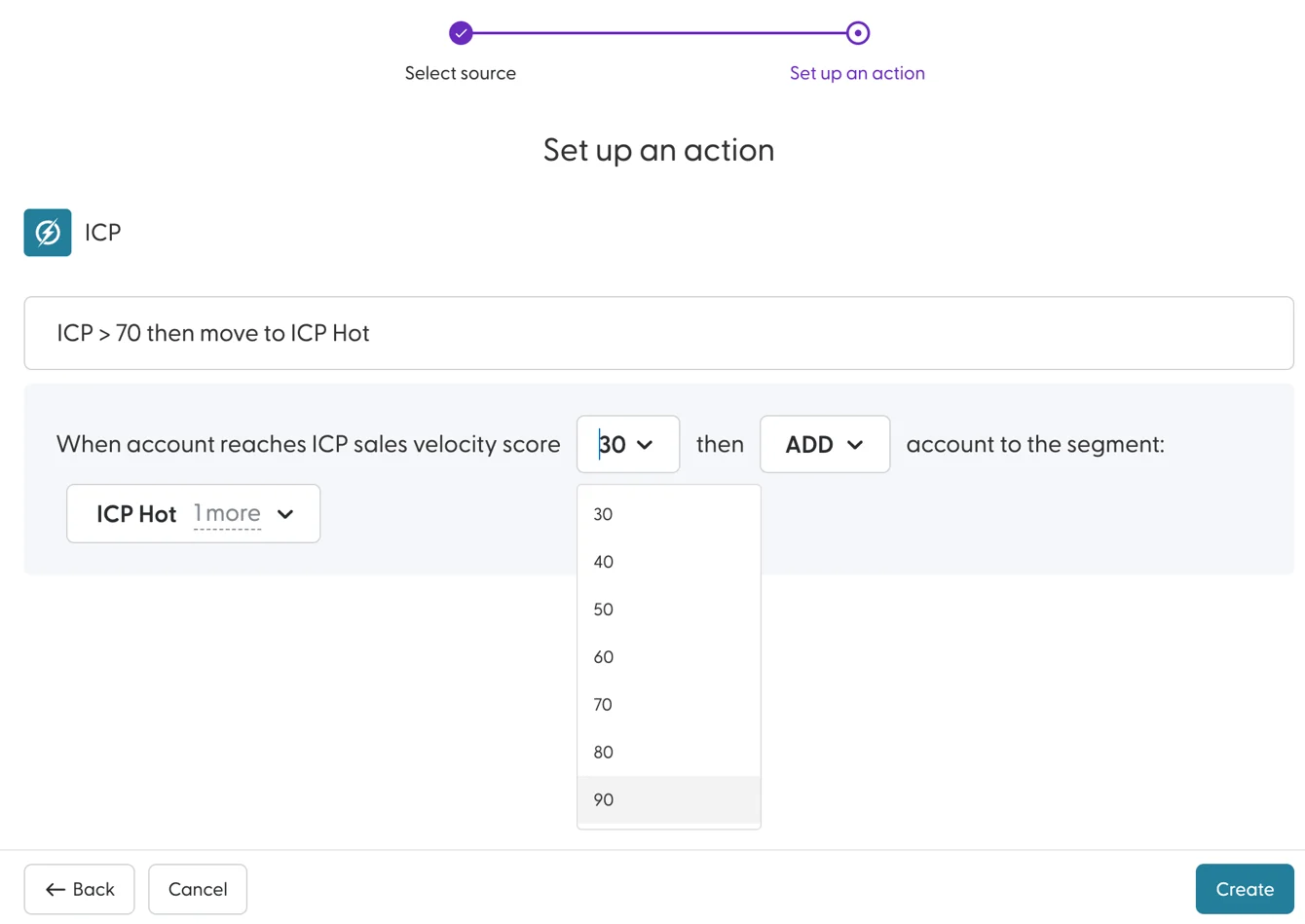
Choose the action: Add, Move or Remove. See What are workflows and how do they work? for what each action does.
Select the segment(s) to update. You can also create a new segment here. For Move, select the segment(s) to move accounts from and the segment(s) to move them to.
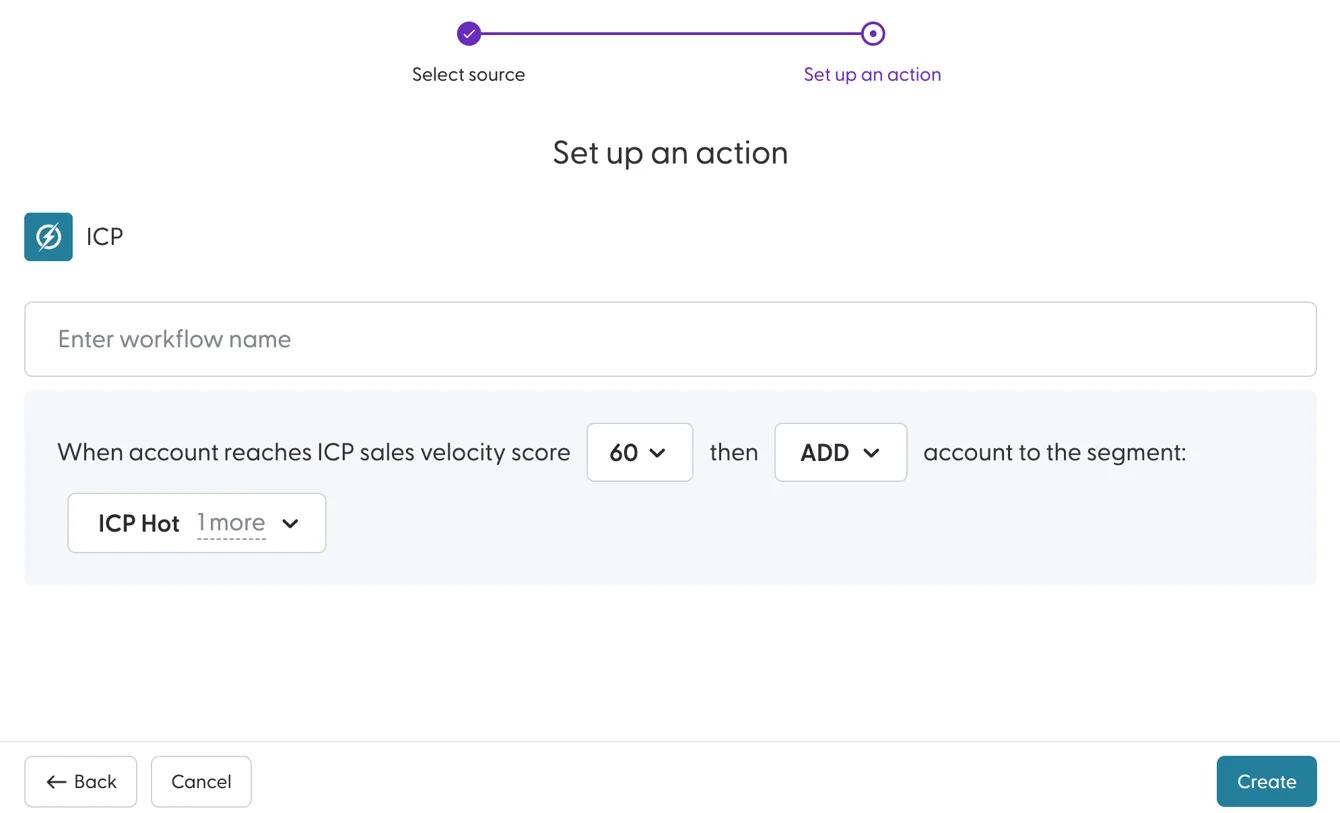
Click Create.
The workflow is active straight away and runs at the next scheduled run.
Example: give sales a list of high-ICP accounts
Goal: one segment with the accounts most likely to convert quickly, for sales to prioritise.
Create a segment called High ICP accounts.
Create an ICP-based workflow: when an account reaches a Sales Velocity score of 70, Add it to High ICP accounts.
Share the segment with sales, or push it to your CRM.
What's next
Need help? Reach out to your Solutions Engineer via the chat in the bottom-left corner of the N.Rich platform, by email or Slack.