N.Rich AI apps in Salesforce
Last updated: October 2, 2026
Published N.Rich AI apps can open right inside Salesforce. Your sales team sees N.Rich data on the Account record they're already working in, without switching tools or logging in to N.Rich. When the Account exists in N.Rich, the app opens with that account already selected.
Before you start
Your Salesforce must be connected to N.Rich. See Salesforce Integration. The card only shows apps for N.Rich accounts connected to that Salesforce org.
N.Rich AI must be enabled for your account.
You need a Salesforce admin for the one-time setup (steps 1 to 3 below).
You need to know your N.Rich region (EU or US). Not sure? Ask us via the chat.
Only published apps can appear in Salesforce. (Drafts can't.)
Only the app owner can publish an app to Salesforce.
One-time setup (Salesforce admin)
1. Install the N.Rich package
Open the N.Rich package install link.
Log in to Salesforce as an admin.
Choose Install for All Users and click Install.
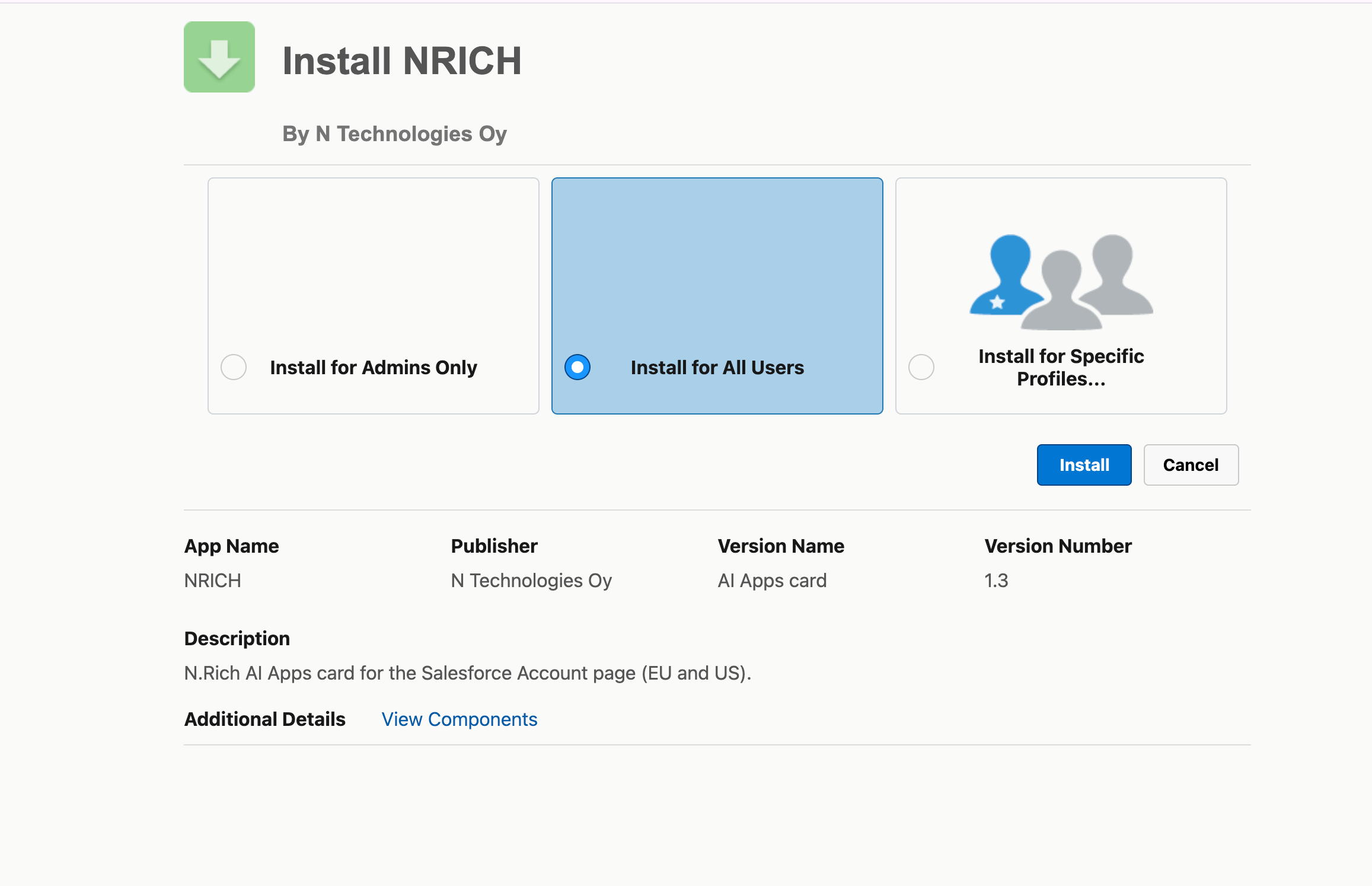
Our Salesforce Integration article says not to install the N.Rich app from AppExchange. That still applies to the CRM integration. This package is only for N.Rich AI apps in Salesforce.
2. Allow users to open apps
Go to Setup > External Client App Manager > N.Rich AI Apps (EU), or N.Rich AI Apps (US) if you're on the US region.
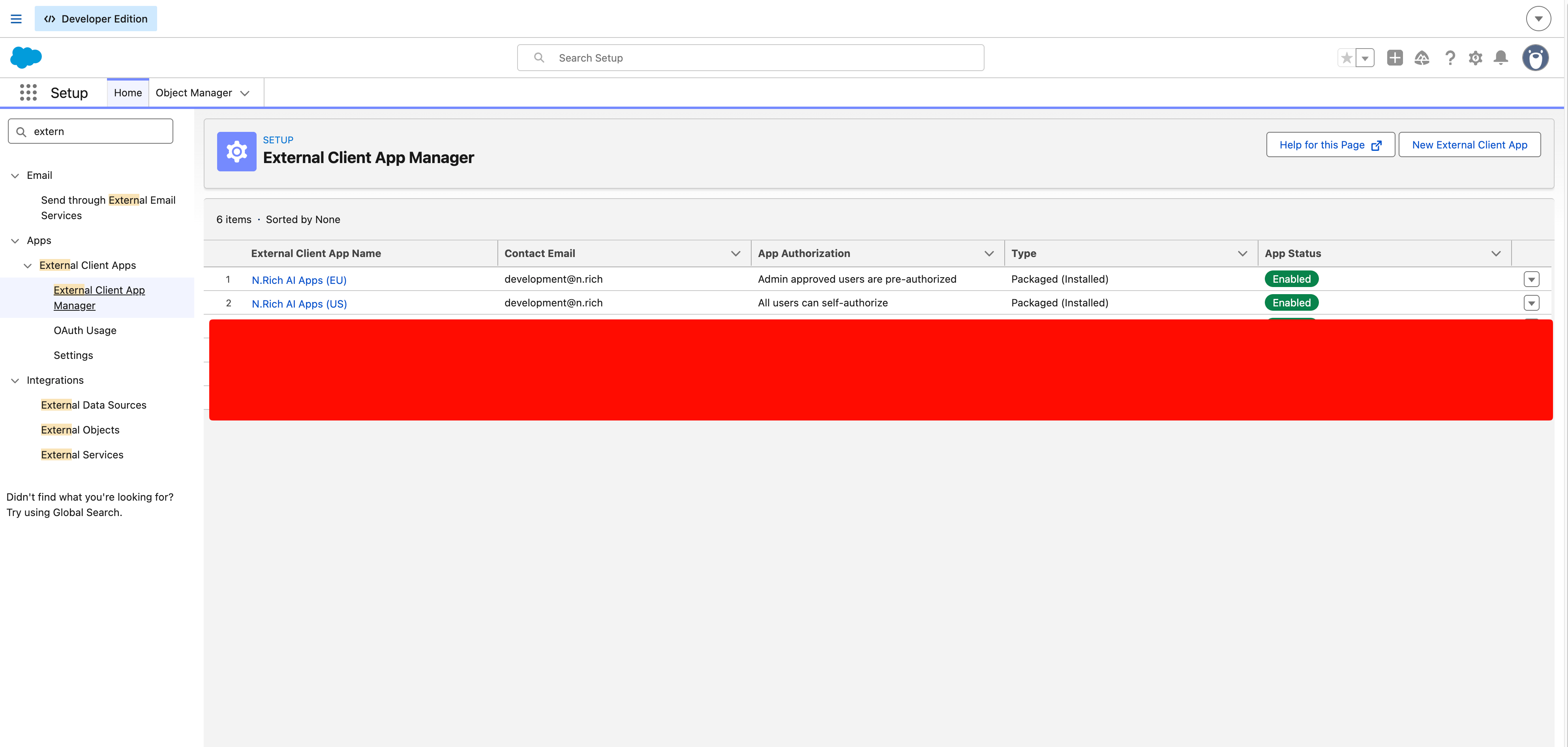
Open the Policies tab and click Edit.
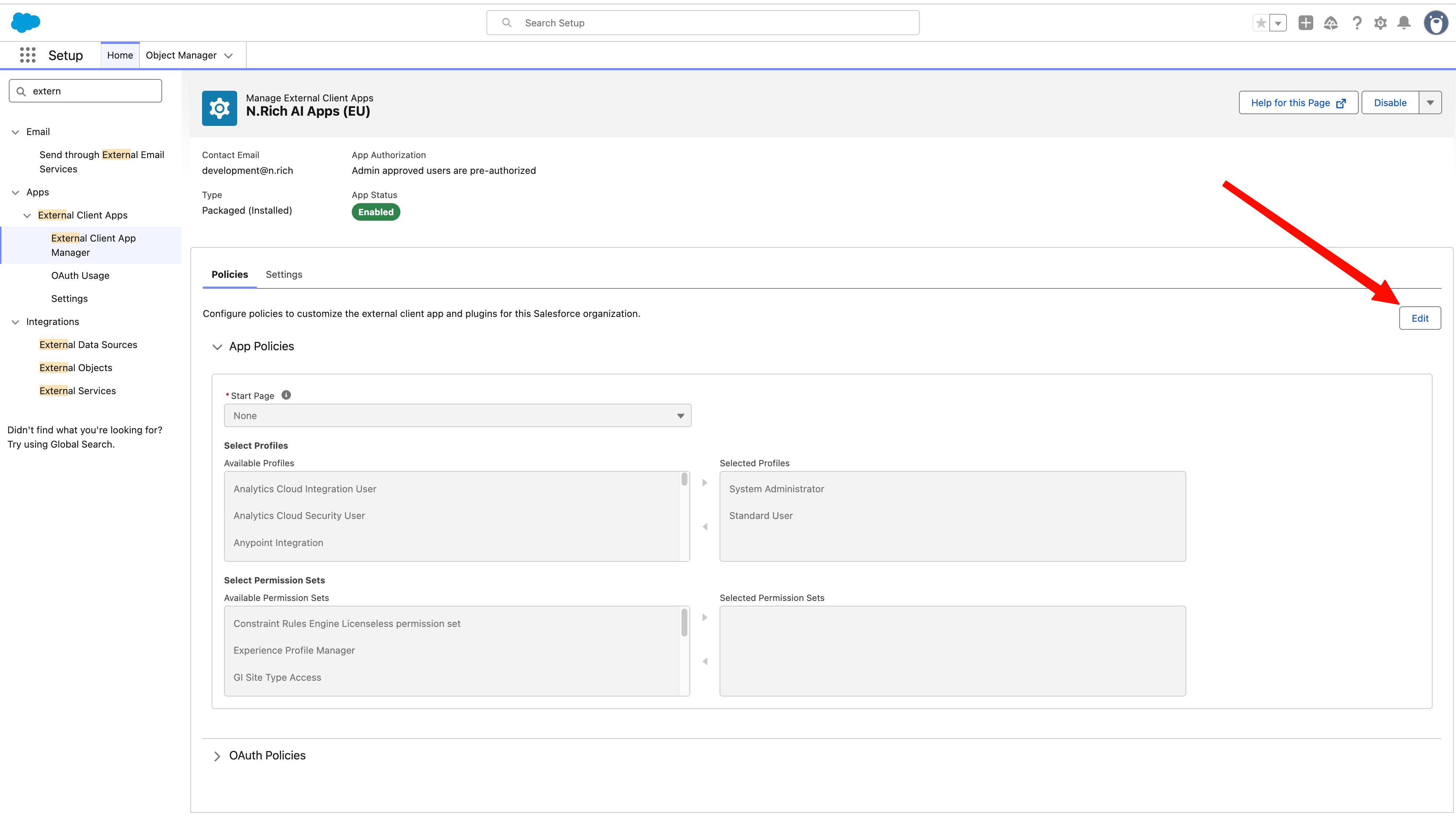
Set Permitted Users to Admin approved users are pre-authorized.
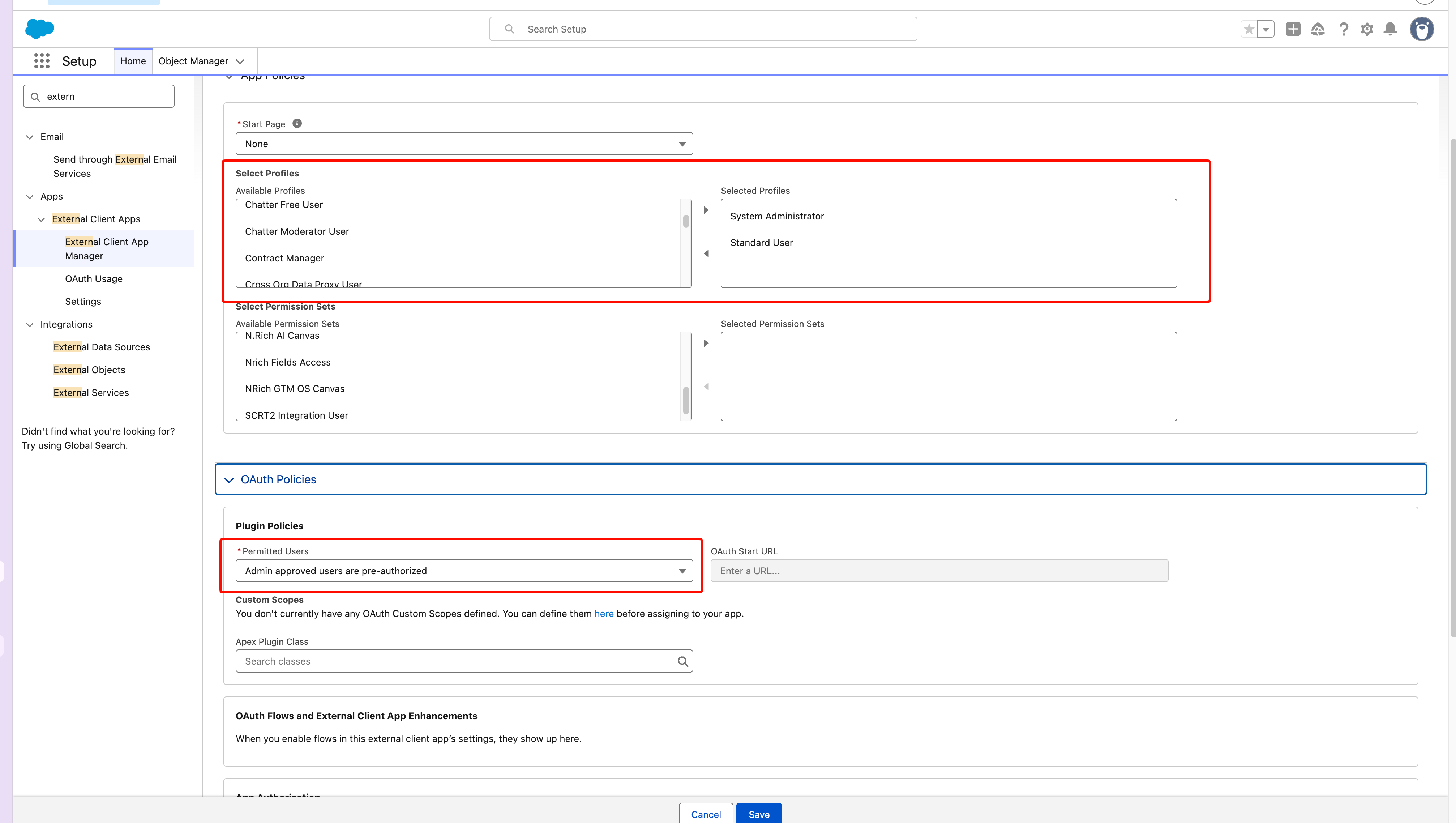
Choose who can see apps. Either option works:
Select Profiles: add the profiles of everyone who should see apps (for example System Administrator and your sales profiles).
Select Permission Sets: add a permission set you've created for this (for example "N.Rich AI Apps users") and assigned to those users.
Click Save.
3. Add the card to the Account page
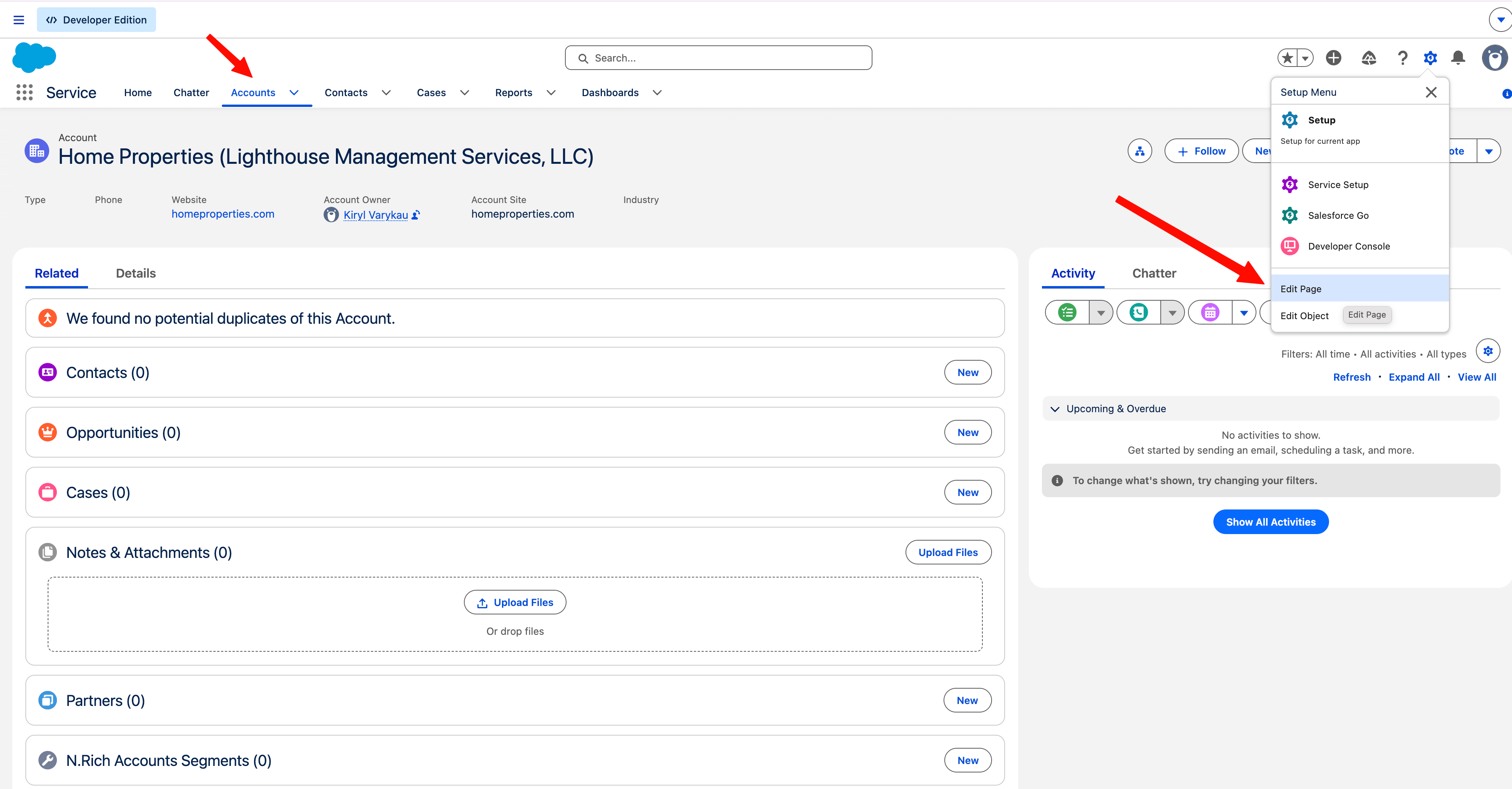
Open any Account and click the gear icon > Edit Page.
In the component list, search for rich and drag N.Rich AI Apps onto the page.
In the card's properties, set N.Rich region to your region (EU or US).
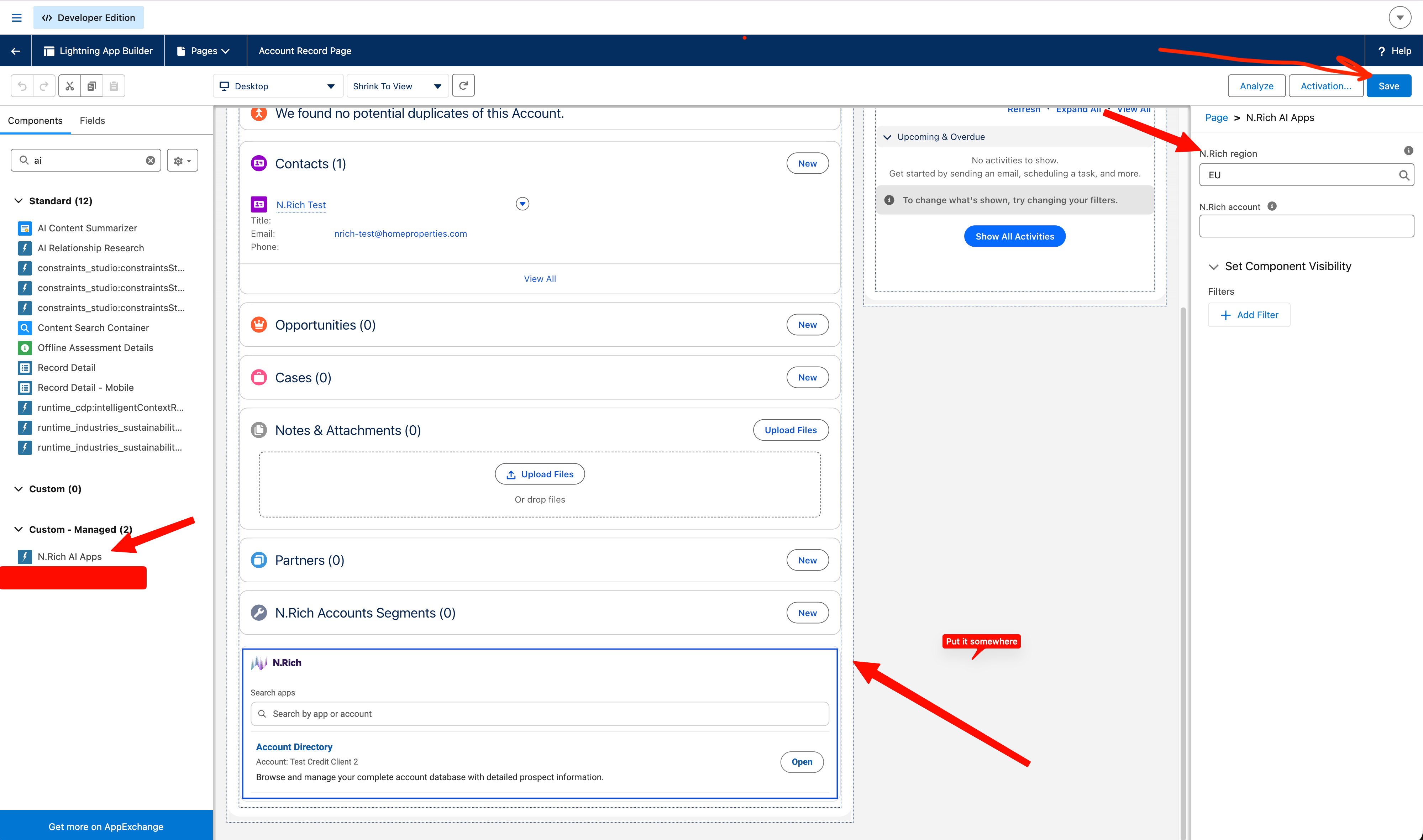
Leave N.Rich account empty, unless your Salesforce org is connected to several N.Rich accounts and this page should only show one of them.
Click Save, then Activate if Salesforce asks.
Add an app to Salesforce
Open your app in N.Rich AI.
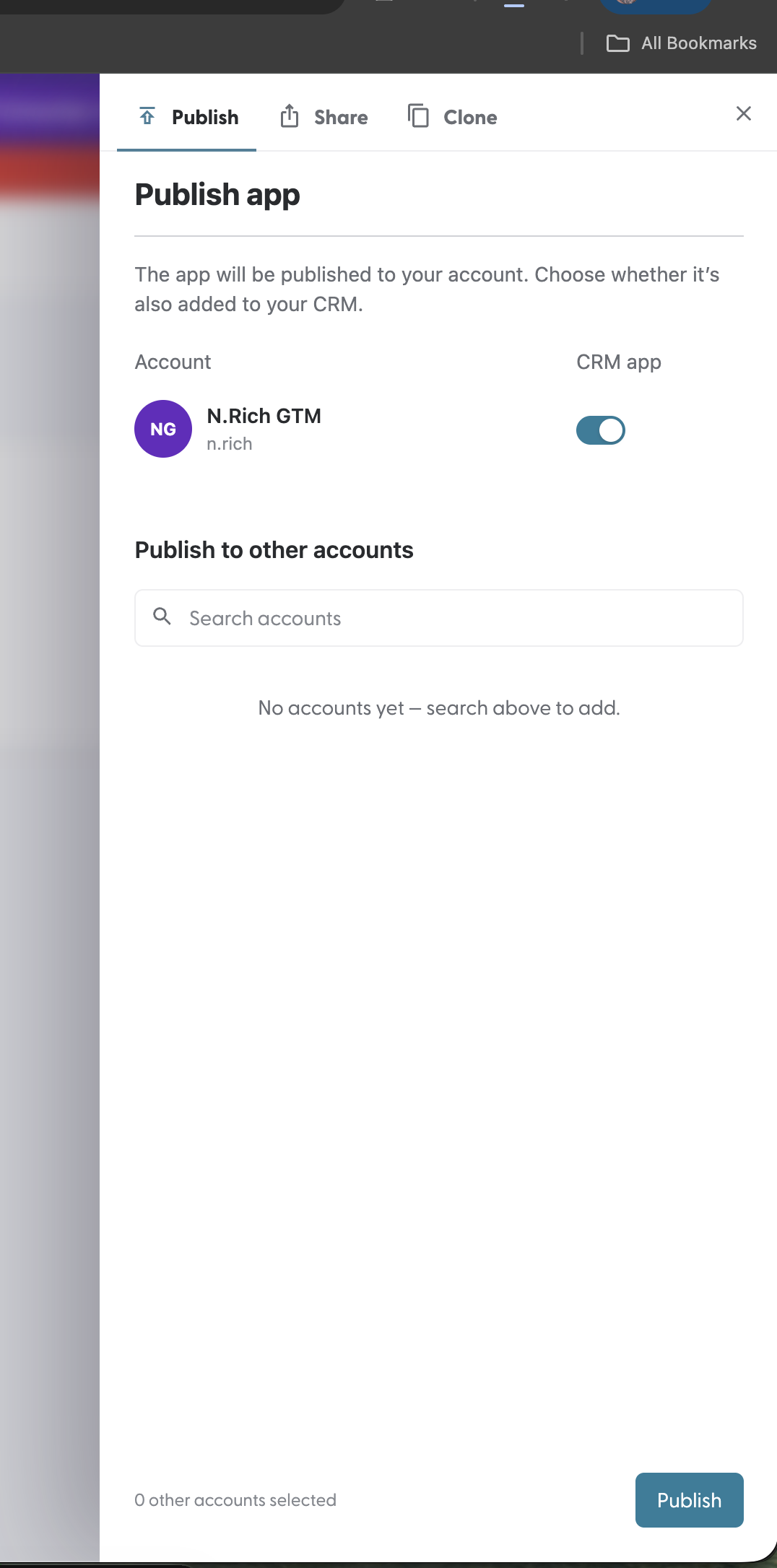
Open the Publish panel.
In the CRM app column, turn on the toggle next to your account.
Click Publish (or Update if the app is already published).
Open an app in Salesforce
Open an Account in Salesforce.
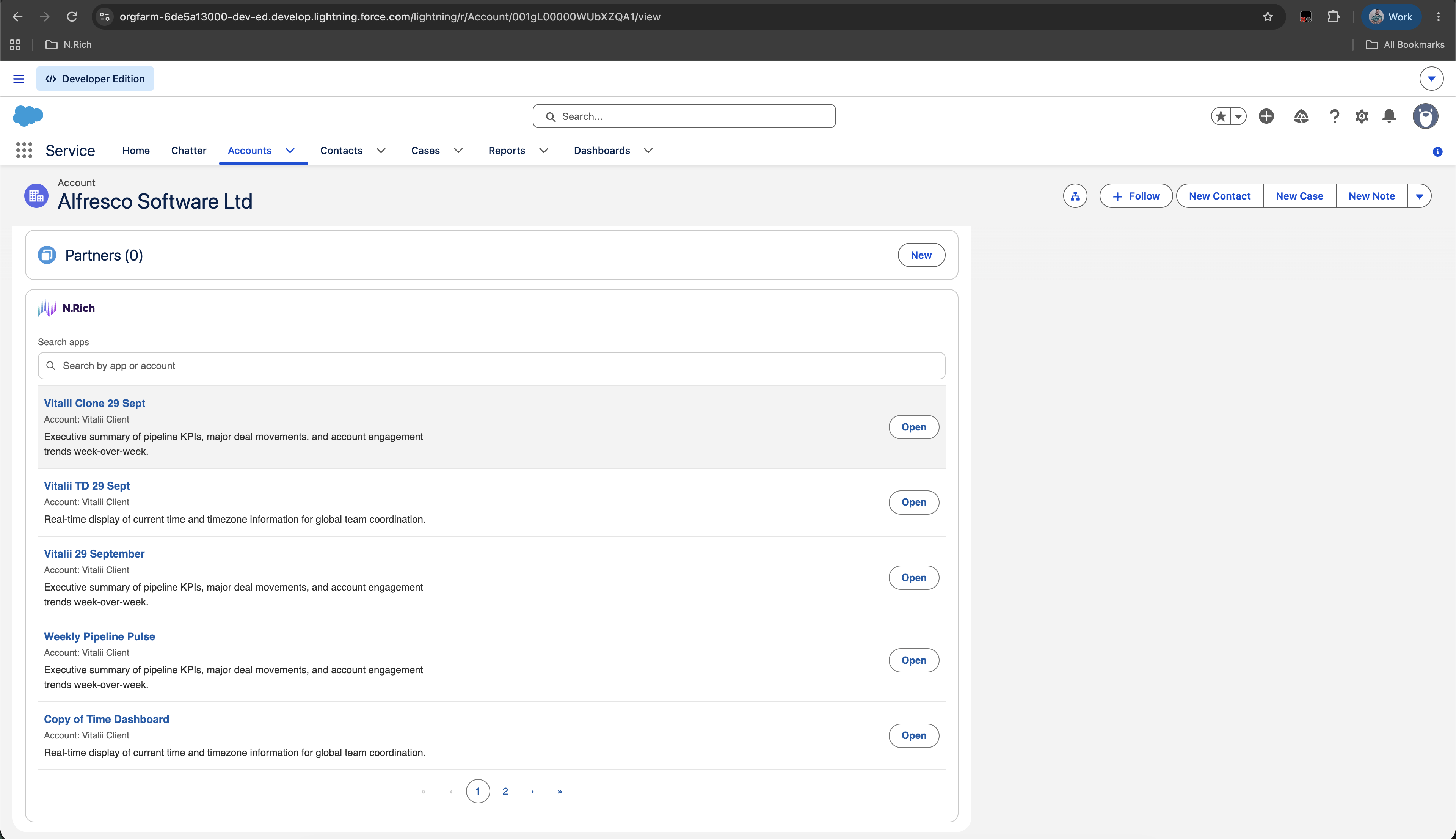
Find the N.Rich card. It lists every app shared to Salesforce, with its name, the N.Rich account it belongs to, and its description.
Click the app name or Open.
The app opens inside the card. Click ← Back to apps to return to the list.
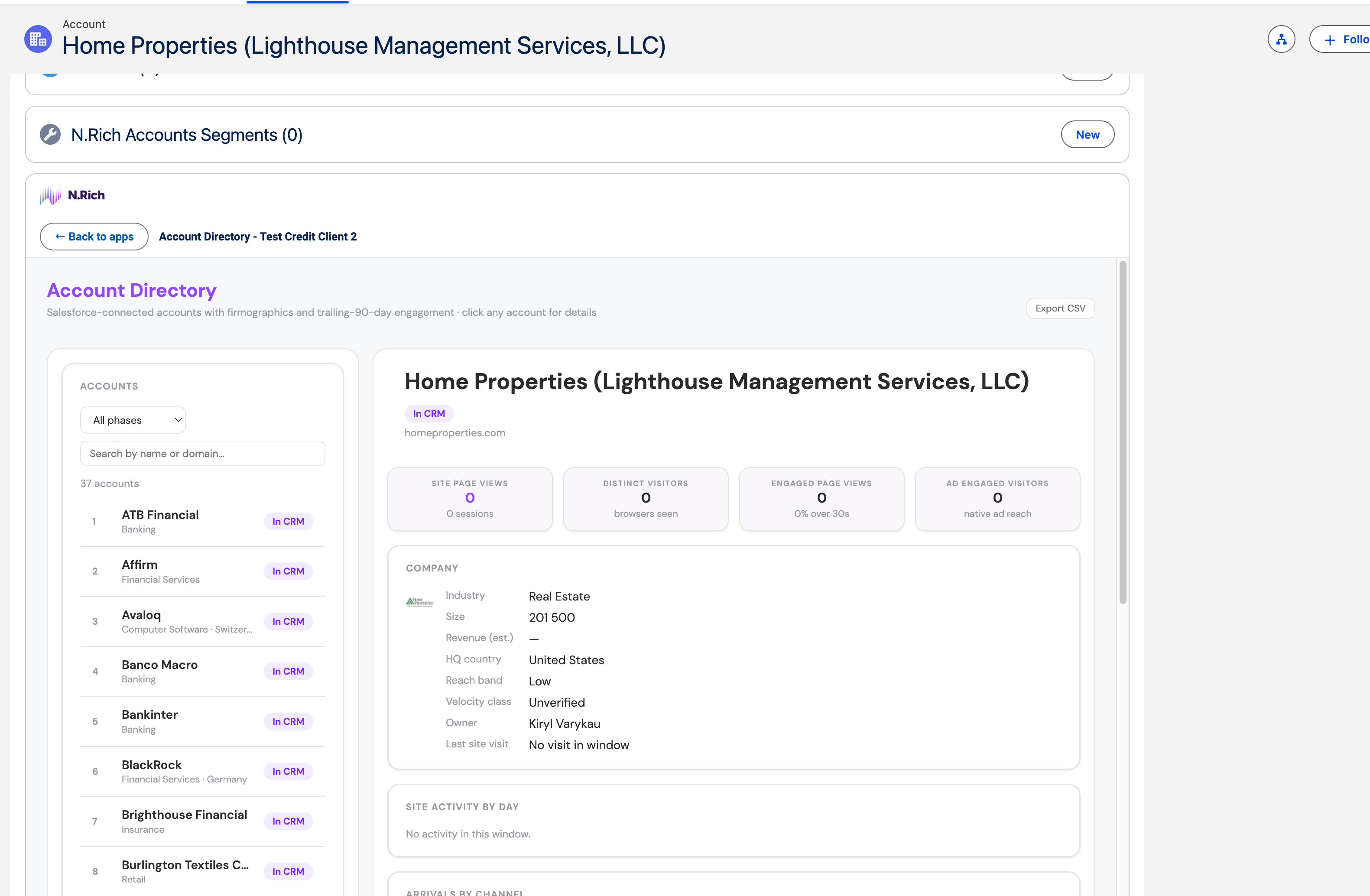
With more than five apps, the card shows five per page. Use the search box to filter by app or account name.
What you can do in Salesforce
In Salesforce you can | In Salesforce you can't |
|---|---|
Use the app's filters, tabs and drill-downs | Change or rebuild the app |
Open it without an N.Rich login | Use the N.Rich AI Assistant (Chat or Build mode) |
See the Account you opened it from already selected (when the Account exists in N.Rich) | See draft apps |
Updating or removing an app that's in Salesforce
When the owner edits a published app, Salesforce keeps showing the current published version. The edits stay private and show as "Unpublished changes" until the owner publishes them again.
To remove an app from Salesforce, open the Publish panel, turn the CRM app toggle off and click Update.
Troubleshooting
What you see | What to do |
|---|---|
"This Salesforce org isn't connected to an active N.Rich account here." | Check that the card's N.Rich region is correct and that Salesforce is connected in N.Rich. If both are right, contact us: N.Rich AI may not be enabled for your account. |
"No apps are published to Salesforce." | Publish an app with the CRM app toggle on (see Add an app to Salesforce). |
"Cannot GET /api/sandbox/integrations/salesforce/canvas" | Step 2 was skipped. Set Permitted Users to Admin approved users are pre-authorized and reload the page. |
One user sees an error, others see apps | That user's profile or permission set isn't in the policy from step 2. Add it. |
The app opens without the Account selected | The Account isn't matched to an account in N.Rich, or the app was built before Salesforce support was released. Rebuild the app and publish it again. |
FAQ
Does my sales team need an N.Rich login to open apps in Salesforce? No.
Why isn't my app in the card? It's either still a draft, or it was published without the CRM app toggle on.
Can I change an app from Salesforce? No. Changes are made in N.Rich AI by the app owner.
Do I need to repeat the Salesforce setup for every app? No. Steps 1 to 3 are done once. After that, you only publish apps with the CRM app toggle on.
Where to next
[N.Rich AI: Free trial and limits]: find out how the trial plan works.
[Navigating N.Rich AI]: find your way around the Apps library and an open app.
[Working with apps]: what you can do with an app, and who can do it.
[MCP section]: connect Claude or another AI assistant to your N.Rich data.
Need help at any point? Reach out via the chat in the bottom-left corner of the N.Rich platform, we're happy to help.