Advertising Analytics
Last updated: March 30, 2026
The advertising analytics dashboard holds the details about how your ads have preformed.
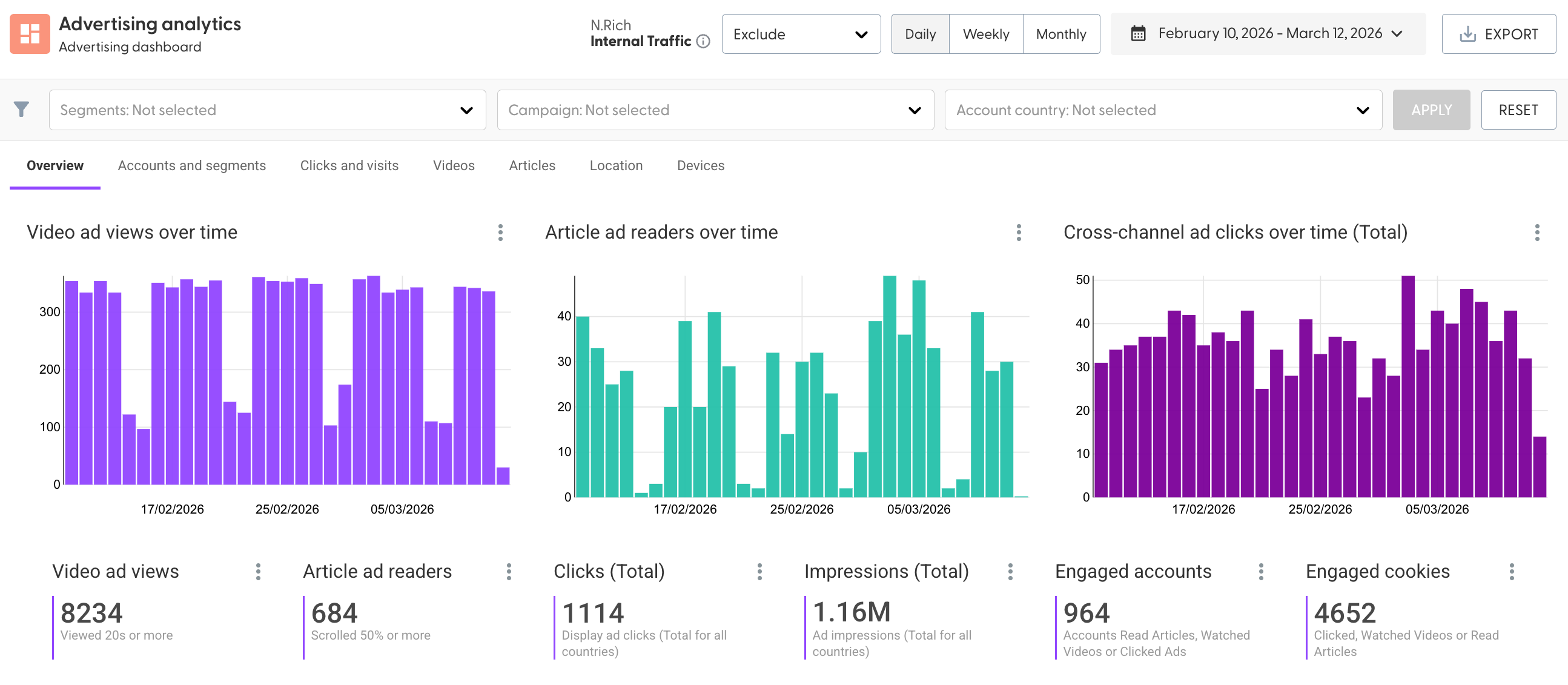
At the very top, we have options to include, exclude or show only internal traffic detected (traffic generated from users behind your own internal domains)
You can leverage the Daily/Weekly/Monthly toggle to adjust the granularity of the charts.
The date picker allows you to define any date range you wish to focus on (keep in mind that wider date ranges rely on more data and may be slower to load)
The export function launches the analytics export which you can read more about here.
Any data point or chart which has three vertical dots next to it can be exported as a .csv
Filters
The analytics dashboard can be filtered per Segments, Campaigns or Countries, where the country will filter per location of ad engagement.
Overview tab
The main tab of Advertising analytics, the overview holds the high level details about your ads, prominently featuring charts summarising the three primary types of engagements: Video views, Article reads and Cross-channel ad clicks.
In addition to the charts, we can see the primary data points:
Total number of video views longer than 20 seconds,
How many times has an article been read beyond the 50% marker
Total number of clicks across Cross-channel and Image display ads
Total number of impressions across all ad types
The number of accounts that has engaged with at least one ad
Total number of devices (cookies) that has engaged with at least one ad
Accounts and Segments
The accounts and segments tab of the advertising analytics features three tables and a bar graph:
The Target Account Breakdown gives you a summary of all accounts that have engaged with ads, along details on which CRM stage they are in, which country they are based in and how many individual engagement types they have had, spread across the three ad engagement types (video watches, article reads, clicks) as well as the average duration of their website visits.
The Segment breakdown will tell you how many accounts and devices have engaged with your ads from every segment in your N.Rich account, as well as how many video views, article reads and clicks they have generated.
The Campaign breakdown tells you how many engagements has each individual campaign gathered, as well as how many accounts and devices has engaged with each.
Engaged accounts by campaign gives you a bar graph overview of the number of accounts each campaign has influenced, sorted from the highest to the lowest influence.
Clicks and Visits
The Clicks and Visits tab gives you high-level insights into costs (which are covered in-depth on the Spend dashboard) as well as the general information about the clicks your campaigns have generated, featuring:
The cost-per click in EUR
The cost-per click in USD
The Click-through-rate (CTR) defined as the ratio between the impressions an ad has generated and the clicks made on said ad.
The Post-click visit time, representing the number of seconds an individual has spent on the website after clicking on an ad, on average.
Post-click page views indicating how many pages on average has a visitor seen on your website after clicking on an ad.
The bounce rate, indicating the percentage of website visitors that has left your website after clicking on an ad and landing on a single web page (i.e. users that have not navigated deeper into your website from the landing page.
Additionally, this tab holds two tables:
Display ads gives you the performance of all Cross-channel and Image display ads with their individual names, number of impressions, clicks and click-through rates.
Landing pages features any landing page present across all ad types, and gives you the total number of clicks each has generated, how many unique visitors have landed on each page, the average visit duration in seconds, the bounce rate and the average number of pages per session.
Videos
The videos tab holds a table and a bar chart:
The Video ads table gives insights into the performance of individual video ads across all campaigns - how many accounts have engaged with each, how many views have been generated (20s and above), the video repeat rate (i.e. how many times has a video viewer restarted the video in order to watch it again), the average duration of video watched, the duration of the videos, what percentage of the video has been viewed on average as well as the number of clicks each video ad has generated.
The Video ad view time waterfall looks at all video ads and sorts them per view time - giving you insights into how many times did a viewer see only the first 10s, 20s 30s, etc.
Articles
The articles tab also holds a table and a bar chart:
The Article ads table will tell you how your article ads have performed giving you the number of accounts that has engaged with each, how many times more than 50% of the article has been read, the completion rate of the article and how many clicks an article ad has generated.
The Article scroll level waterfall looks across all articles to tell you how many times has an article been loaded (10% viewed), read (50% viewed) or completed (100% viewed)
Location
The Location tab will give you a high level overview of the location of engagements your ads have generated. The Ad engagement map can be zoomed in and dragged, while the table named Ad engagement breakdown per location will give you a summary of the regions, countries and cities where ad engagements have been recorded in, as well as the total number of devices(cookies) engaged from the location in question.
Devices
The Devices tab holds a pie chart of clicks stemming from either mobile or desktop devices.