GTM Leader Dashboard
Last updated: October 5, 2026
The GTM Leader Dashboard gives go-to-market leaders a single view of how marketing engagement translates into sales activity and pipeline outcomes. It connects N.Rich's buyer journey signals with your CRM data to surface hot accounts, measure sales follow-through, and compare demand funnel performance across your different GTM motions.
To find out how sales activity gets from your CRM into the GTM Leader Dashboard, check:
Accessing the dashboard is done via navigating to Analytics > GTM Leader Dashboard:
🇪🇺: Control panel
🇺🇸: Control panel
Setting up the GTM Leader Dashboard
Only users with the Admin role can complete this setup. Non-admin users who access the dashboard before setup is complete will see a message instructing them to contact their Administrator or Customer Success.
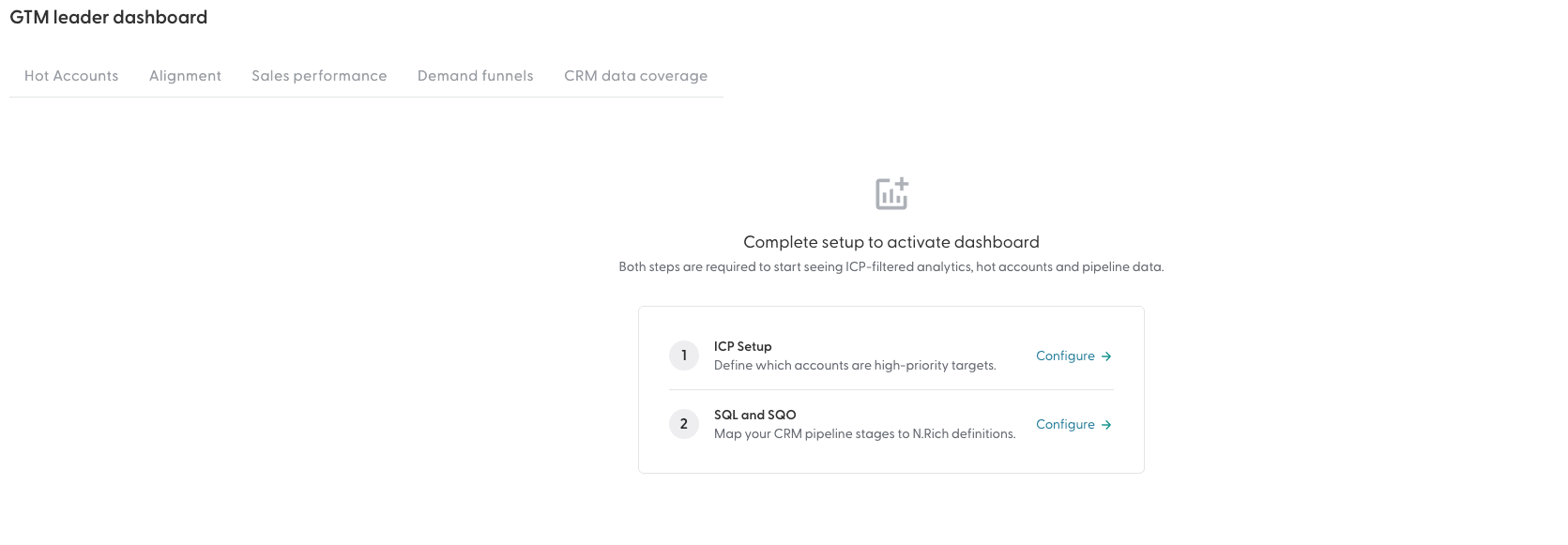
The GTM dashboard requires a one-time setup before it becomes usable.
Two configurations must be completed: ICP and SQL/SQO setup.
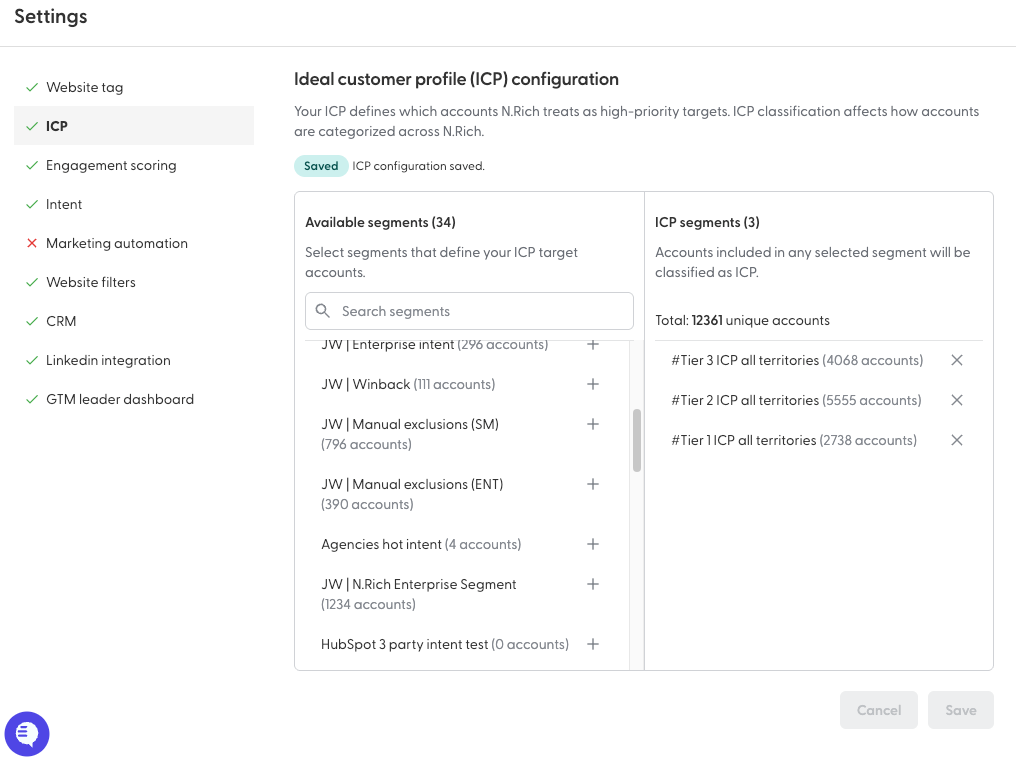
ICP Setup: Navigate to ICP either by clicking the Configure button in the setup wizard, or by going to Settings (cog icon) and selecting ICP. Once there, select the relevant segments and confirm by clicking Save.
SQL/SQO Setup: Navigate to SQL/SQO either by clicking the Configure button in the setup wizard, or by going to Settings (cog icon) and selecting GTM Leader Dashboard. Once there, select the relevant stages for each SQL and SQO and values will be automatically saved.
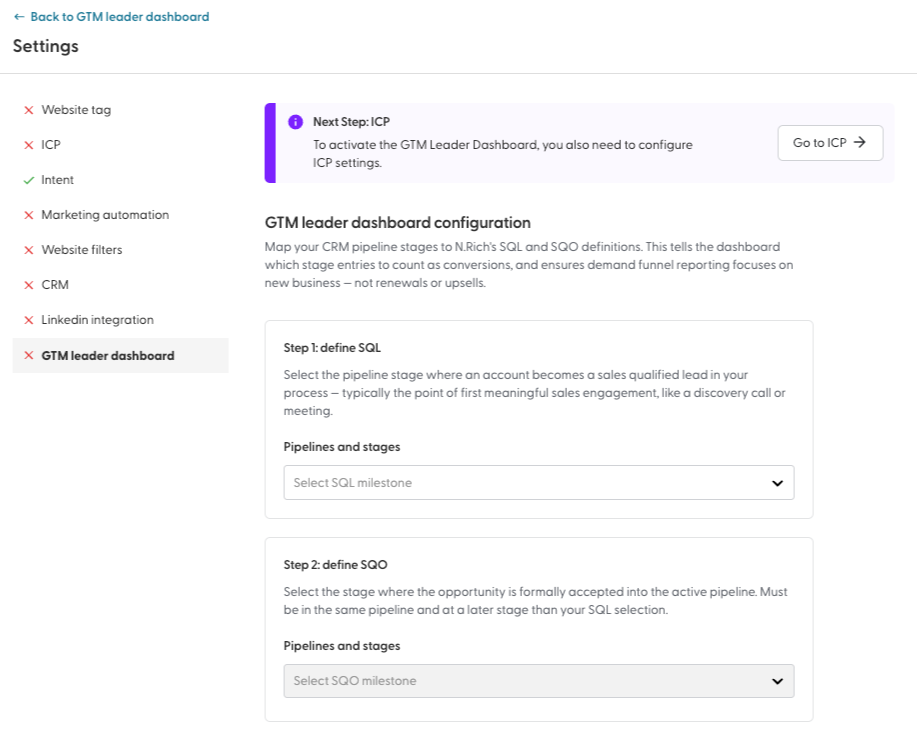
Both steps can be done in sequence from within the setup flow. After completing ICP, you can either return to the dashboard or continue directly to SQL/SQO configuration.
If only one of the two steps has been completed, the dashboard displays a status indicating which configuration is done and which is still pending.
Upon completing the setup, you will be able to see your GTM dashboard by navigating to Analytics > GTM Leader Dashboard.
Dashboard-wide filters
The GTM Leader Dashboard holds 4 tabs (Hot accounts, Alignment, Sales performance, CRM data coverage).
All tabs are fixed to a 6-month time-frame.
Every tab has a filter that lets you switch between ICP / Non-ICP / All accounts.
Every table across these tabs can be exported.
Date range

On all tabs, the date range is fixed to the last 6 months (rolling - today minus 6 months to today).
ICP filter (Select view)
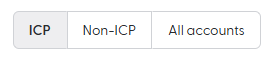
Filters all tabs to show All accounts, ICP accounts only, or Non-ICP accounts only.
Fields that always reflect today's live values, regardless of the selected period:
CRM stage
ICP classification
Pipeline stage
Open opportunity amounts
How accounts are scored on this dashboard
The buyer journey stages shown on this dashboard (Cold, In-market, Engaged, Hot) are based on a background scoring process specific to the GTM Leader Dashboard. This is distinct from any individual intent report you have configured in N.Rich.
The background scoring uses:
All accounts tracked on your website - not filtered to specific segments or intent reports
A union of all topics across all intent reports you have created - giving the broadest possible signal coverage
Predefined model weights - not the custom weights set in individual intent reports
This means an account's stage classification on the GTM Leader Dashboard may differ from its ranking in a specific intent report. That is expected - the dashboard uses a broader, standardized view designed to surface all high-intent accounts across your full tracked universe, rather than within any single configured report.
If you see an account classified as Hot on the GTM dashboard but not in a specific intent report (or vice versa), the difference is explained by this broader data scope and the standardized weighting.
Tab-by-tab guide
Hot Accounts
This tab answers: which high-intent accounts exist, and are they getting the attention they need?
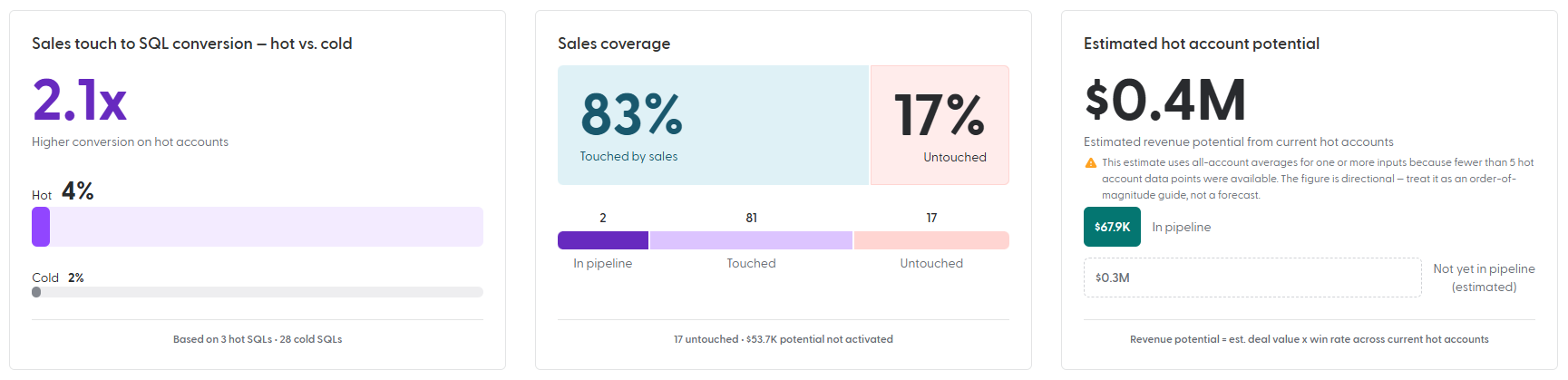
Sales touch to SQL conversion
Compares the observed rate at which sales-touched hot accounts convert to SQL versus cold accounts - accounts that never reached Hot stage in the same 6-month window.
The multiplier (e.g. 2.1×) = hot SQL rate ÷ cold SQL rate. Conversion is measured within a 6-month window after each qualifying touch. The sample size (e.g. "Based on 3 hot SQLs · 28 cold SQLs") is shown below the bars.
Important: this is an observed correlation, not proof that N.Rich engagement causes higher conversion. Account quality, rep focus, and deal timing also influence SQL rates. Accounts touched in the last 90 days may not yet have had time to convert, which can slightly lower the rate at the tail of the period.
Sales coverage
Shows the share of hot accounts that have received at least one CRM-logged sales touch since they became hot. Broken into three segments: In pipeline, Touched (not yet in pipeline), and Untouched.
The dollar callout on untouched accounts estimates the revenue at risk from accounts not yet activated by sales.
What counts as a touch: any CRM-logged activity - call, email, LinkedIn message, LinkedIn InMail, SMS, WhatsApp, or meeting. Touches that happen outside the CRM are not visible here.
Estimated hot account potential
A directional estimate of the total revenue opportunity across current hot accounts. This is a model, not a forecast - use it as an order-of-magnitude guide.
How it's calculated:
Pre-pipeline accounts (no open opportunity): Count × touch→SQL conversion rate × SQL→Won rate × avg deal size. All inputs are based on hot account data from the last 18 months, excluding the most recent 3 months.
In-pipeline accounts (open opportunity exists): For each account: deal value × stage-specific win rate
Deal value = CRM opportunity amount if > 0, otherwise hot account avg deal size
SQL stage → SQL→Won rate
SQO stage → SQO→Won rate
Post-SQO stage → SQO→Won rate (grouped)
Low data warning (⚠): when fewer than 5 hot account data points exist for any input (conversion rates or deal size), the system substitutes the all-account equivalent from the last 6 months, excluding the most recent 3 months. When this fallback is active, a warning appears on the card: "This estimate uses all-account averages for one or more inputs because fewer than 5 hot account data points were available." The figure is still directional - treat it as a guide, not a forecast.
Accounts table

Lists all hot accounts with stage tabs: Pre-pipeline, SQL, SQO, Post-SQO, Won. Stage tabs reflect current CRM pipeline state, not the state at the time the account became hot.
Columns include sales touch status, marketing and sales touch counts, last touch dates, ICP classification, and CRM stage. Use Edit columns to customise and Export table to download.
Alignment
This tab answers: how quickly and thoroughly is sales engaging hot accounts?
Hot account activation
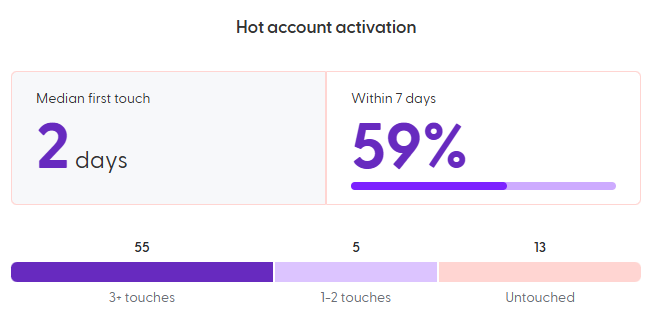
Two speed metrics and three depth buckets give a complete activation picture.
Speed metrics - measured from each account's first hot detection date within the 6-month window:
Median first touch: median days from first hot detection to first CRM-logged sales touch. Median is used to reduce distortion from outliers.
Within 7 days: share of touched hot accounts that received their first touch within 7 days of first hot detection. Seven days is the benchmark response window.
Depth metrics - measured from each account's most recent hot date:
3+ touches: accounts with three or more CRM-logged touches since most recent hot date.
1–2 touches: accounts with one or two touches.
Untouched: accounts with no recorded touch since most recent hot date.
Hot account coverage over time
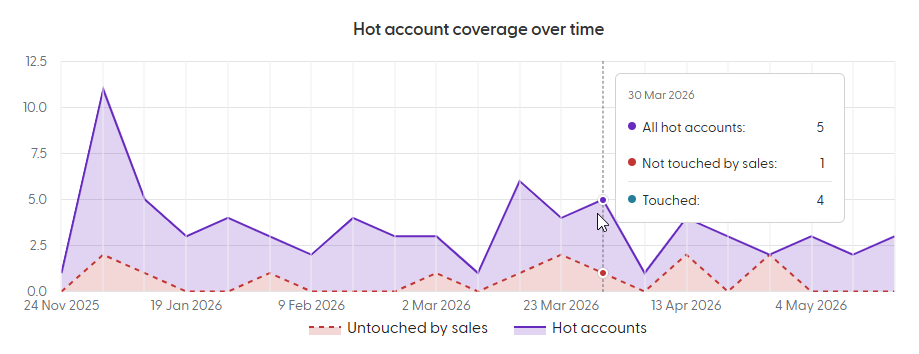
Tracks total hot accounts (purple line) against untouched hot accounts (pink area) over the last 6 months, plotted weekly. The gap between the lines = accounts that have been reached by sales.
A widening gap means sales is keeping pace with new hot accounts. A narrowing gap means the untouched backlog is growing.
Touch timestamps are used as-is - an account touched next week will show as Untouched this week. There is no retroactive adjustment.
Account table
Lists all hot accounts with individual activity type columns (calls, emails, LinkedIn messages, meetings, etc.), total sales touches, date first marked as hot, and current CRM stage.

Sales performance
This tab answers: how is sales effort distributed, and how are individual reps performing?
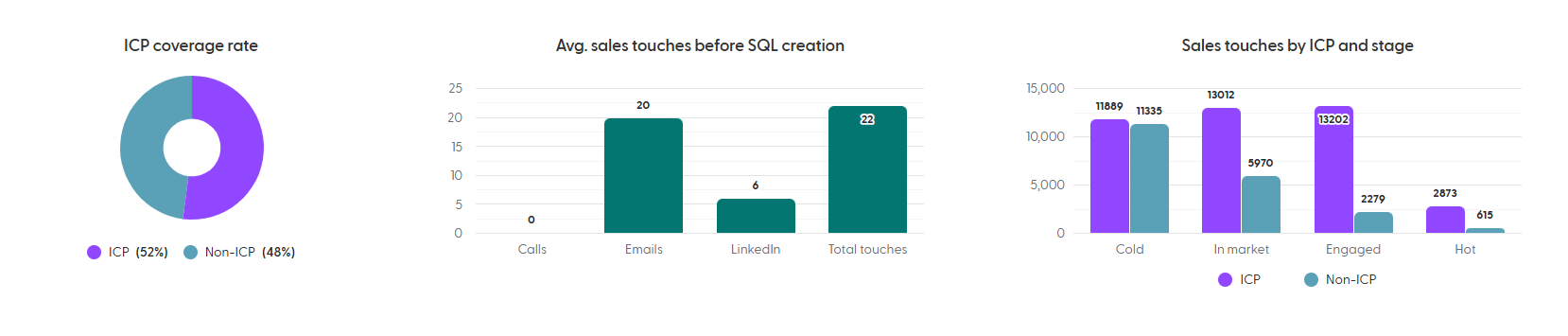
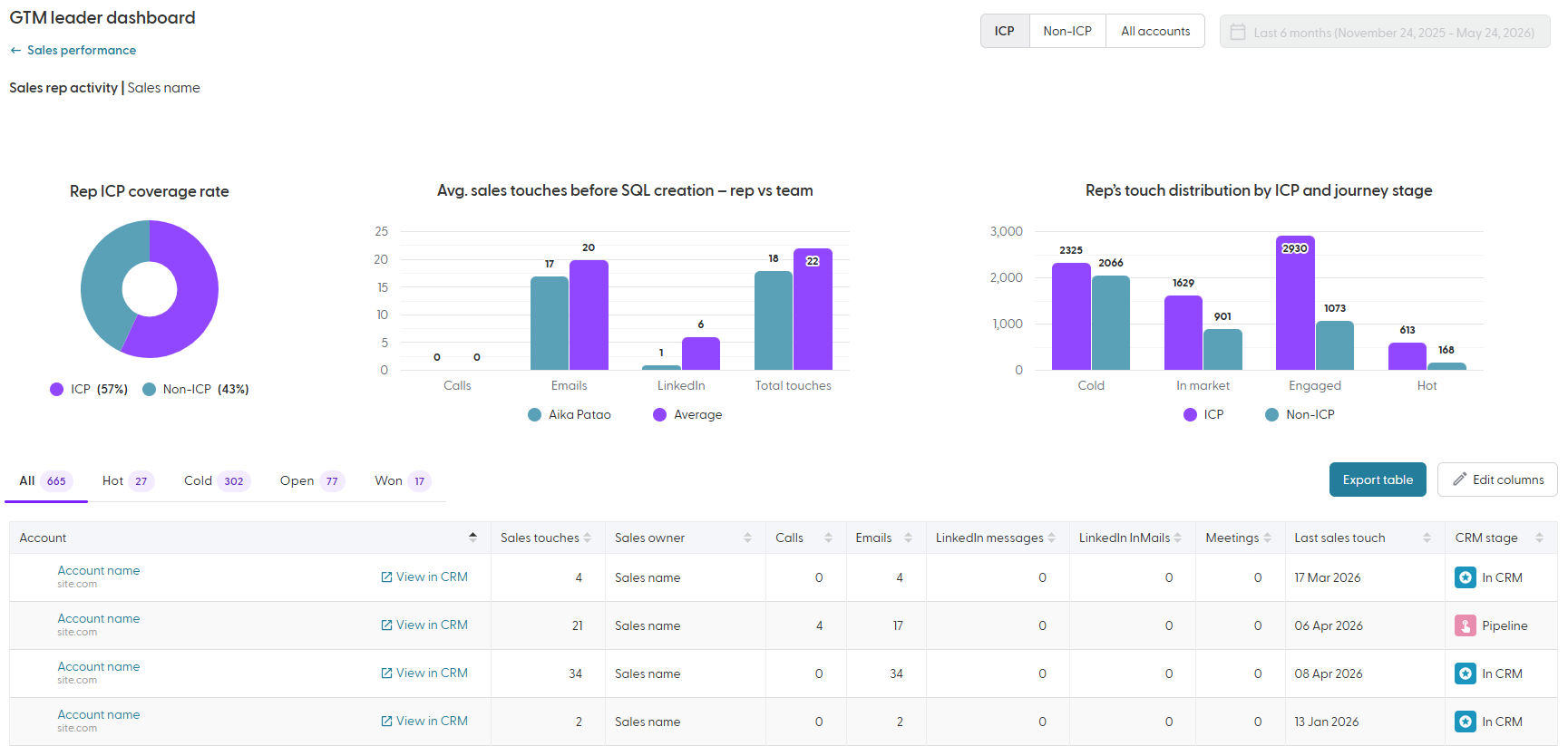
ICP coverage rate
Donut chart showing the share of all sales touches in the last 6 months directed at ICP versus Non-ICP accounts. Always shows all accounts - not filtered by the Select view ICP filter.
Use this as a focus indicator: a high ICP share means sales effort is concentrated on your highest-priority targets. It doesn't tell you whether those touches are high quality.
Avg. sales touches before SQL creation
Bar chart showing the average number of sales touches logged before accounts entered the SQL stage, for accounts that reached SQL within the last 6 months.
Looks back at all CRM-logged touches on that account before the SQL stage entry date. Touches may predate the selected period.
This is a pre-opportunity activity metric - it is not filtered by whether the deal was won, lost, or remains open.
Sales touches by ICP and stage
Grouped bar chart showing total sales touches split by buyer journey stage (Cold, In-market, Engaged, Hot) and by ICP vs Non-ICP. Both the touch date and the engagement signals used to classify the buyer journey stage must fall within the last 6 months. Always shows all accounts - not filtered by the Select view ICP filter.
Bellow these charts there is a table showcasing individual sales representatives and their performance - this table can be filtered by rep name, as well as two progression stages - Hot and Cold, in addition to two opportunity stages - Open and Won. In terms of data points, the table holds the total number of sales touches per sales rep, broken down onto calls, emails, LinkedIn messages and InMails as well as meetings.
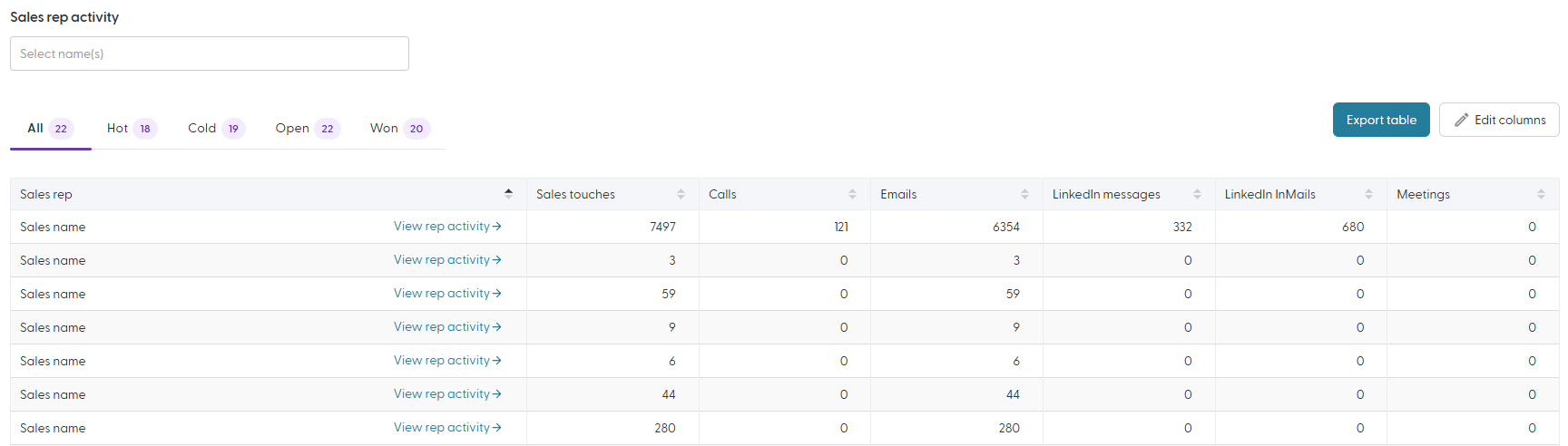
Sales rep activity table and rep drill-down
The rep table lists all reps with activity counts. Click View rep activity to see:
That rep's ICP coverage rate compared to the team
Their avg. touches before SQL versus team average
Their touch distribution by ICP and buyer journey stage
An account-level activity table
CRM Data Coverage
This tab answers: is our team consistently logging activity in the CRM?
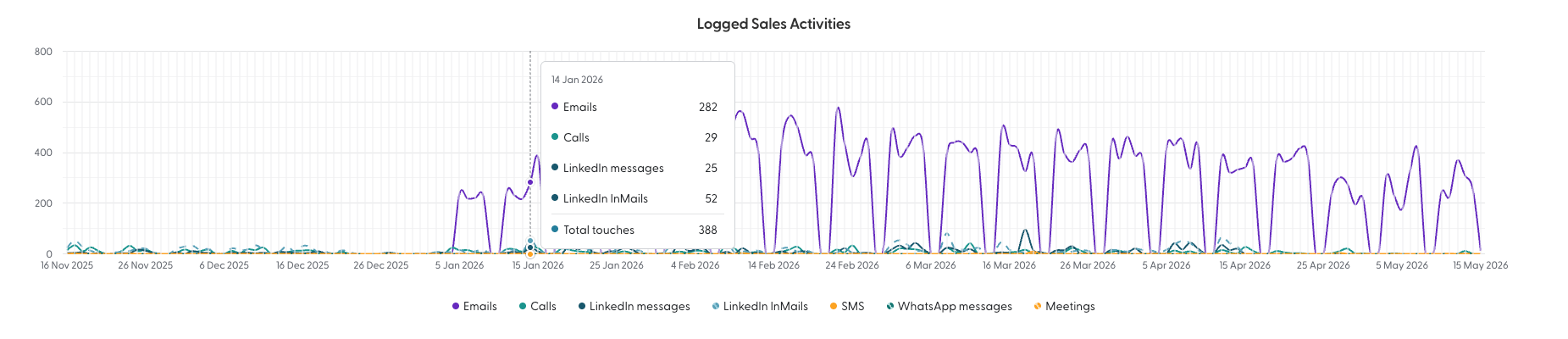
The CRM Data coverage tab holds a graph of all sales activities that occurred over the defined period of time, across meetings, emails, LinkedIn messages and InMails.
This tab answers: is our team consistently logging activity in the CRM?
Viewing data on the CRM Data Coverage Chart
Hovering anywhere along the line chart on the CRM Data Coverage tab reveals individual data point dots and tooltips, allowing you to inspect exact values at any point in time.
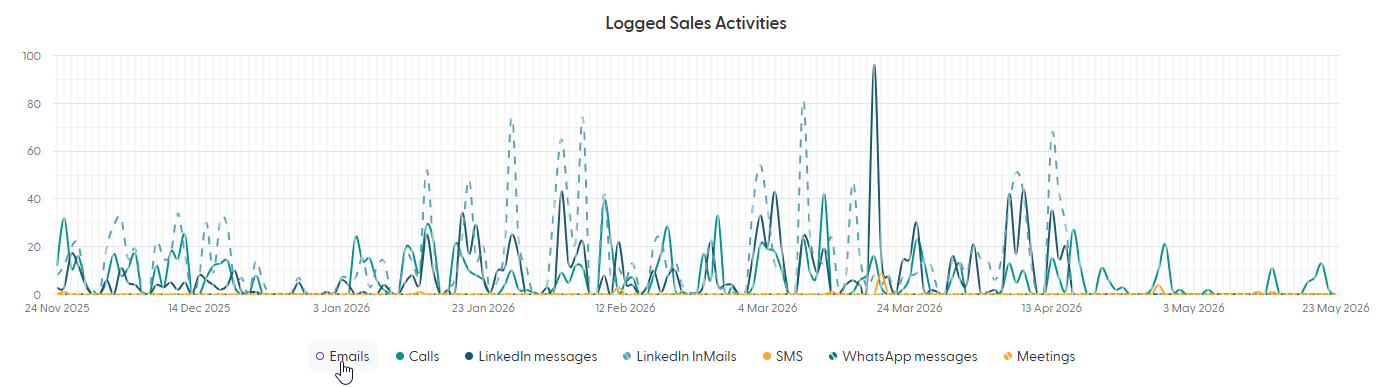
You can hide a specific type of Sales Activities on the chart by click.
Bellow it is a table with a monthly breakdown of these activities. With the ability (toggle) to display only activities for hot accounts.
