Troubleshooting the Salesforce Integration
Last updated: October 2, 2026
Use this guide if your Salesforce integration is not connecting, has stopped syncing, or shows an error. For the full setup steps, see Salesforce Integration.
The sync has stopped and N.Rich asks you to reauthorise
When the Salesforce authorisation expires, N.Rich can no longer sync with your Salesforce instance. Admins of your N.Rich account will see an alert across most pages in the platform.
To fix it:
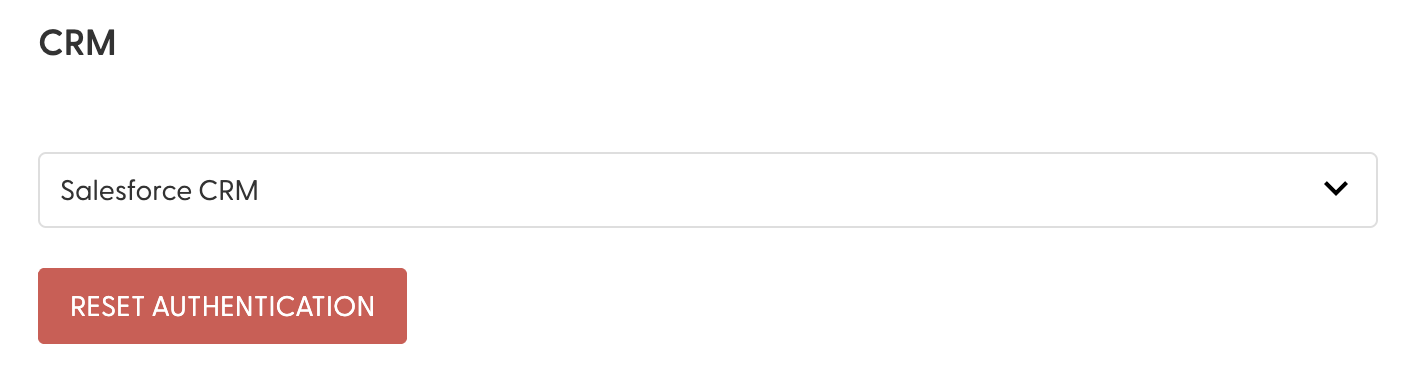
Go to Settings (cog icon) > CRM > Salesforce CRM.
Reconnect Salesforce.
The next sync will backfill any data that couldn't be pushed while the connection was down.
The sync still doesn't work after reconnecting
This usually means the N.Rich app was installed manually from the Salesforce AppExchange before connecting from N.Rich. When that happens, Salesforce doesn't send N.Rich the information it needs to keep the connection active, so the sync stops again even after you reconnect.
The N.Rich app is installed automatically when you connect from N.Rich. It should never be installed from the AppExchange.
To fix it:
In Salesforce, go to Setup > Apps > Packaging > Installed Packages.
Find the N.Rich package and click Uninstall.
Confirm the uninstall.
In N.Rich, reconnect Salesforce from Settings (cog icon) > CRM > Salesforce CRM.
Let us know via the chat once it's done, so we can confirm the connection is working on our end.
Reconnecting alone will not fix this. Uninstall the app from the AppExchange first, then reconnect from N.Rich.
You can't uninstall the N.Rich app
Some Salesforce orgs have internal policies that require apps to stay installed. If you see an error such as "app must be installed into org", or your Salesforce admin can't remove the app, reach out to your Solutions Engineer. They will work with your Salesforce admin to resolve it.
You get an OAuth error when connecting
The Salesforce user you're connecting with is missing the Approve Uninstalled Connected Apps permission. Without it, Salesforce blocks the connection.
To fix it:
In Salesforce, open the profile or permission set assigned to your N.Rich API user.
Under System Permissions, enable Approve Uninstalled Connected Apps.
Save, then try connecting again from N.Rich.
You can't connect with an Integration User licence
The N.Rich integration needs a full Salesforce licensed user. The Salesforce Integration User licence is not supported because the connection uses a browser-based login (OAuth), which that licence doesn't allow.
To fix it: create a dedicated user with a full Salesforce licence and connect with that user. See the SFDC User prerequisites in Salesforce Integration.
The connection drops or fails because of IP restrictions
If your Salesforce org restricts access by IP address, N.Rich must be allowed to connect.
Check the following:
All N.Rich IP addresses are added as trusted IPs in Salesforce. See the full list under Whitelisting IPs in Salesforce Integration.
Lock sessions to the IP address from which they originated is turned off. N.Rich doesn't always connect from the same IP address, so this setting can break the connection. In Salesforce, go to Setup > Session Settings and uncheck this option.
Need help? Reach out via the chat in the bottom-left corner of the N.Rich platform. Our solution engineering team is happy to assist.