Advertising Budget Management
Last updated: September 23, 2026
This feature is available only to users with Admin level privileges.
The Ad credit option in the top-right sidebar gives you a simple overview over your allocated Ad credit.
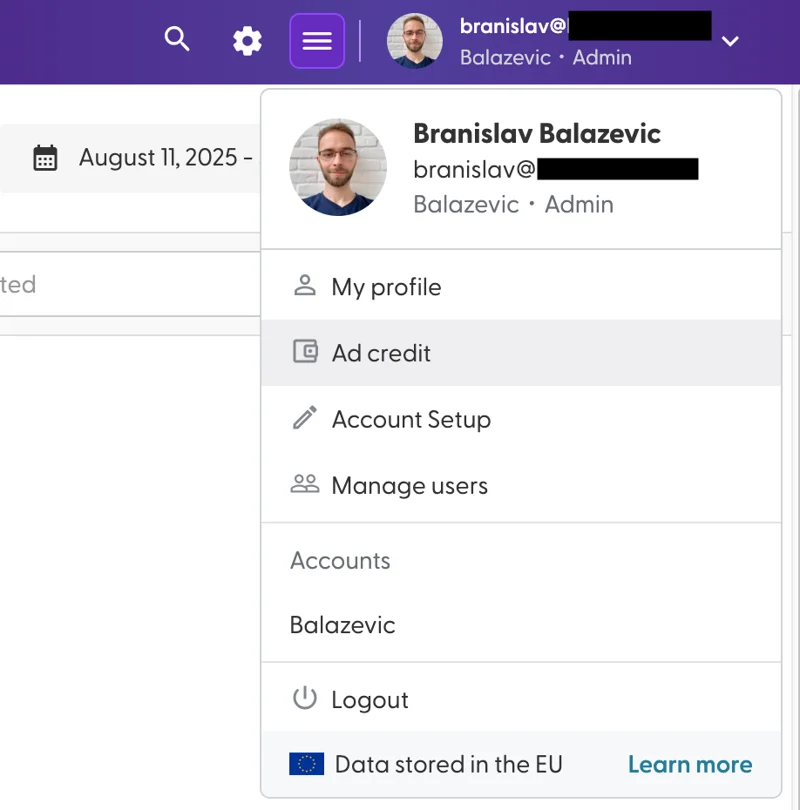
The page itself is quite straight forward:
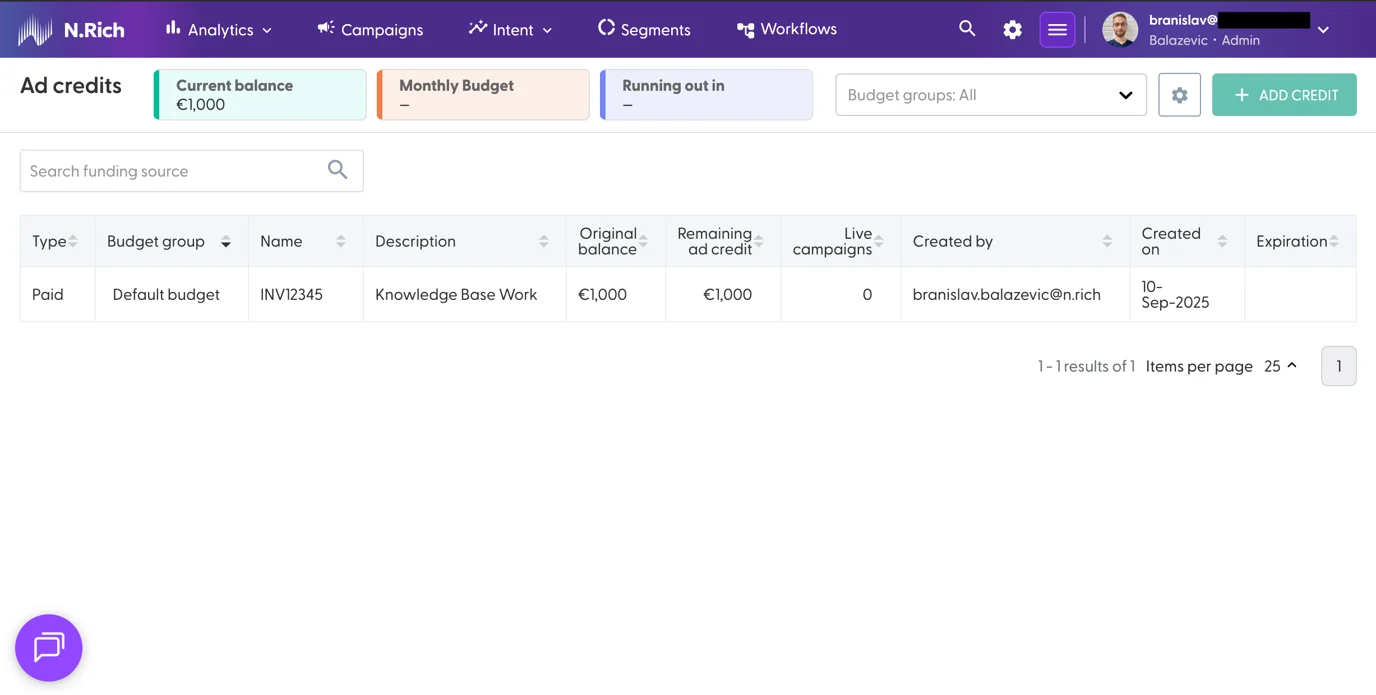
At the top, you can see your Current, available Balance. Next to it, the Monthly Budget and timeframe when we expect the budget to run out will become populated once we launch our first campaign - we shall revisit this view then.
To the right, you will notice a framed cog wheel, next to a disabled "Add credit" button - while it is not possible to add more ad credit yourself, we do plan on enabling users to do so in the future. Until then, in case you need more ad credit, let your Account Manager know (or chat with Support, and we will connect you to them)
The framed cog wheel allows you to set up Budget Groups:
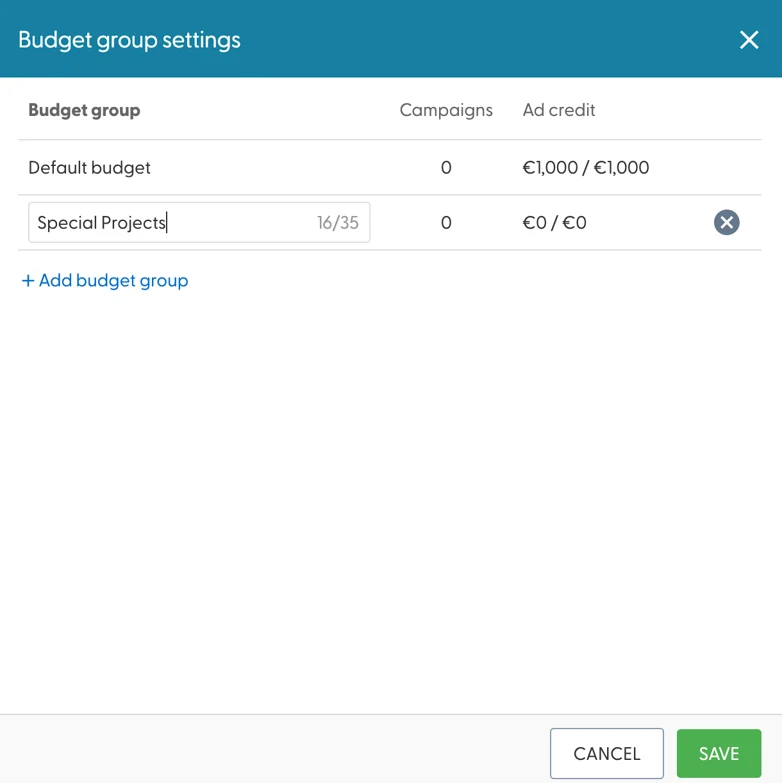
These come in handy, because you can assign specific budget groups to specific ad campaigns to prevent them from overspending. Their names can have up to 35 characters which allows forming decent naming systems.
If you decide to utilise budget groups, you should inform your Account Manager or the Support team how your available credit should be split between them.
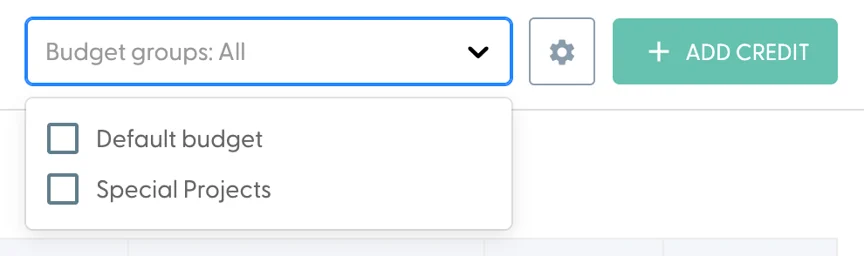
Upon creating a few budget groups, it becomes possible to filter the underlying table to one or multiple budget groups at once:
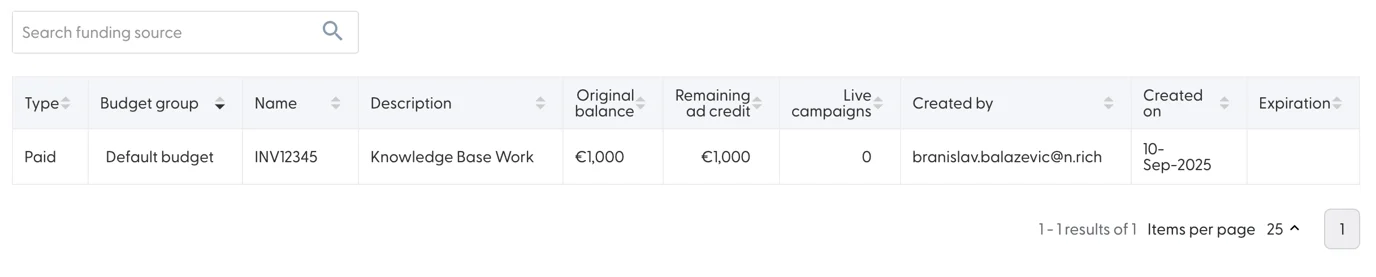
In terms of the table itself, each line of credit acts as a separate budget pot - here you will be able to see how much ad credit remains in each individual pot and how many campaigns are currently live and drawing from a specific pot.
The search bar above the table can filter the available budgets by name or description.
Budget Auto Rollover
If a campaign underspends during its ramp-up phase, the un-spent budget can automatically carry over to the following week — capped at 20% of the monthly budget. This gives campaigns a chance to catch up on spend once targeting and creatives are dialed in, without any manual adjustments.
How to enable it
This setting is available to Admin users only.
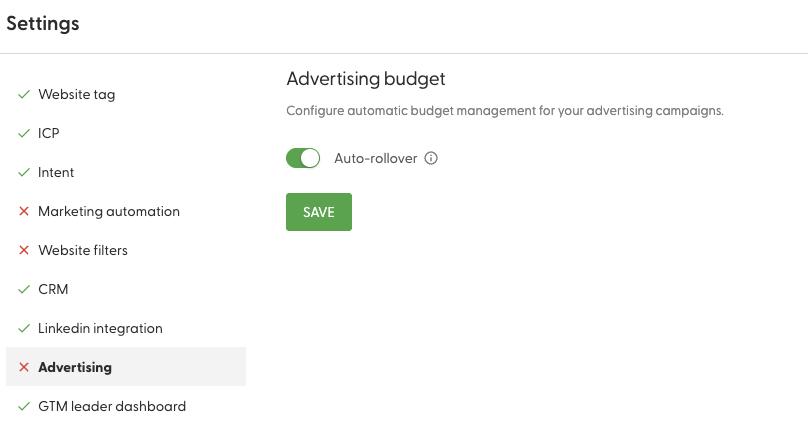
Open Settings → Advertising
Toggle Auto-rollover ON
Click Save
The change takes effect immediately. If your campaigns underspent the previous week, you'll see boosted budgets within seconds.
How it appears in the UI
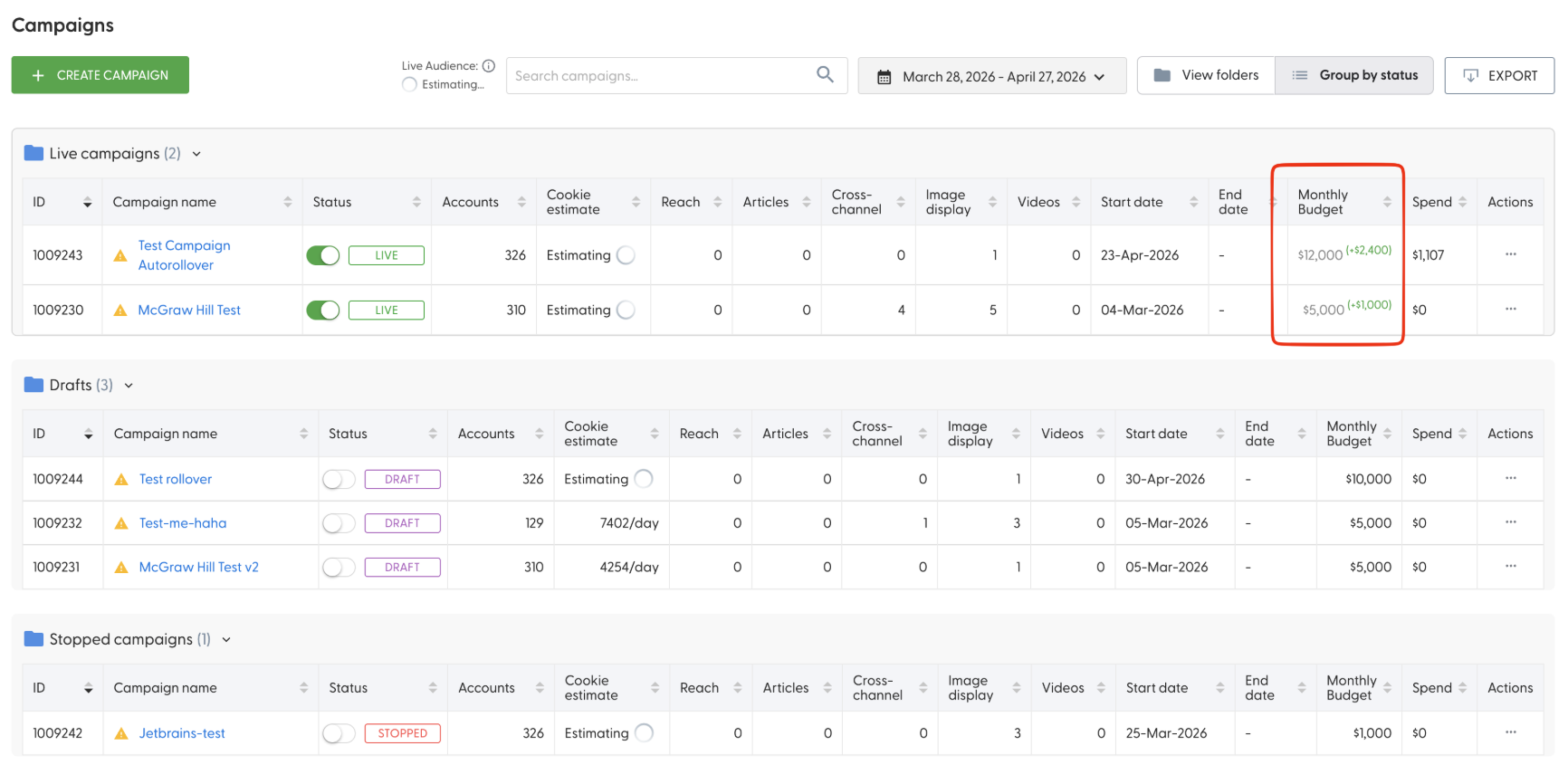
In the campaign list, affected campaigns show their original monthly budget plus a green (+$Y) badge. Hovering the badge shows the breakdown. On the campaign edit page, a banner below the Monthly Budget field reads: "Auto-rollover active: Original $X + $Y rollover = $Z effective."
How it works
A campaign must underspend by more than 10% to earn rollover — minor variance won't trigger it
Rollover is capped at 20% of the monthly budget per week and does not compound across weeks
If a campaign catches up (reaches 90%+ of its weekly target), rollover resets to zero the following Tuesday
Editing a campaign's monthly budget resets its rollover to zero; the new amount becomes the baseline
To disable: Flip the toggle OFF in Settings → Advertising and confirm. All campaigns immediately return to their original budgets.