How to set up the GTM Leader Dashboard
Last updated: October 9, 2026
The GTM Leader Dashboard needs a one-time setup before it shows data: your ICP and your SQL/SQO stages. Only users with the Admin role can complete it.
Non-admin users who open the dashboard before setup is complete see a message asking them to contact their administrator. If you're not an admin, ask an admin on your team or your Solutions Engineer.
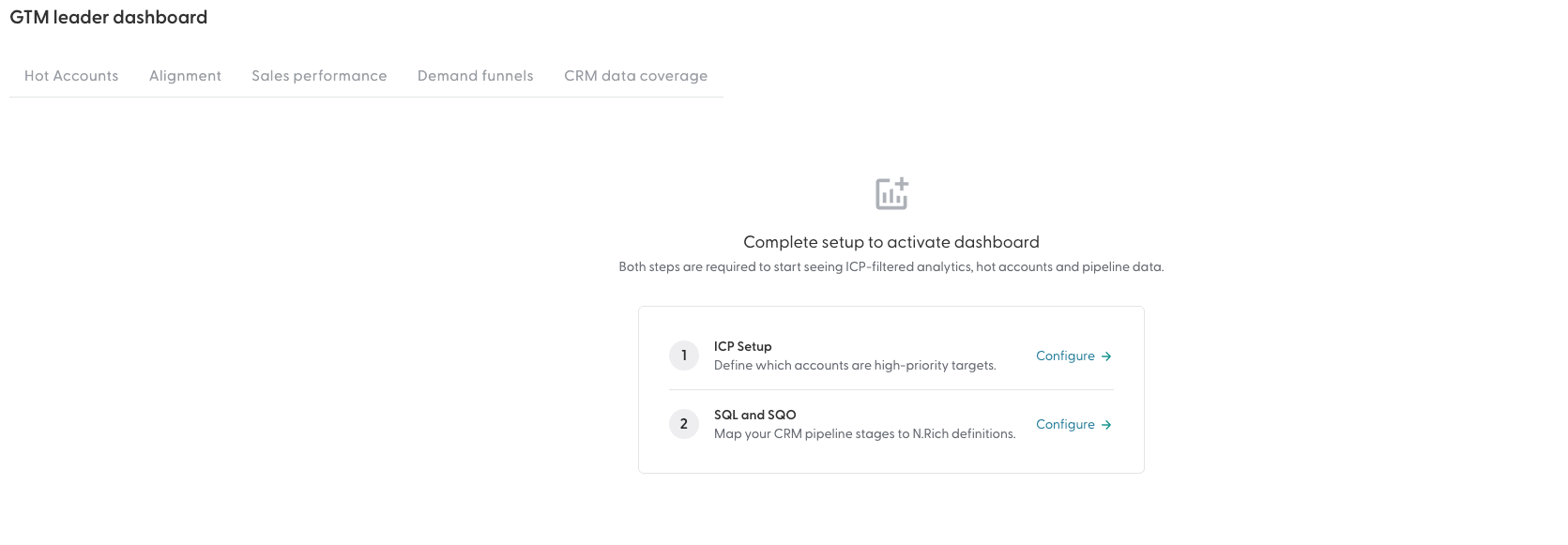
Step 1: Set up your ICP
Click Configure in the setup wizard, or go to Settings (cog icon) and select ICP.
Select the segments that make up your ICP.
Click Save.
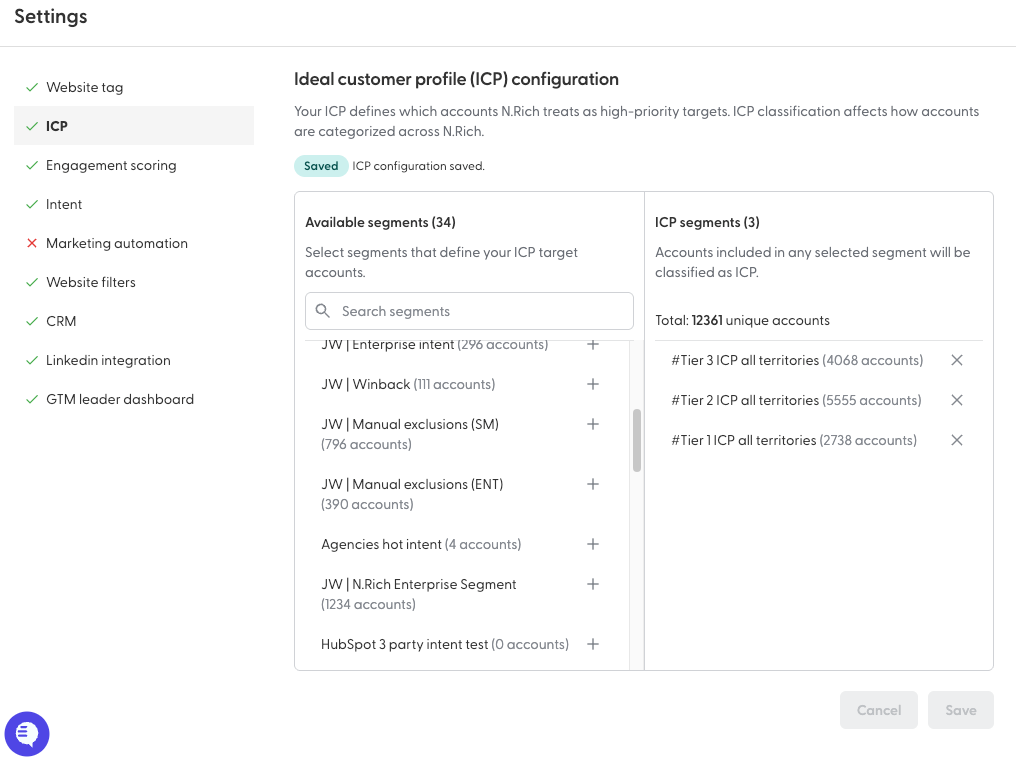
For more on ICP settings, see What is Sales Velocity ICP?
Step 2: Set up SQL and SQO stages
Click Configure in the setup wizard, or go to Settings (cog icon) and select GTM Leader Dashboard.
Select the CRM stages that count as SQL and as SQO. Your choices save automatically.
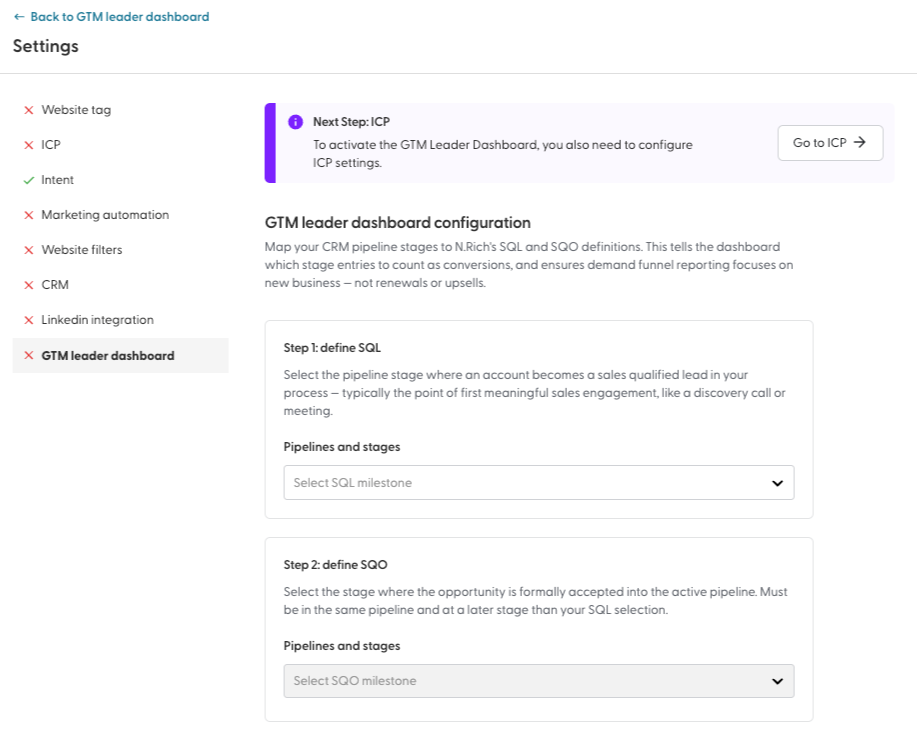
You can do both steps in one go: after the ICP step, either go back to the dashboard or continue straight to SQL/SQO. If only one step is done, the dashboard shows which one is still pending.
When both are done, open the dashboard from Analytics > GTM Leader Dashboard.
What's next
Need help? Reach out to your Solutions Engineer via the chat in the bottom-left corner of the N.Rich platform, by email or Slack.